
Storage views
A storage view is a high-performance shared file system mount attached to a fleet and available on its nodes. Each view has a mount point (for example /data), a provisioned size, and quotas.
Sizes and quotas
All sizes are bytes and must be a positive multiple of 1 MiB (1,048,576 bytes).
| Field | Meaning |
|---|---|
size |
Provisioned size. This is the same as the hard quota. |
hardLimit |
Hard quota. Writes fail beyond this. It's an alias for size: if you send both, they must be equal. |
softLimit |
Soft quota. Must be less than or equal to the hard quota. If you only send size or hardLimit, the soft quota is set to 90% of it. |
Common sizes:
| Size | Bytes |
|---|---|
| 500 GiB | 536870912000 |
| 1 TiB | 1099511627776 |
| 10 TiB | 10995116277760 |
View states
state |
Meaning |
|---|---|
provisioning |
The view is being created. |
modifying |
A size or quota change is being applied. |
active |
Ready to use. |
terminating |
The view is being deleted. |
unhealthy |
Something went wrong. Stop polling and contact support. |
Adding and updating views are asynchronous: poll the view until state is active, or stop if it becomes unhealthy.
List storage views
Console
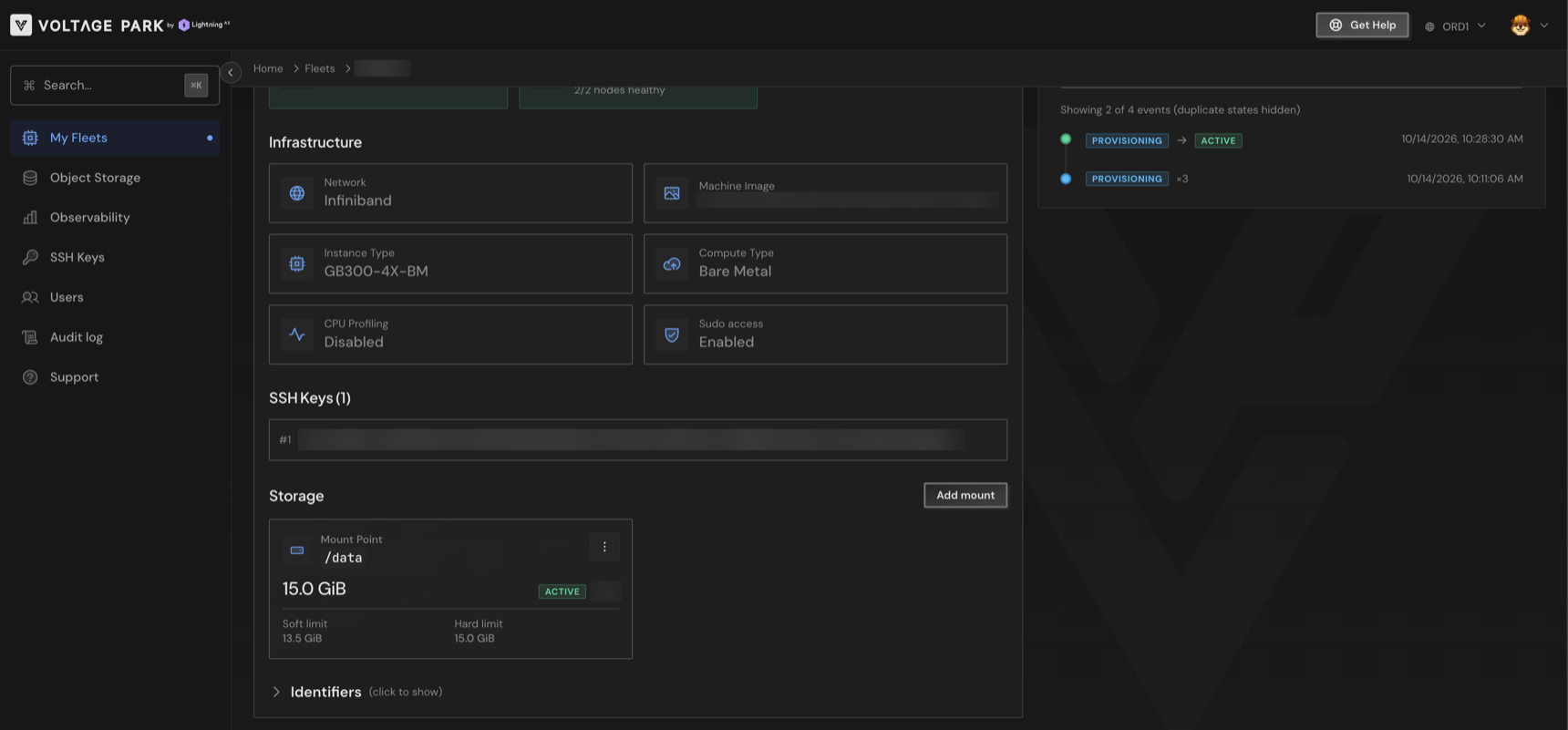
Open the fleet in My Fleets and scroll to the Storage section of the Overview tab. Each mount shows its mount point, provisioned size, state, and soft and hard limits.
API
curl "$API_URL/v1/fleets/$FLEET_ID/storage/views" -H "Authorization: Bearer $TOKEN"{
"items": [
{
"mountPoint": "/data",
"size": 1099511627776,
"hardLimit": 1099511627776,
"softLimit": 989560464998,
"state": "active"
}
],
"storagePending": false
}If the fleet's storage hasn't been created yet, items is empty and storagePending is true.
Add a storage view
The mount point is a single path segment under / made of letters, digits, _, and -, up to 128 characters. It can't be changed after creation.
Console
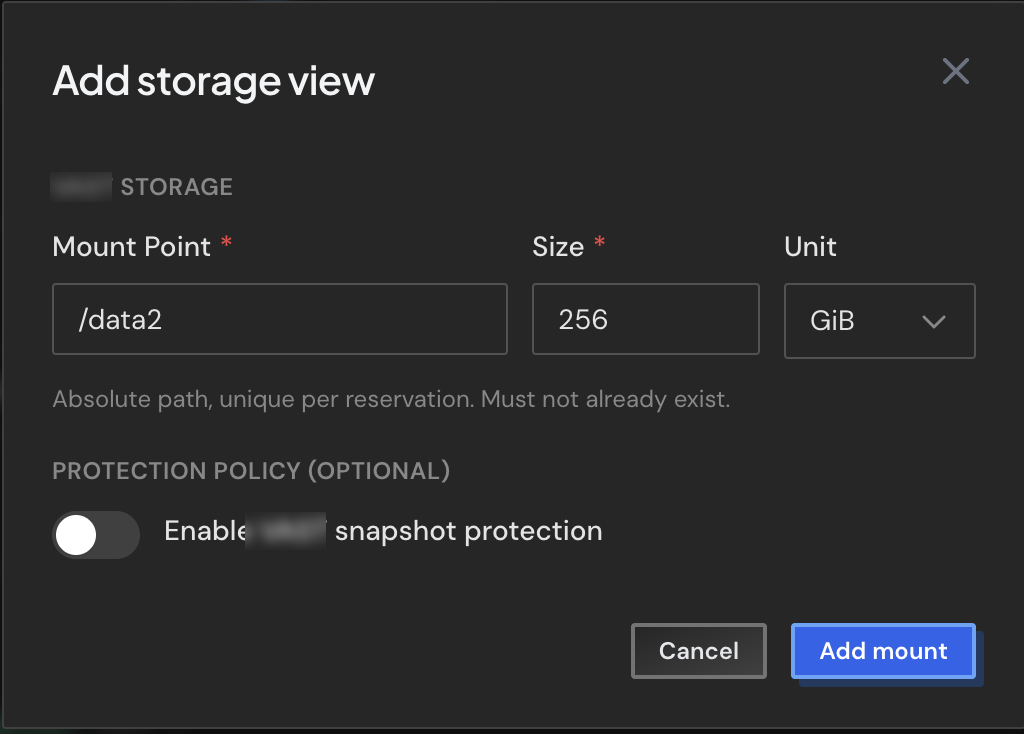
In the fleet's Storage section, select Add mount. In the Add storage view dialog:
- Enter the Mount Point, for example
/data2. It must not already exist on the fleet. - Enter the Size and choose a Unit, for example 256 GiB.
- Optionally, turn on snapshot protection.
- Select Add mount.
API
curl -X POST "$API_URL/v1/fleets/$FLEET_ID/storage/views" \
  -H "Authorization: Bearer $TOKEN" \
  -H "Content-Type: application/json" \
  -H "Idempotency-Key: $(uuidgen)" \
  -d '{
    "mountPoint": "/data",
    "size": 536870912000,
    "softLimit": 429496729600
  }'
Returns 202 Accepted with the new view in state provisioning.
Get a storage view
In the URL path, use the mount point without the leading slash: /data becomes data.
curl "$API_URL/v1/fleets/$FLEET_ID/storage/views/data" -H "Authorization: Bearer $TOKEN"Resize a view or change quotas
Console
In the fleet's Storage section, open the mount's ⋮ menu and choose to expand it, then enter the new size.
API
curl -X PATCH "$API_URL/v1/fleets/$FLEET_ID/storage/views/data" \
  -H "Authorization: Bearer $TOKEN" \
  -H "Content-Type: application/json" \
  -d '{"size": 1099511627776, "softLimit": 858993459200}'
Returns 202 Accepted, and the view enters state modifying. Sending only size resets the soft quota to 90%.
Resize all views at once
POST /storage/modify sets the size of every view on the fleet in one request. List every existing mount point: requests with missing or extra mount points are rejected. The fleet stays available during the resize.
curl -X POST "$API_URL/v1/fleets/$FLEET_ID/storage/modify" \
  -H "Authorization: Bearer $TOKEN" \
  -H "Content-Type: application/json" \
  -H "Idempotency-Key: $(uuidgen)" \
  -d '{
    "storageViews": [
      { "mountPoint": "/data",    "size": 10995116277760 },
      { "mountPoint": "/scratch", "size": 1099511627776 }
    ]
}'{
"fleetId": "f81d4fae-7dec-11d0-a765-00a0c91e6bf6",
"status": "success",
"message": "Storage modification request submitted successfully"
}To change one view, use PATCH instead.
Delete a storage view
This destroys data
Deleting a view deprovisions the underlying storage. All data on the mount point is permanently deleted, and the mount disappears from fleet nodes. This can't be undone.
curl -X DELETE "$API_URL/v1/fleets/$FLEET_ID/storage/views/data" -H "Authorization: Bearer $TOKEN"Returns 204 No Content. In the console, delete a mount from its ⋮ menu in the fleet's Storage section.
Was this page helpful?
Thanks for the feedback.