
Collaboration
AI development requires multiple functions coming together: data science, research, engineering, design, and product management. Lightning AI was designed to enable all functions to work together to build AI systems.
Collaboration happens at every level in Lightning AI.
Within a Studio
Live coding
A Studio owner can invite anyone to code on the Studio with them. Simply click "Share" and share the link with whomever you want to collaborate with.
Share a studio with a live session.
Collaborators will be able to code, manage the environment, etc. This is a great tool to help junior developers, clients, or peers debug their environments or code. Instead of sending a Docker image to build and instructions on how to set up an environment, just send a link to the Studio.
Allow anyone to access
Turn on Studio sharing to allow any teamspace member to work on the Studio on their own. Use this when multiple people need to contribute to the same Studio. This will allow them to turn on/off the Studio even if they are not the author.
Turn on Studio sharing to allow any teamspace member to work on the Studio on their own.
Within a teamspace
Duplicate Studios
Studio duplication is like cloning your whole laptop and shipping it to someone else.
Studio duplication.
Any member in a teamspace can duplicate any Studio. When a Studio is duplicated, it will contains the environment, files, data, etc., of the original. There is zero setup required once the Studio has been duplicated.
Duplicating Studios includes their environment, files, data, etc.
Access shared files
Members of the same teamspace have access to all its Studios, files, data, secrets, and environment variables.
The teamspace is the main unit where you can organize teams of people working together and multiple facets of a project. For example, you might be developing a fraud model that requires a few different Studios, datasets, and team members and external collaborators. This is what the teamspace solves.
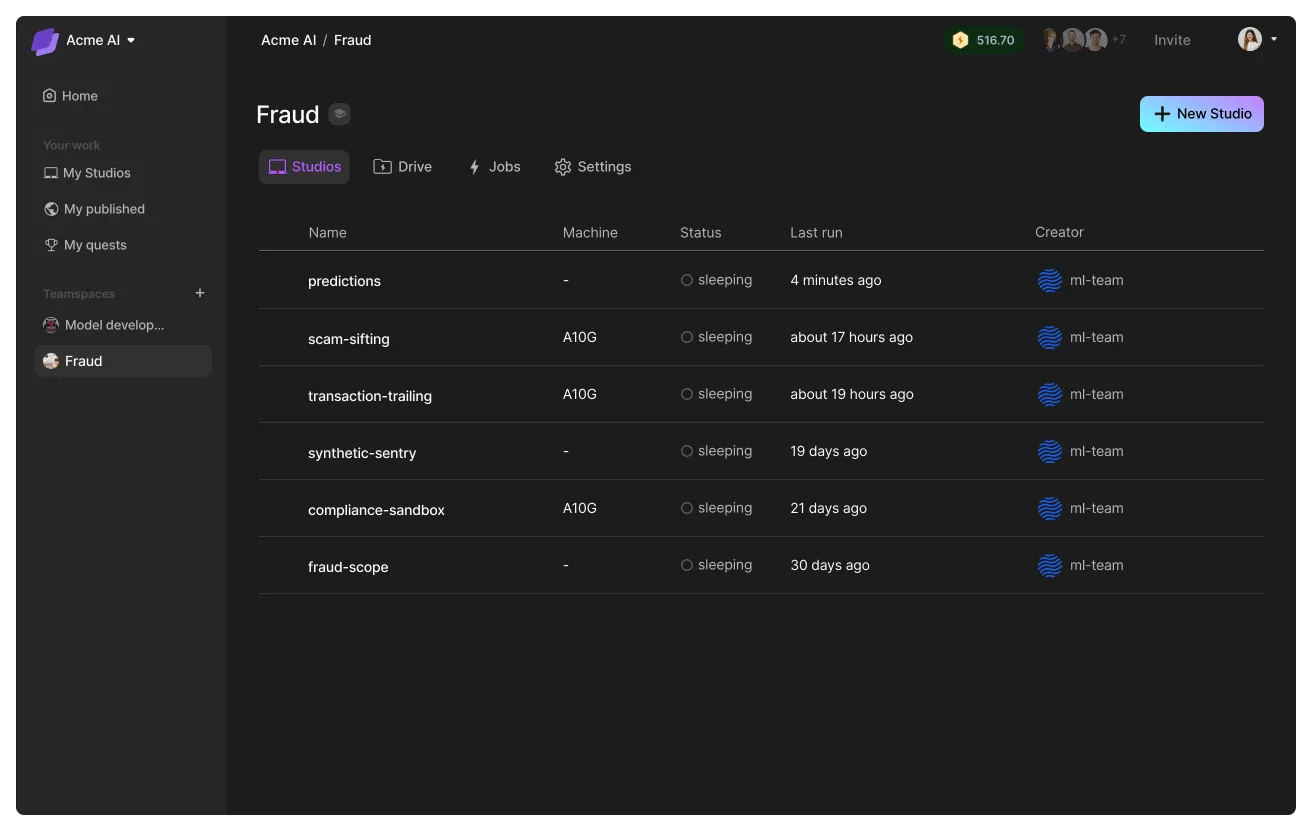
Code on someone's Studio
Click "share" to enable anyone in the teamspace to edit the Studio. This is helpful when working on joint Studios together. Anyone in the teamspace will be able to make changes to the Studio as if they were the owner.
Share "Studio access" to enable anyone in the teamspace to start, sleep and edit your Studio.
Publish Studios
To share Studios outside the Teamspace, publish the Studio in the public community. This will allow anyone on the internet to duplicate Studios into their accounts.
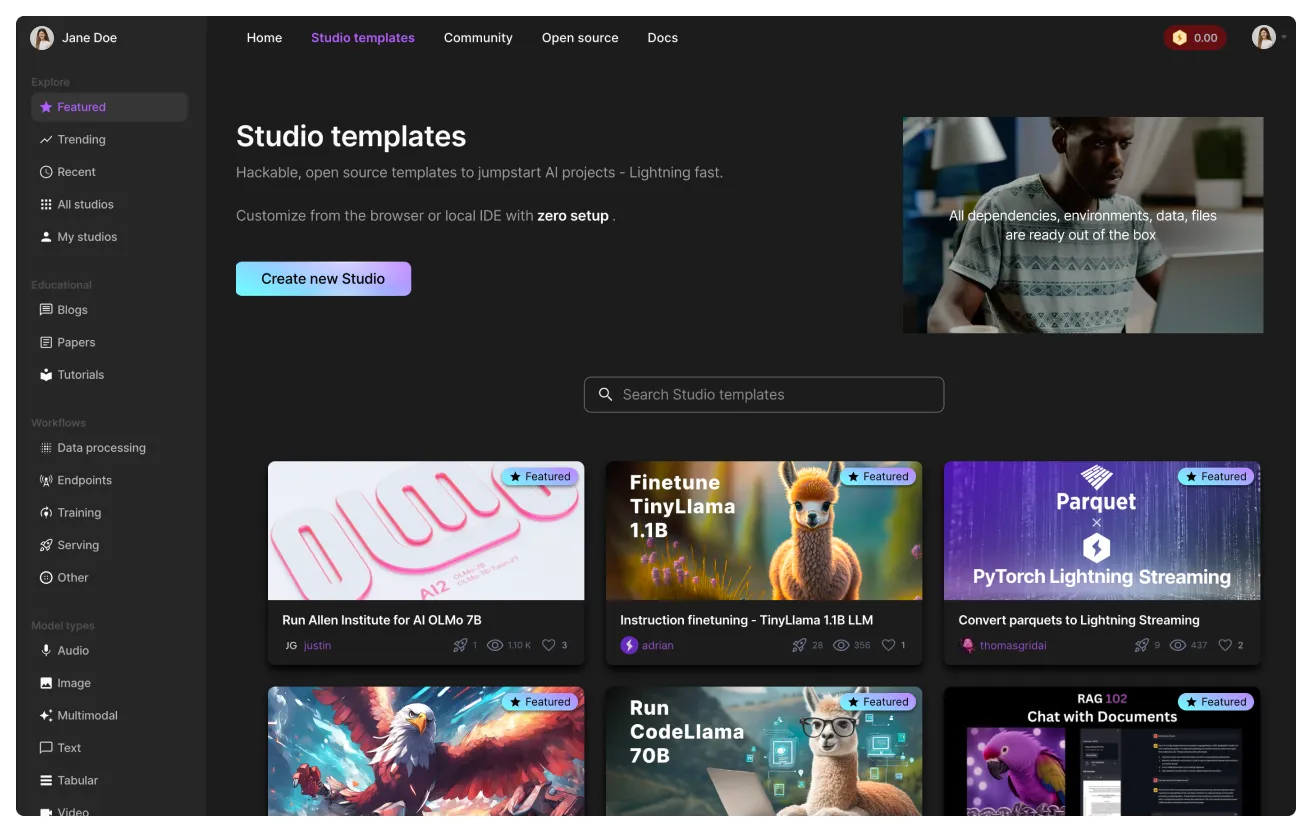
Studios can also be published inside the organization so that its members can duplicate them. People who are not members of the organization will not have access to those Studios.
Set credits auto-reload
Never get blocked by running out of credits. Automatically replenish a teamspace's credit balance from the organization wallet when it falls below a specified "Threshold".
To enable a teamspace credits auto-reload, go to the teamspace settings, open the "General" section, and switch "Auto-reload credits" ON. You can then edit the "Reload amount" and "Threshold", or use the default values. All new teamspaces have the "Auto-reload credits" setting enabled by default.
Teamspace settings for credits auto-reload.
Only organization admins can enable and edit this setting.
Within the organization
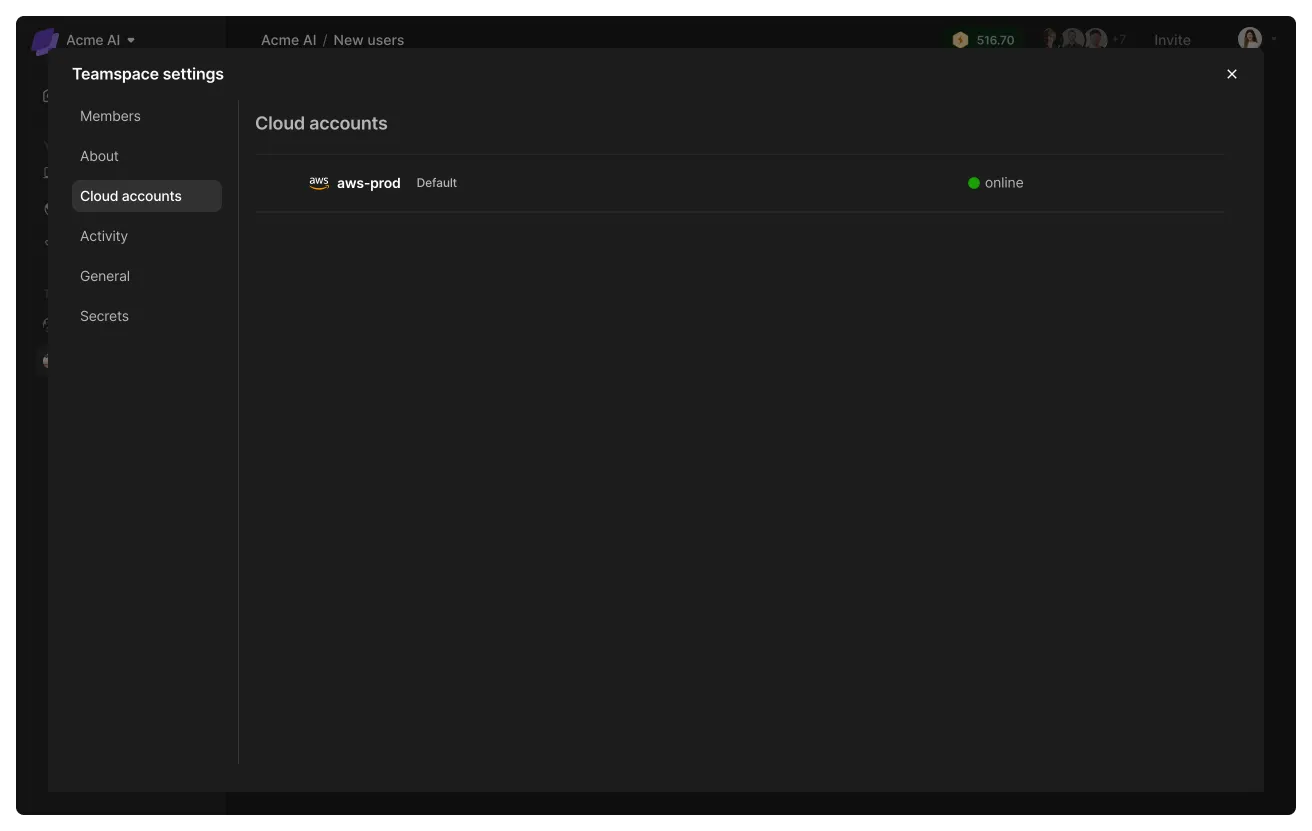
In the organization, you have the ability to browse teamspaces, published Studios, and more. An organization also has cloud accounts and compute resources that teamspaces can use.
Guests
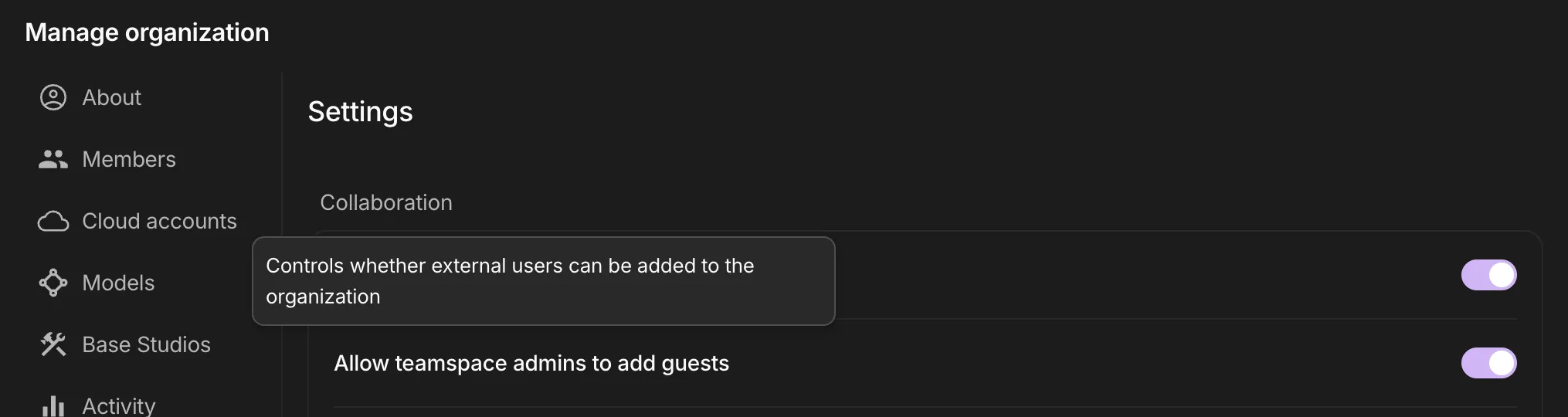
Organizations and Teamspaces support inviting guests. Imagine you are collaborating with someone in a different company or a contractor. They can join the Teamspace, where they'll have access only to those resources. They will not join any other Teamspaces or the organization itself as a member.
Organization admins can enable the ability for Teamspace admins to add guests via the org settings.
Was this page helpful?
Thanks for the feedback.