
University class
Lightning Studios allows professors or teachers to focus on delivering core course content instead of hours helping students set up and troubleshoot local environments.
Advantages
Studios offer various advantages for university courses.
Zero setup
Studios are already set up with everything students need. For custom requirements for advanced classes, set up templates that students can duplicate.
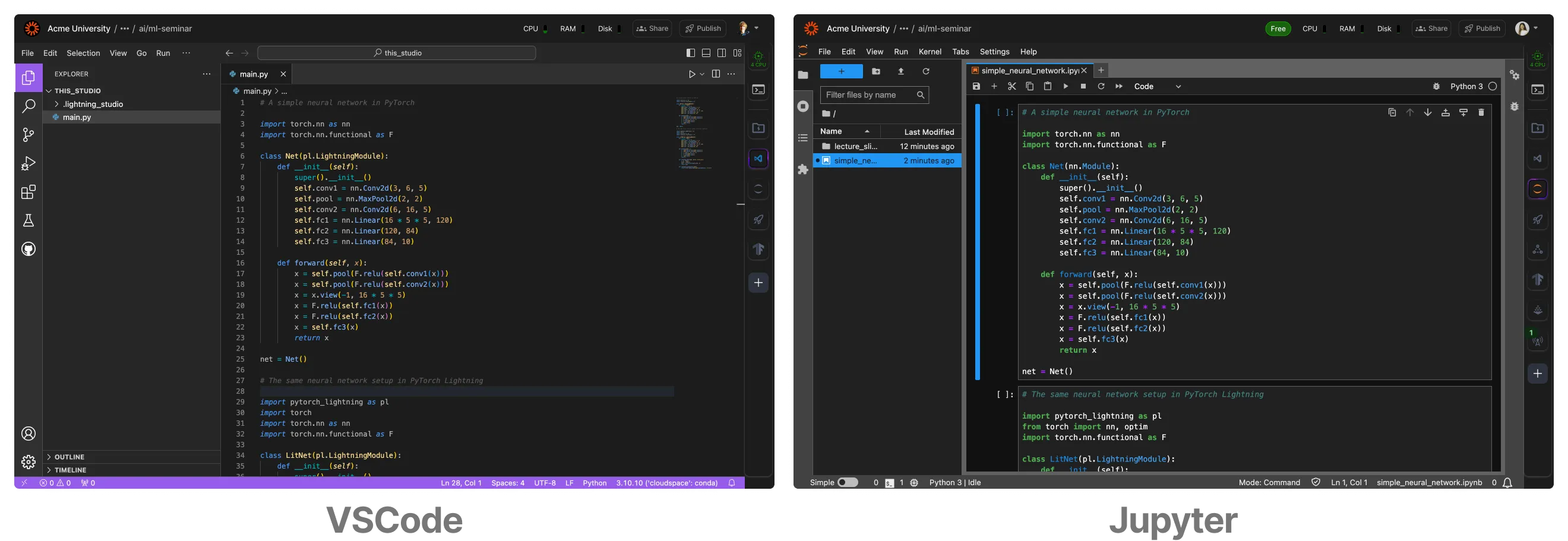
Studios are already set up with code, dependencies, and files so students can jump into meaningful work.
Full control
Studios provide full control to Students, professors or teaching assistants to modify Studio environments as needed for specialized uses.
Studios are customizable so students install dependencies as needed.
Share templates
Share homework, exams, or starting templates that are fully reproducible out of the box by publishing Studio templates to the private gallery.
Publish studios to the studio template gallery to share with classmates and teachers.
Live pair coding
Help students debug remotely via live sessions.
Code together live within the same studio.
Setup new classroom
Use this section to set up a new classroom.
Create an organization
First, create a "Classroom" organization for your class, such as "ML 101".
Create the organization "ML 101".
Invite students
Invite all students to the organization as members. Each student will automatically get their own teamspace.
Invite students to join Classroom Org, ML 101.
See all member permissions here.
Invite staff
Invite staff as admins. Admins have full control of the organization.
Invite Staff and fellow Academic faculty to the classroom Org.
See all admin permissions here.
Publish homework
Create a Studio per homework assignment and publish it to the classroom templates.
Sharing homework assignments by publishing to classroom template gallery.
Publish assignments
Create one Studio per assignment and publish it to the classroom templates at the right time. If you must keep assignments private, create the assignment in the teamspace and don't publish it until it's time.
Publishing assignments to the classroom org template library.
Organize work
This section discusses ways of organizing different work in a classroom.
Set up lectures
Create a new teamspace titled "Lectures," where you develop Studios for your class, such as "01 Intro to ML," "02 Coding a Neural Network," etc. Each Studio will remain private to other members of this organization until you decide to make it visible to your students.
Lecture teamspace has studios; one for each class/topic covered.
If you publish a new Studio containing your lecture code, students in the "ML 101" organization will be able to view and duplicate the Studio to experiment with it.
Students can duplicate templates via the classroom org template gallery.
Homework assignments
Create a new teamspace called "Homework Assignments" to develop the starter code for your homework assignments.
Create a homework assignments teamspace where students can duplicate and publish their finished work.
Similar to sharing lectures, you can publish assignments to the organization for students to duplicate into their own Teamspace. After completing an assignment, students can invite you or your teaching assistants to their Teamspace and share their homework solution with you.
Class projects
Collaborative class projects are a great way to learn. If you plan to have students work together in groups, we recommend creating a separate Teamspace for each student group (for example, "Team 1" or "Team 2") and inviting the student members to their respective groups.
Inside each group's Teamspace, students can create their own Studios and collaborate live using the "Share" function.
Collaborate live using the "Share" function.
To allocate credit points for students to work on their class projects, assign a budget to each teamspace.
Transfer credit to teamspaces to allow students the ability to run models.
After the class
Once a class is over, you might want to follow these steps.
Publish group projects
Encourage students to open source and share their work by publishing their finished Studios. This will build their resumes, boost their portfolio and contribute back to open source AI.
Publish a group project to the template gallery to share with others.
Administrative tasks
Once a class ends, we recommend to move credits out of teamspaces and into the main organization again.
Move credits out of teamspaces and back to main organization after a class ends.
Get in touch if you need additional features or have more questions.
Was this page helpful?
Thanks for the feedback.