
Organizations
An organization simplifies and organizes AI efforts and collaborations at scale.
Use an organization to group teamspaces and members working across different use cases. Organizations simplify permission management, security, data access, member access and more.
Example organizations are:
- Acme corp - A company name.
- Acme research - A special team at a company.
- NYU - A university name.
- CILVR lab - A lab inside a university.
- startup.ai - A startup name.
- Deep learning 101 - The name of an academic class.
- Hackers4AI - A hackathon name.
- etc...
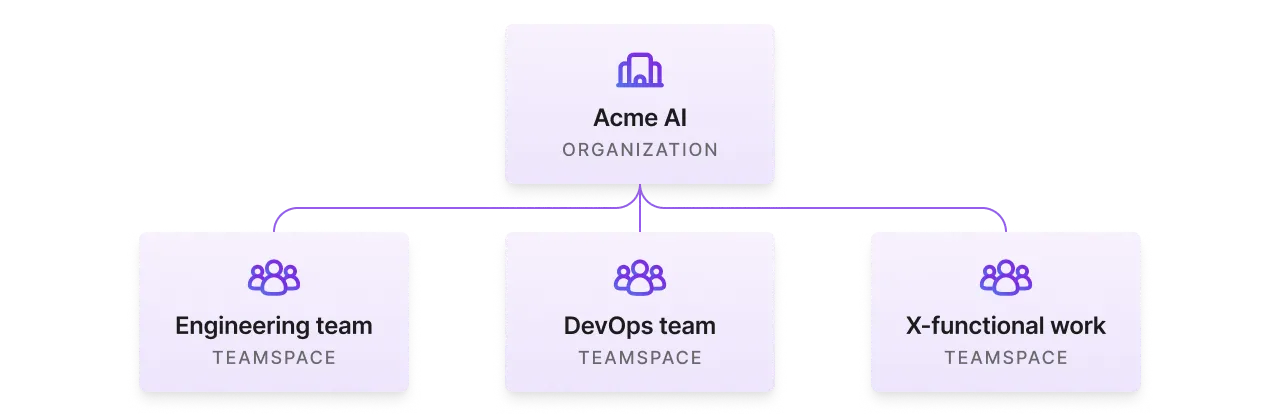
First time set up
This section describes how to set up an organization for working across people and teams.
Create an organization
There is no cost to create a new organization.
To create an organization, navigate to the top left of the screen and click the title on the top left. Then, click "New Organization":
Create an organization by clicking on the name or title at the top of the left-hand sidebar.
Add organization admins
Invite the members who will manage the organization. Organization admins have elevated permissions to manage members, cloud accounts, budgets and more.
Invite members and make them admins to allow them access to additional permissions.
Add organization members
Invite all colleagues to the organization as members. Each member automatically gets their own teamspace.
Add cloud account (optional)
Your organization comes with the default, secure cloud account. Connect a private cloud account for organizations who want to use their own AWS credits or run on their private cloud infrastructure.
Add your cloud account.
Adding your own cloud account allows the organization to consume your own cloud credits and run on private infrastructure.
Unlock more features
It's free to get started with Lightning AI organizations. Pay as you go while you prototype and get projects started. As projects mature or you need advanced functionality, unlock new features by upgrading to different tiers. Compare advanced features here.
Creating an organization is free. Upgrade to fit your needs.
If you have any questions, contact us directly or write to us on our Discord.
Organize work
Use these recommendations to structure work inside an organization.
One teamspace per use case
Set up a teamspace per use case. This is normally done by organization members as new use cases come up.
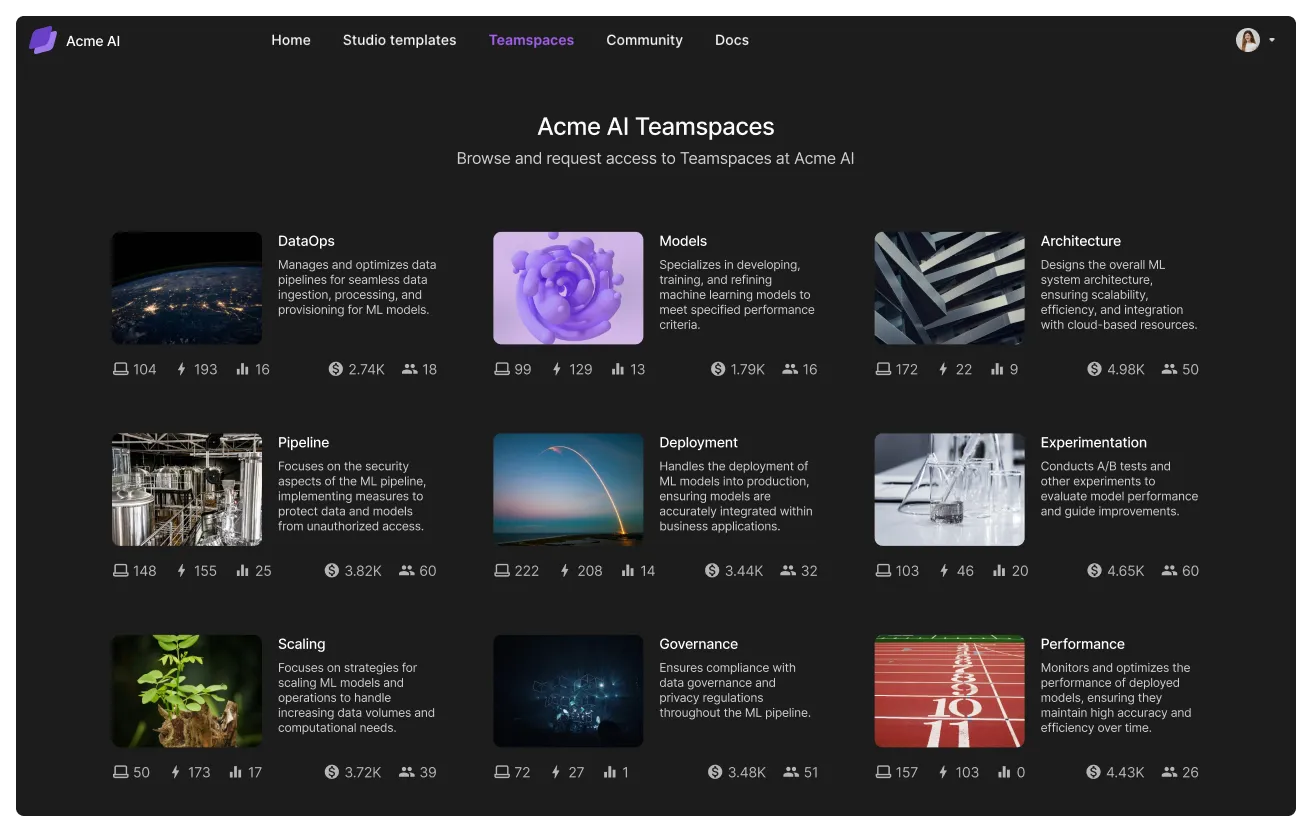
A teamspace isolates data access to a group of people under a business goal. Each teamspace will group Studios and data related to a use case. For example, if the project is to build a fraud detection system, the teamspace will be "fraud detection" and the Studios in the teamspace will be different tasks (train model, finetune, deploy, etc...).
Create a new teamspace for each use case you have at your organization.
One Studio per task
Organization members will create multiple studios inside a teamspace. Each Studio should be isolated to one task with a stand-alone cloud environment.
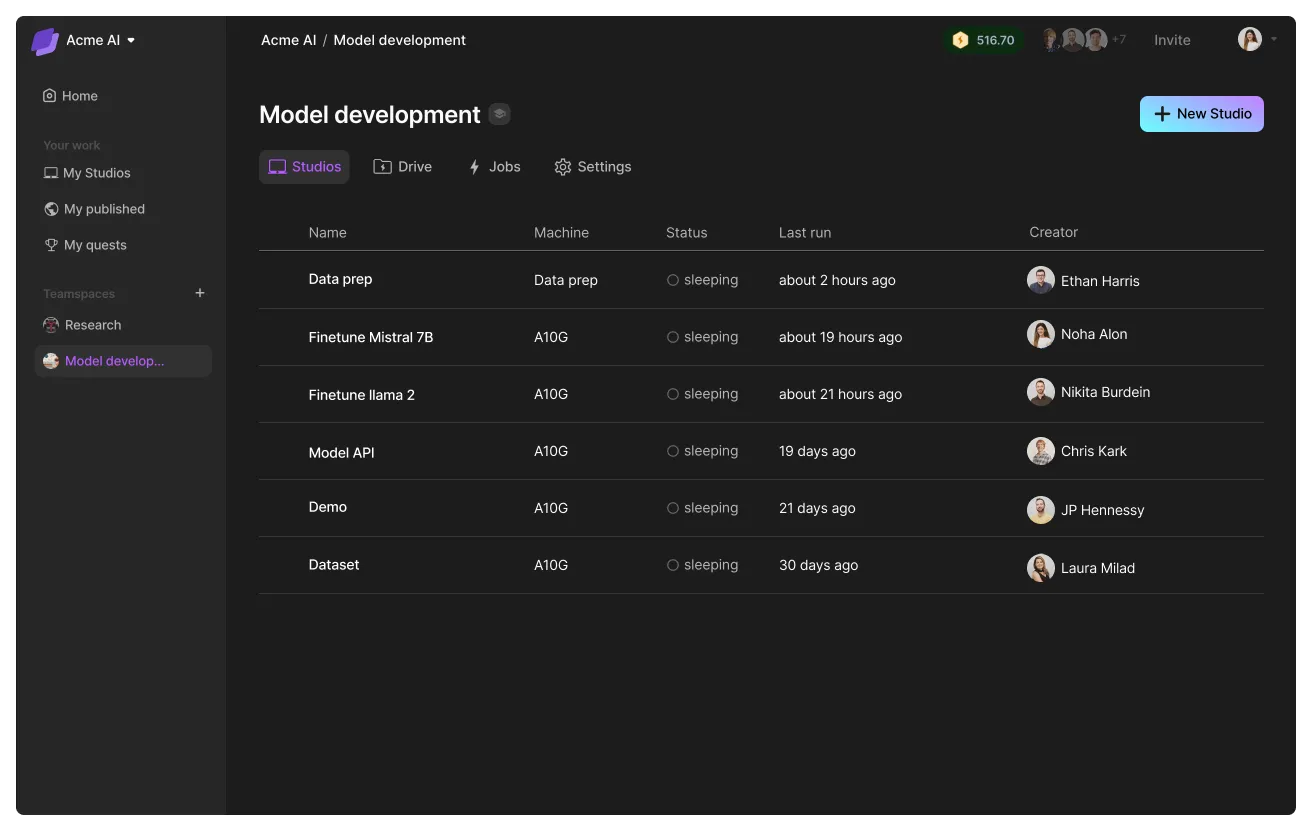
All studios can access the same files in the teamspace, so you can create a dataset on one Studio and access it from a second Studio.
Access dataset across Studios within the teamspace.
Create Studio templates
A way to share work across the organization is to publish Studios to the internal library. Organization members can duplicate these Studios into different teamspaces.
Publish to the internal library to share Studio templates.
Multiple organizations
Certain companies might want to set up multiple organizations (for different large teams). To switch between these organizations hover your cursor on the left side of the browser window:
Switch between organizations with a sidebar accessed by hovering on the left side of the browser.
Was this page helpful?
Thanks for the feedback.