
Start and stop Studio
Starting and stopping cloud machines is harder than it should be. Most platforms make you wait, manage setup scripts, and remember to shut things down leading to lost time, broken environments, and surprise cloud bills.
Lightning AI fixes that. Studios start instantly, come preinstalled with the right tools, and save everything when you stop. Auto-sleep saves you money. Persistence ensures nothing is lost. You get the full power of the cloud, without the overhead.
The simplest way to start a studio is simply to visit studio.lightning.ai to instantly start a Studio.
If you want to learn to customize environments, keep startup fast, and reduce costs without changing your workflow - keep reading.
Start Studio
Getting a cloud machine (instance) on any cloud should not be hard. Lightning AI makes it trivial to get on a cloud instance, already preconfigured with PyTorch, CUDA, etc in minutes.
The simplest way to start a CPU studio is simply to visit studio.lightning.ai in your browser.
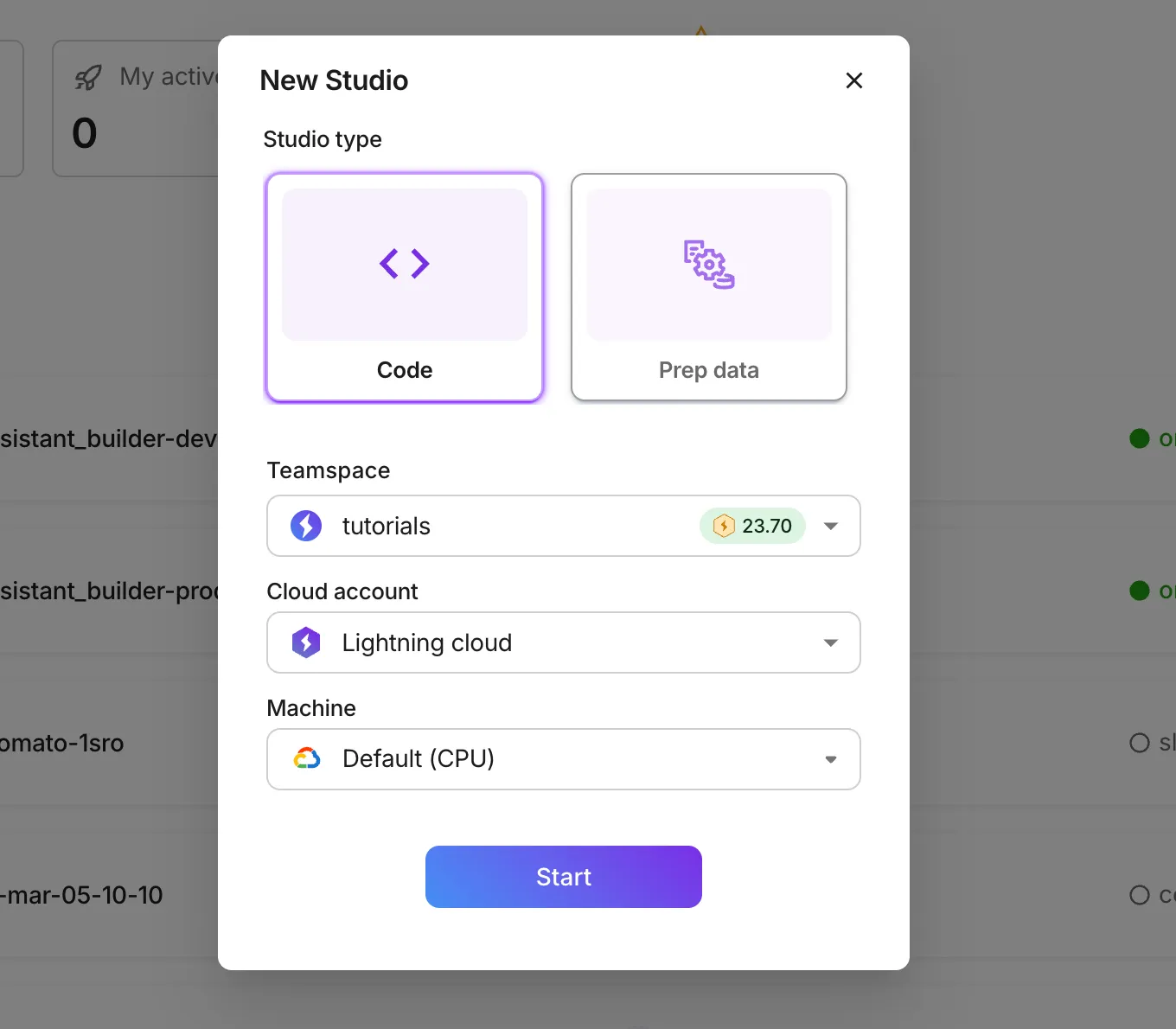
Otherwise, visit lightning.ai and navigate to the "home" link on the left or your teamspace. Click "New Studio" on the top right.
Use the new Studio button
Step 1: Choose a preconfigured studio which comes with the right tools for the task you want to work on (enterprise tier users can build and configure these including the base images, dependencies, etc down to the Linux kernel).
Step 2: If you have a private enterprise BYOC account, select it from the dropdown, otherwise, choose "Lightning cloud" which gives you access to machines across any cloud.
Step 3: Now choose the machine. These can be CPU-only machines (cloud instances) or machines with GPUs on them (which also have CPUs of course).
Click "Start" and the Studio will start instantly.
Customize Studio
Once a Studio starts, treat it like your laptop (ie: localhost but on the cloud). Pip install whatever you want, clone a github repo, apt-get install anything, set up a uv environment, etc... Anything you setup, install or download to the studio persists across restarts, that is, it will all be autosaved and available next time you start the Studio.
Treat a studio like your laptop, or localhost
Try running these commands if you need an example:
git clone https://github.com/Lightning-AI/hello-studio.git

cd hello-studio/rag-system
uv pip install -r requirements.txt

python scraper.py --page-limit 20 --update-every-hrs 24

python rag_server.py

python client.py "What is the Matrix?"
Customize base Studios
Base Studios give you full control over how environments are configured - Linux distro, Python and CUDA versions, package manager, and more. But Lightning AI lets you go beyond just base images with features like: control which instance types are allowed, whether sessions auto-sleep, what plugins are preinstalled, and even how the AI assistant behaves. Enterprise customers can even get custom controls built in!
This gives teams standardized, reproducible environments without compromise. Setups can be overfit to your exact workflow - because we know every team works differently, and Lightning AI is built to support that without forcing you to change how you work.
Keep start times fast
Studio startup time depends on how much data is stored inside it. The more files you keep in the Studio, the slower it gets to start.
To keep things fast:
- Move large datasets to cloud folders using Lightning Drive. Files will stay accessible via the CLI, just like on your laptop.
- Store heavy model weights (10GB or up) in the Lightning Model Registry instead of the Studio itself.
We know it’s convenient to keep everything in one place and you're free to do so, but be aware of the speed trade-offs. It's better to separate code from data to keep your Studios fast to start.
Note: by the way, the Teamspace shows cold start performance for Studios, including the average across all Lightning AI users. If your Studio is taking longer than that, there is a good chance you have large files, datasets, or model weights stored directly inside the Studio.
Stop Studio
Auto sleep
Lightning AI's designed to help users save on cloud costs at every step. One way we help save on cloud costs is by automatically stopping Studios when they’re idle. Before Lightning AI, it was easy to forget running machines overnight which wastes compute and gets expensive.
By default, Studios shut down when not in use. You can disable this if needed, but then it’s up to you to manage costs manually.
Manual stop
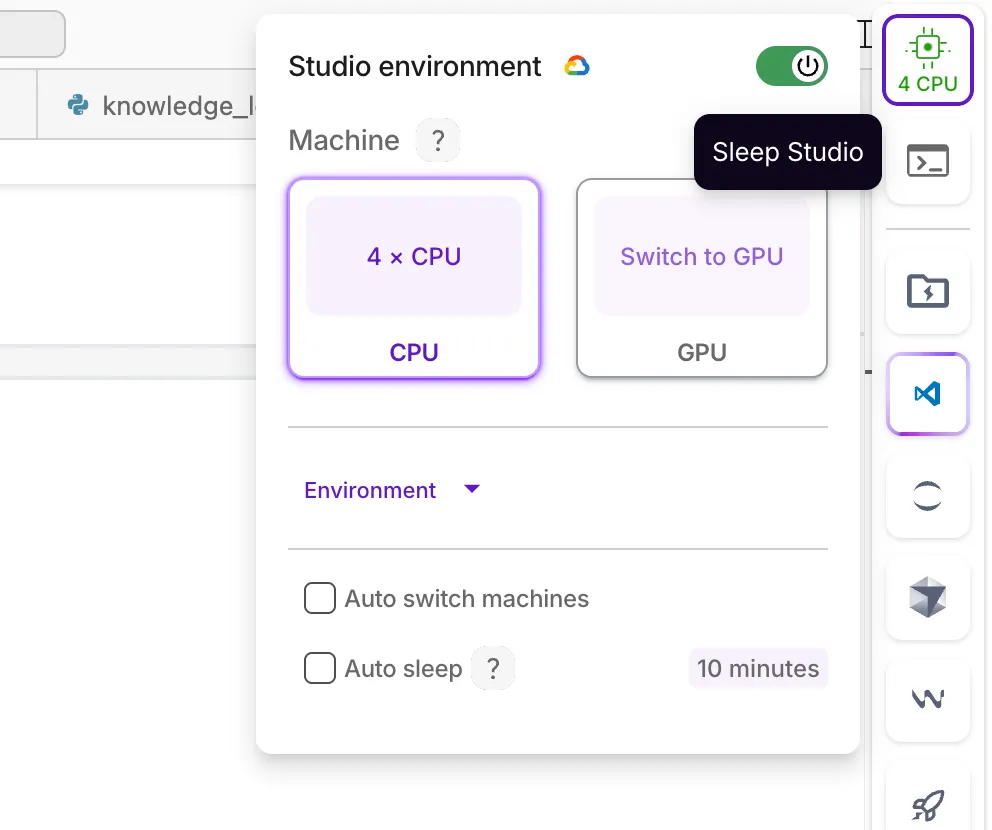
To manually turn off Studios, click on the icon top right inside the Studio (in green, with the machine name under it), and click the "sleep" toggle.
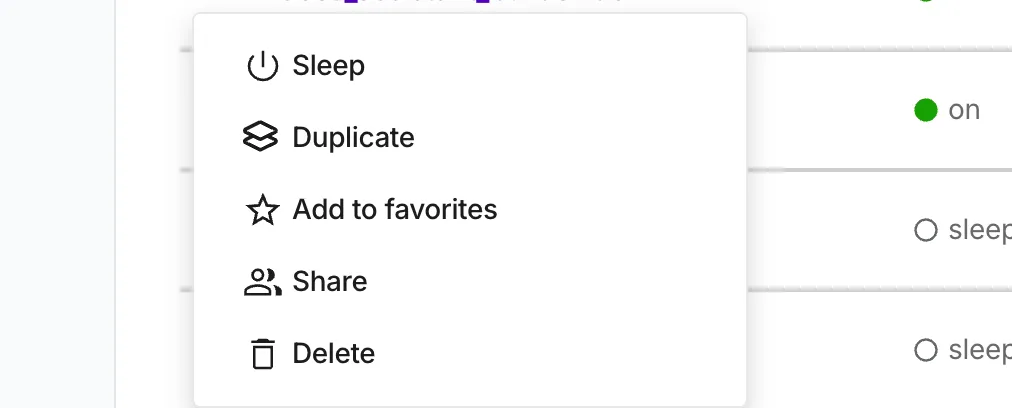
If within the teamspace, click the 3 dots to the left of the Studio name and press "Sleep"
Autosave (persistence)
When a Studio shuts down, everything is saved: files, data, environment variables, installs, and more. When you start it back up, it picks up exactly where you left off. No setup, no lost work.
Keep time to sleep fast
Studio sleep time depends on how much data is stored inside it. The more files you keep in the Studio, the longer it takes to sleep.
To keep things fast:
- Move large datasets to cloud folders using Lightning Drive. Files will stay accessible via the CLI, just like on your laptop.
- Store heavy model weights (10GB or up) in the Lightning Model Registry instead of the Studio itself.
We know it’s convenient to keep everything in one place and you're free to do so, but be aware of the speed trade-offs. It's better to separate code from data keeps to keep your Studios fast to start.
Was this page helpful?
Thanks for the feedback.