
Roles & permissions
Every person in your organization has a role that decides what they can do in the console and the API. The same rules apply everywhere: if the console doesn't offer an action to you, the API refuses it too.
Roles
| Role | Who it's for | Summary |
|---|---|---|
| User | Engineers and operators who run workloads | Can view and operate your organization's fleets. |
| Administrator | The people responsible for your organization's account | Everything a User can do, plus power control, SSH access, audit logs, and managing users. |
Administrator includes every User capability. You never need to give someone both roles.
What each role can do
| Capability | User | Administrator |
|---|---|---|
| Fleets and nodes | ||
| View fleets, fleet history, nodes, and node details | ✅ | ✅ |
| View fleet health and monitoring dashboards | ✅ | ✅ |
| Check a node's power state | ✅ | ✅ |
| Power nodes on, shut them down, or restart them | — | ✅ |
| Managed Kubernetes | ||
| Download a kubeconfig and view cluster and worker health | ✅ | ✅ |
| Cordon, uncordon, and drain worker nodes | ✅ | ✅ |
| Storage | ||
| View storage views | ✅ | ✅ |
| Add, resize, and delete storage views | ✅ | ✅ |
| Health | ||
| Run cluster validation and read results | ✅ | ✅ |
| Access and governance | ||
| Register, list, and delete SSH keys, and apply them to running fleets | — | ✅ |
| View recent audit events and export 90-day audit logs | — | ✅ |
| Add and remove users (console only, ORD1 first) | — | ✅ |
Guide pages also note when an action needs the Administrator role.
What happens without the right role
- Console: pages and controls you can't use are hidden. For example, Users don't see SSH Keys, Audit log, or node power controls.
- API: the request returns
403 Forbidden.
If you need an action your role doesn't allow, ask an Administrator in your organization to do it for you. Roles can't be changed in the console or the API, so to change your role, contact support.
Managing users
Available in ORD1 first
User management is rolling out region by region, starting with ORD1. Other regions will follow. Until then, the Users page only appears when ORD1 is selected in the console. In other regions, contact support to add or remove users.
Administrators add and remove people on the Users page in the console. It lists everyone in your organization with their role, last sign-in, and when they were added. User management isn't available through the API.
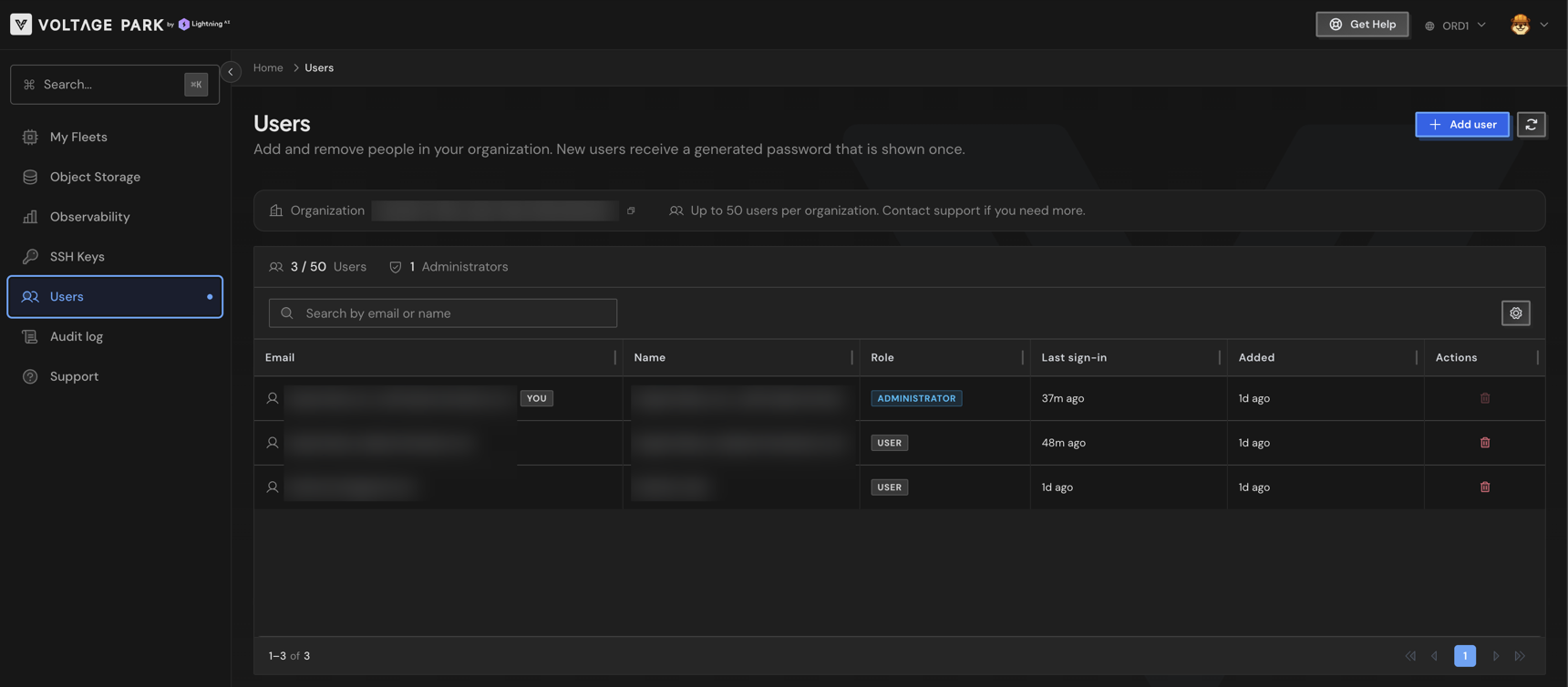
Add a user
- In the console, select Users.
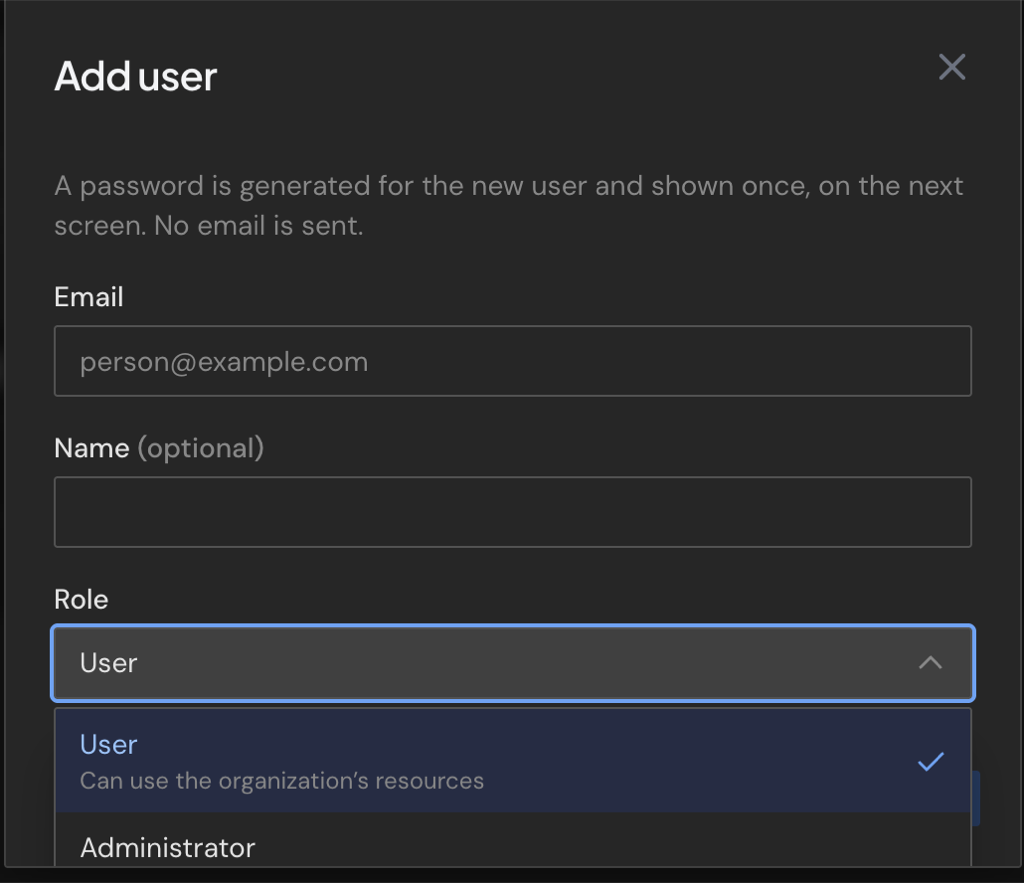
- Select Add user and enter their email. Their name is optional.
- Choose a role: User (can use the organization's resources) or Administrator (can also add and remove users).
- The console shows a generated password once, on the next screen. No email is sent, so copy the password and share it with the new user through a secure channel.
Remove a user
Select Users, find the person, and select the delete icon in the Actions column. You can't remove yourself. They can no longer sign in to the console or get API tokens.
Removing a user doesn't remove their SSH keys from nodes. To revoke shell access too, follow Deleting a key.
Limits and availability
Availability by region
| Region | User management |
|---|---|
ord1 |
Available on the Users page |
sea1, iad1, dfw2 |
Coming soon. Contact support to add or remove users. |
- An organization can have up to 50 users. The Users page shows how many you have. Contact support if you need more.
- To change someone's role, contact support.
Application Principals
Application Principals are for automation, not people. Lightning AI sets their permissions when they are provisioned. This includes access to the Observability API: metrics read, logs read, and Kubernetes audit read are separate permissions. To change what an Application Principal can do, contact support.
Recommendations
- Keep the Administrator role to a small group, and have at least two Administrators so you aren't locked out.
- Give everyone else the User role. It covers day-to-day operations, including Kubernetes maintenance and storage changes.
- Review who has access regularly, and use audit logs to check what's been done.
Was this page helpful?
Thanks for the feedback.