
Drive
Lightning Drive is a unified cloud filesystem shared by all users in a Teamspace. It allows every type of workload - Studios, Jobs, Deployments, Pipelines, etc... - to share a single, unified filesystem that can be accessed by any workload.
Think of a teamspace Drive like a permissioned Google drive folder (or data lake) for any type of file (ie: unstructured object store).
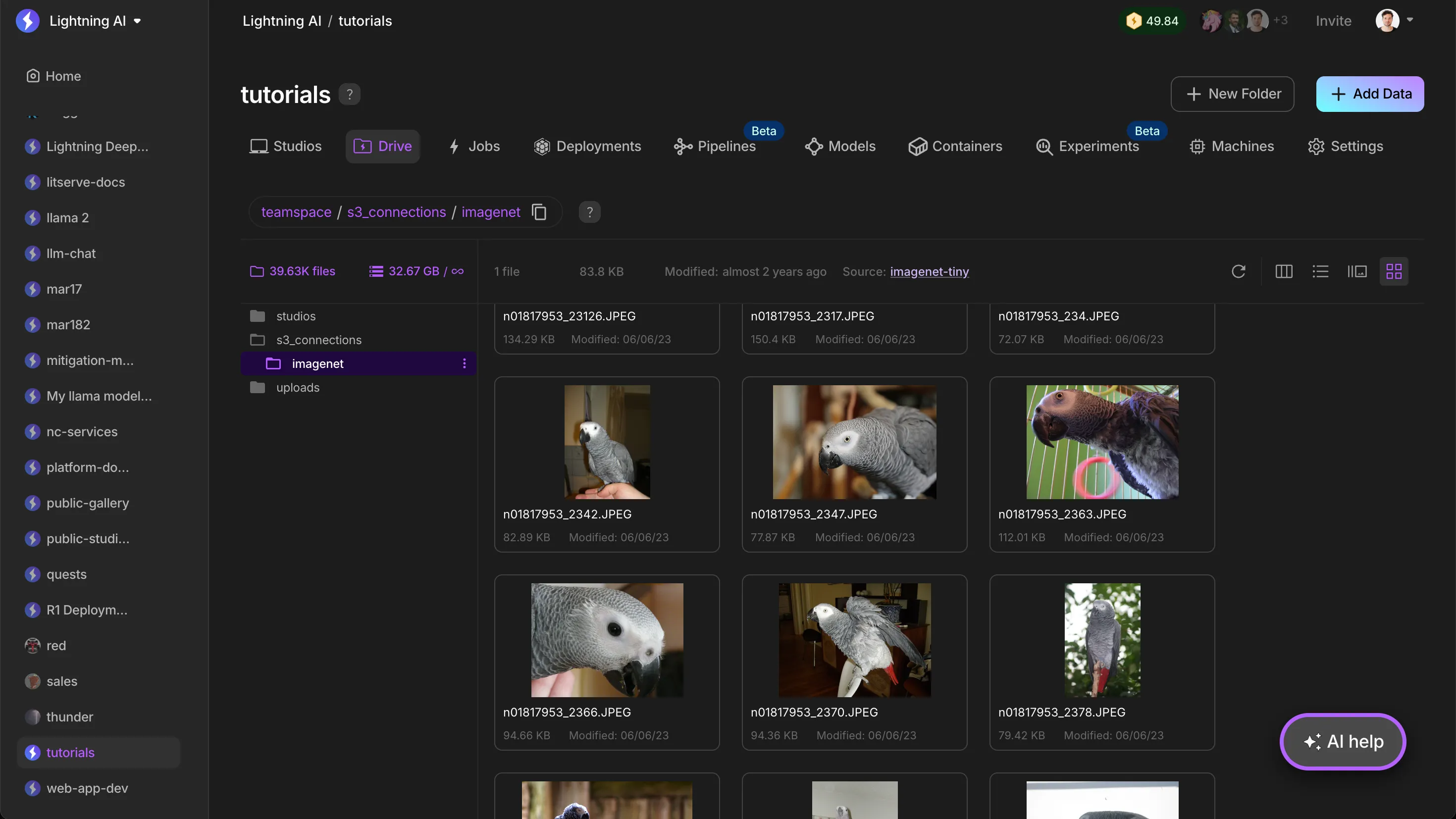
Use the Drive to:
- Share and host files
- Connect S3 buckets
- Upload data
- Visualize data
Key concepts
Shared by all Studios
All Studios in a teamspace share the same drive. This means any Studio can access the files of the other Studios.
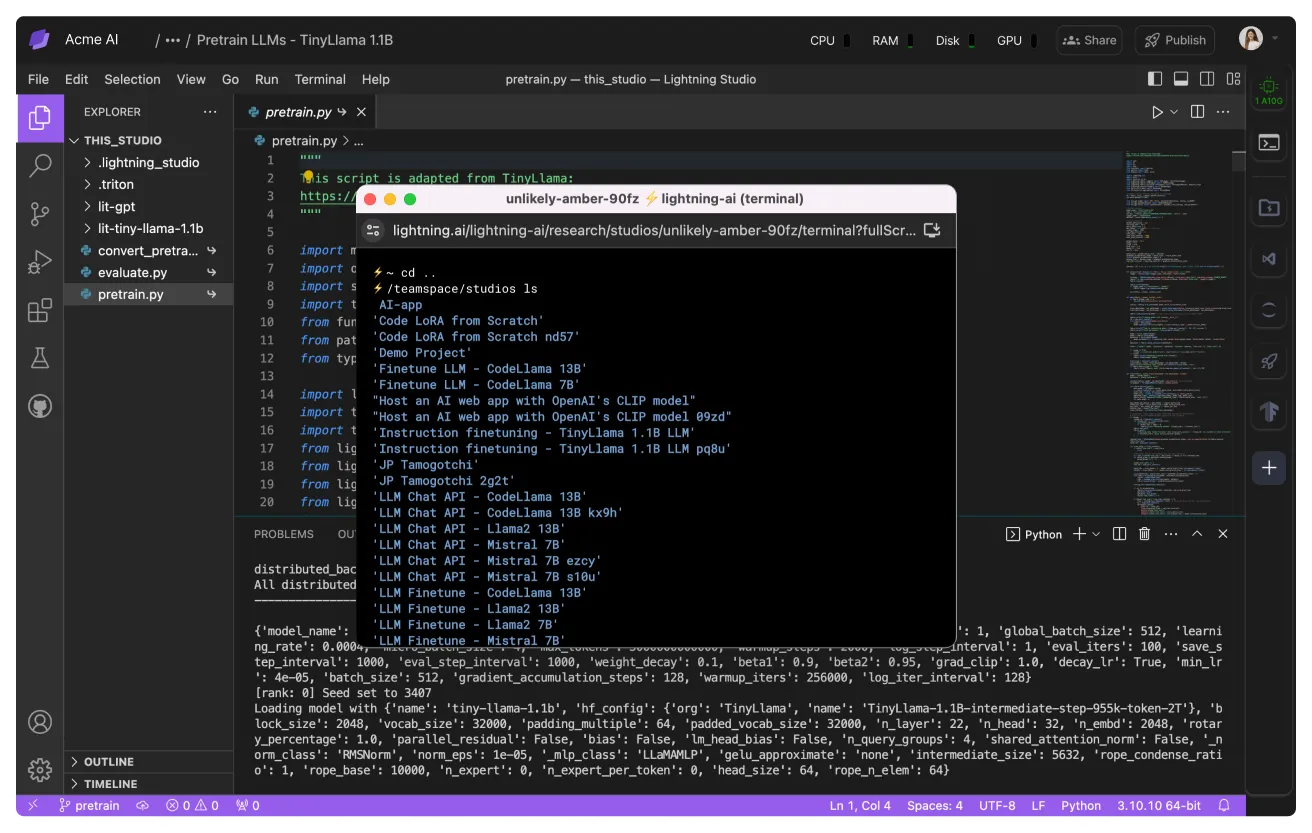
The shared filesystem drastically simplifies complex ML workflows on Lightning AI. To illustrate, try the following examples:
- Train a model on Studio A, access the checkpoints from Studio B.
- Train a model on Studio A, explore the artifacts as it trains from Studio B.
- Label data on Studio A, explore the labels on Studio B.
Storage counts the Drive together with any container images Lightning stores for you in the Lit container registry. The first 10 GB of it are free for all users, and each tier has a limit on the total.
Free: 200 GB total storage limit (only first 10 GB free)
Pro: 200 GB total storage limit (only first 10 GB free)
Teams: 2 TB total storage limit (only first 10 GB free)
Enterprise: Unlimited storage (only first 10 GB free)
One Drive per teamspace
Each teamspace has a single isolated drive. Use this to control access to data.
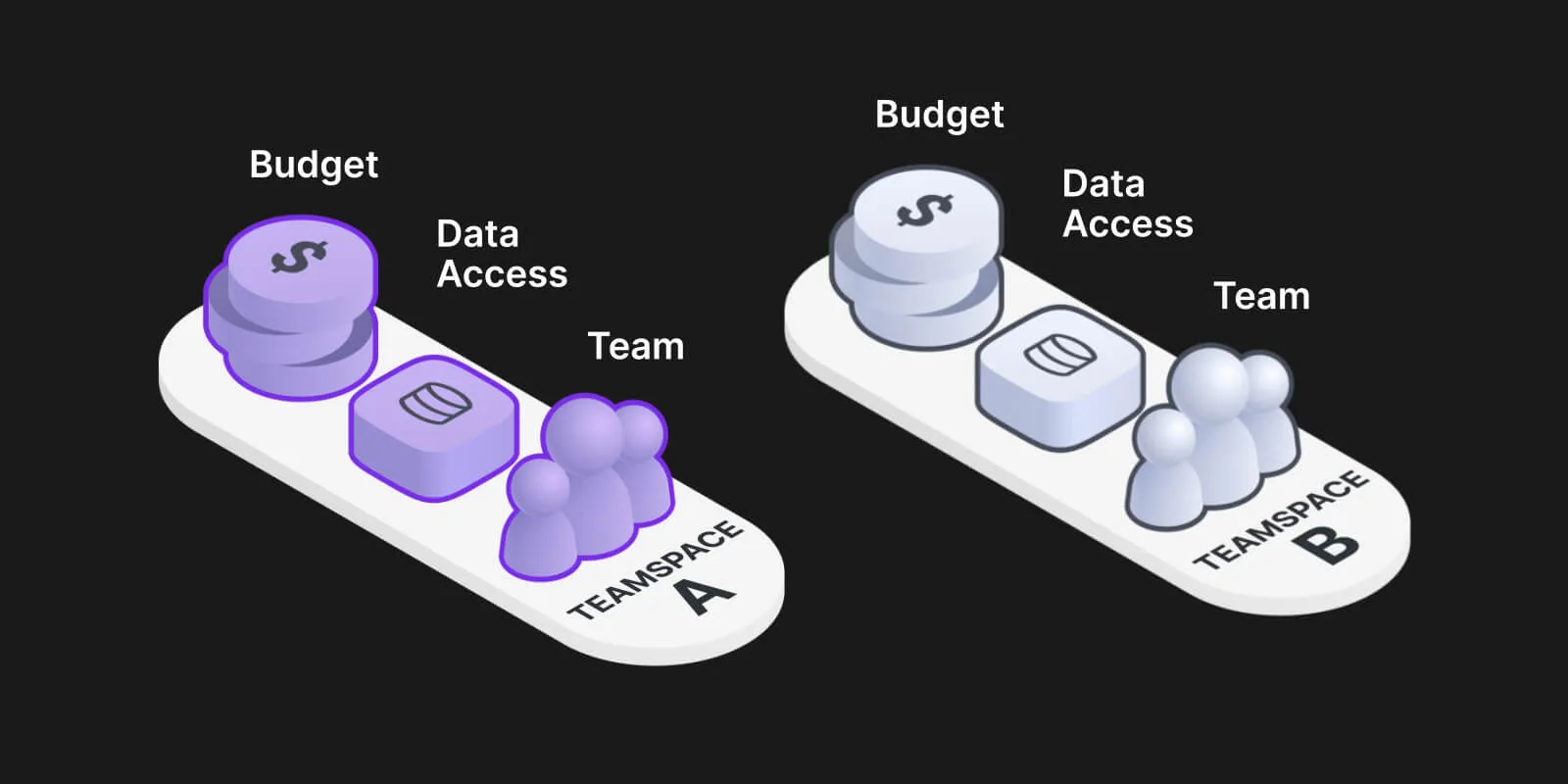
Let's say you have dataset A that can only be accessed by the data team and dataset B that can only be accessed by the research team. The Drive gives you that ability natively.
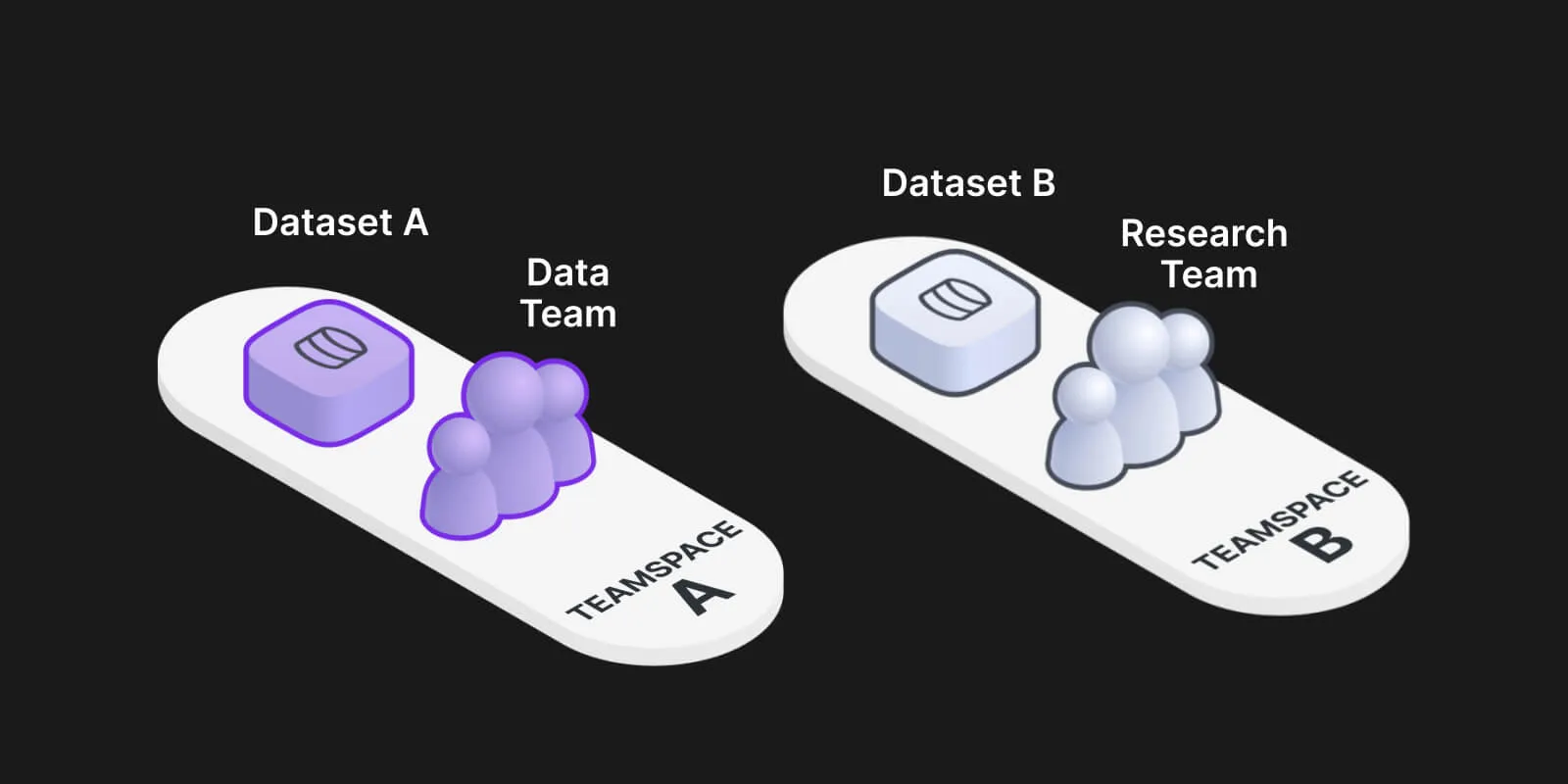
Let's say you want to give data access to someone outside your organization. Add them as a guest to the teamspace and they'll only be able to access the data in that teamspace.
Job files
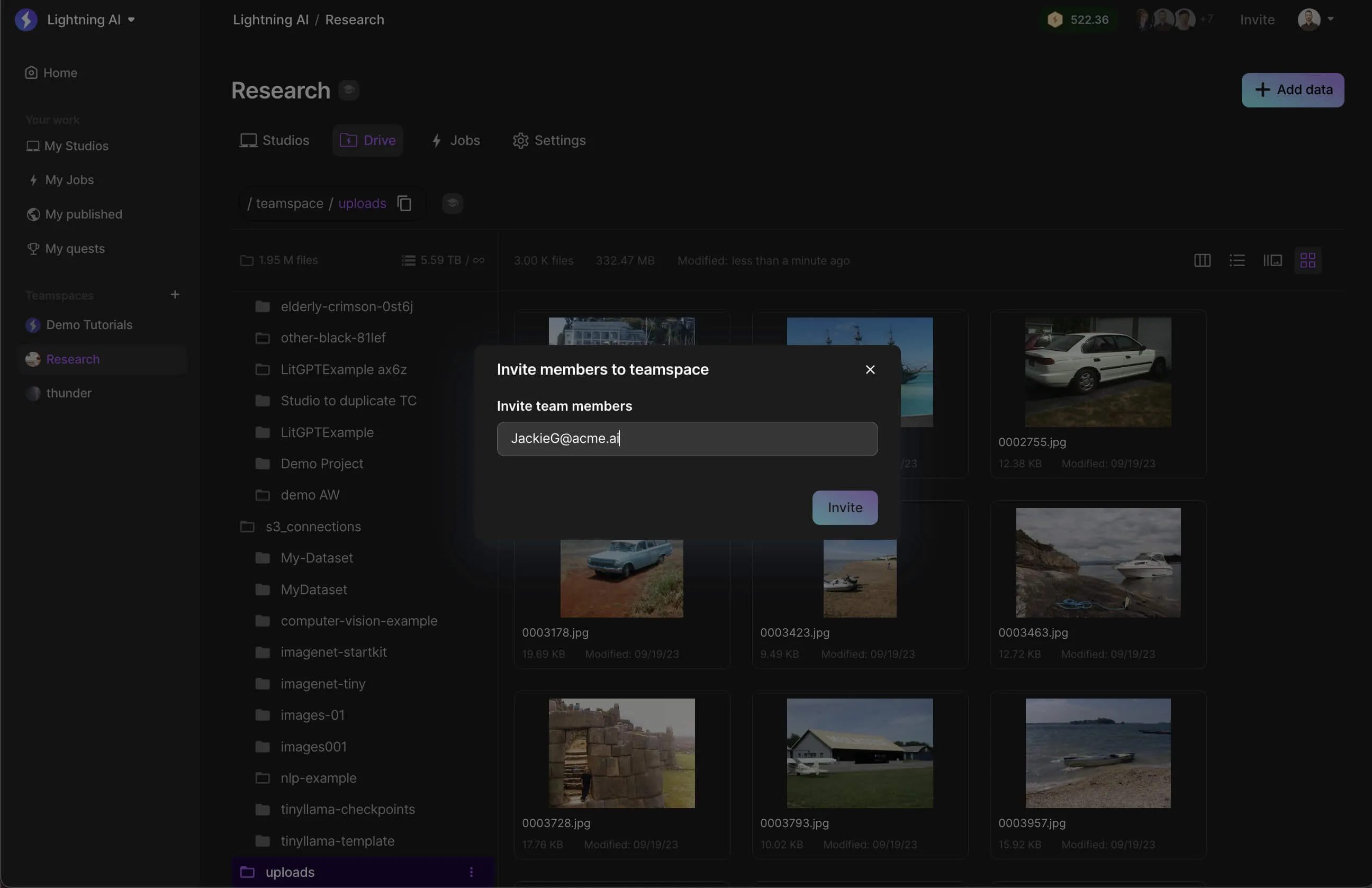
Studios can run jobs async using the same environment and files of the Studio. For example, set up a Studio to finetune a model and then submit 10 jobs to finetune the model under 10 different conditions at once.
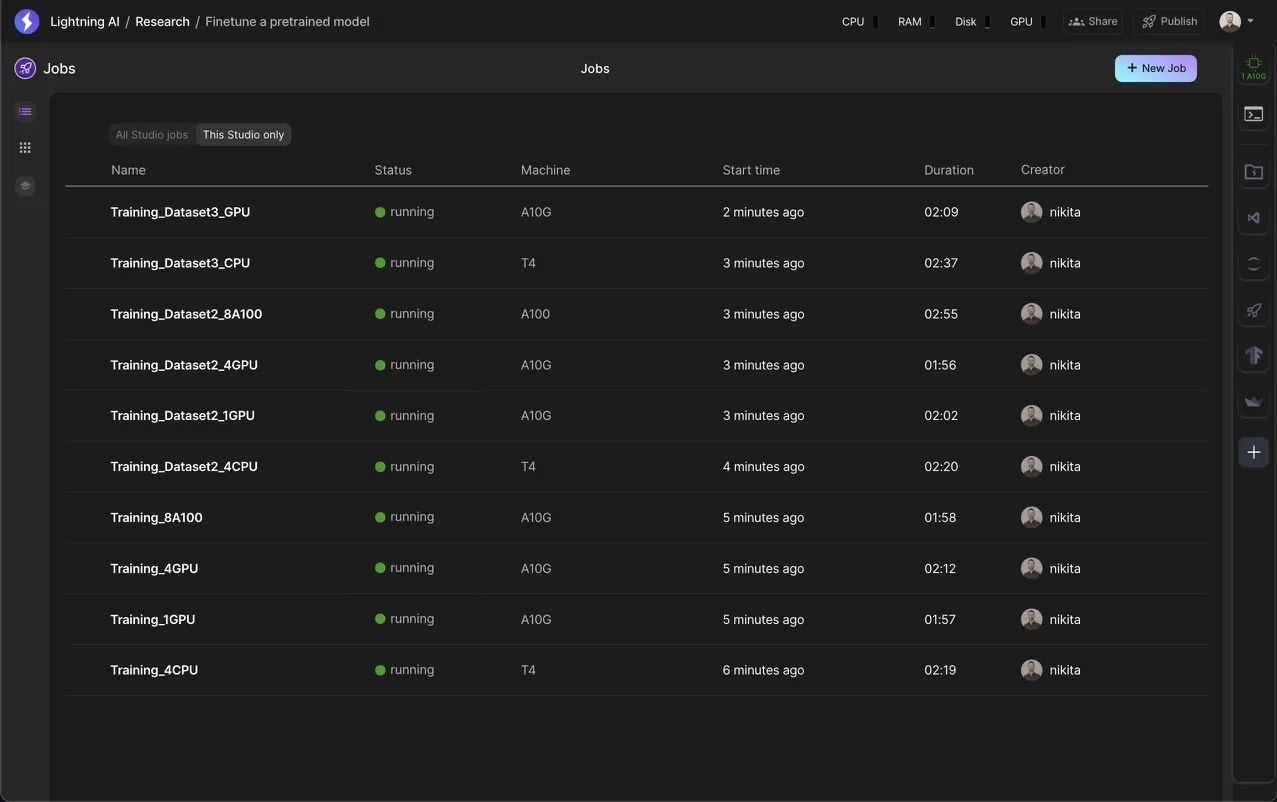
Once the jobs have completed, access the job files from the terminal. You can either copy those files to the Studio or reference them directly.
High-performance volumes
The Drive can also hold high-performance volumes: fixed-size volumes that Lightning AI provisions on Lightning Cloud and mounts read/write at /teamspace/lightning_storage/<volume name>.
Two things set them apart from the rest of the Drive. They're tied to the compute location and region you create them on, so Studios and Jobs running anywhere else won't see them, even in the same teamspace. And the Drive can't browse them, since they're network mounts rather than buckets, so read and write them from a Studio or Job. You can grow a volume with Resize but not shrink it, and deleting one deletes its data.
Create one with New Folder, picking Lightning Storage as the provider. The option only appears where your account and compute location support it. That's a different dialog from Add Data, which connects storage you already own. See cloud folders for the walkthrough.
Navigate the Drive
If you know how to browse files on your laptop, you know how to use the Drive.
Use the Drive like you use the file browser on your laptop. Move around with your keyboard, press the space bar to preview files, or double click to open them in standalone windows.
Delete files
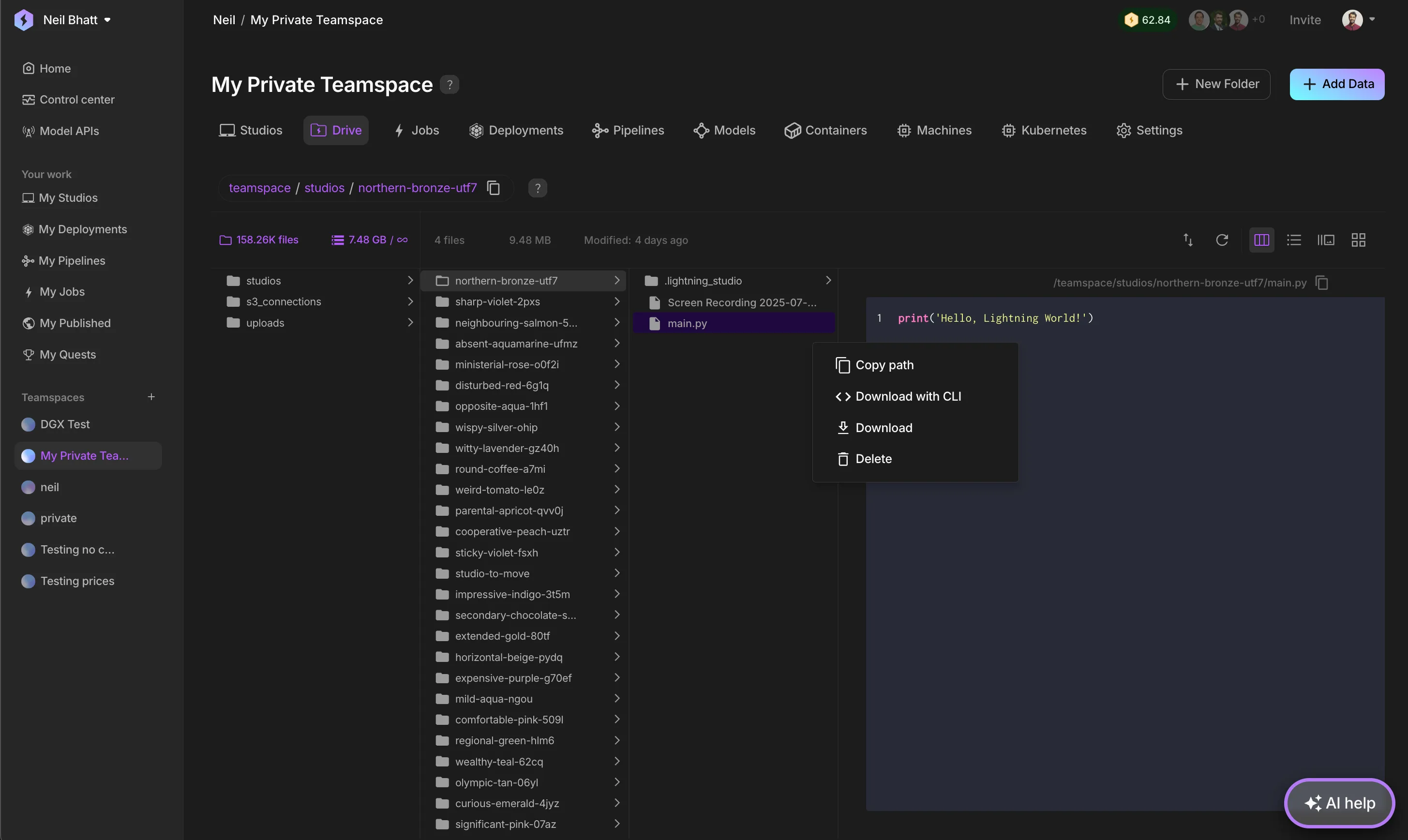
To delete files on a granular level from the Drive, navigate to any file or folder, hover over it, and select the 3-dots context menu.
Import data
Upload data
Drag and drop files and folders into the drive to upload data.
How to upload data to your drive.
To upload data programmatically, use the lightning SDK.
Upload via SDK
Upload files or folders from your local workspace to any location in Lightning Drive or Studios. Studios do not need to be running to use this operation.
lightning cp SOURCE DESTINATION [flags/optional arguments]Arguments and flags
- To upload, SOURCE is a local path and DESTINATION is a
lit://URL - Every
lit://URL must name a top-level folder right after the teamspace, telling Lightning where to send the file. There is no default - a URL without one will fail.- Teamspace Drive:
lit://<org>/<teamspace>/uploads/<path> - Studio filesystem:
lit://<org>/<teamspace>/studios/<studio-name>/<path> - Job artifacts:
lit://<org>/<teamspace>/jobs/<job-name>/<path>
- Teamspace Drive:
- Drop the org and teamspace to address the teamspace you are already working in, writing three slashes instead of two:
lit:///uploads/<path>. The folder is still required. - Copy directories recursively with
-r
See the Teamspace Drive CLI reference for the full URL syntax and for lightning ls, rm, and edit.
Examples
Upload a file to the Teamspace Drive:
lightning cp /path/to/local/file.txt lit://my-org/my-teamspace/uploads/file.txtUpload a file into a folder inside the Drive (the folder is created if it doesn't exist):
lightning cp /path/to/local/file.txt lit://my-org/my-teamspace/uploads/my-folder/file.txtUpload a directory recursively into the Drive:
lightning cp -r /path/to/local/folder lit://my-org/my-teamspace/uploads/my-folder/Upload a file to a specific Studio:
lightning cp /path/to/local/file.txt lit://my-org/my-teamspace/studios/my-studio/Upload a directory to a specific location in a Studio:
lightning cp -r /path/to/local/folder lit://my-org/my-teamspace/studios/my-studio/my-directory/dataConnect S3 buckets
It takes <1 minute to connect an S3 bucket. Click "Add data" on the top right, select S3 bucket and follow the instructions.
How to connect S3 buckets to your Studio.
An S3 connection is only available to the teamspace; this is to give you the ability to isolate your data as needed.
Feel free to connect multiple S3 buckets. There is no size limit to how much data you can connect.
Supported file types
We built the Drive for high-performance AI workflows (model training, serving, data prep, etc...). Thus all file types are supported.
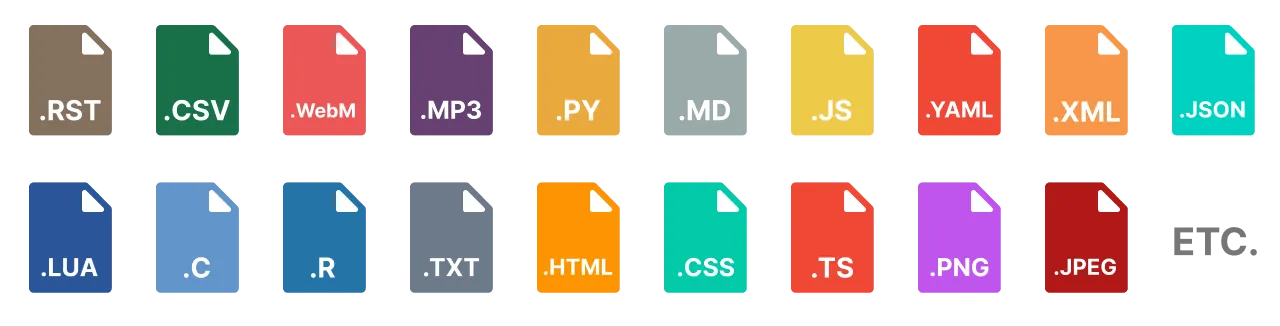
Add connectors (Snowflake, etc.)
Lightning Drive can connect to any type of data service. If you need a connector, please get in touch.
Download data
This section describes various methods to download data from Studios.
Via Drive
Hover over the folder or item you'd like to download, select the more actions UI element, then select download.
Download any item in the teamspace via the Studio drive.
Via VSCode
Right-click the file or folder in VSCode and click "download".
Download from the VSCode screen in Studio by right-clicking on an item in the Studio.
Via SDK
Use simple Python code to get files onto a local machine.
Download a file from the Teamspace Drive:
from lightning_sdk import Teamspace

t = Teamspace(name="model-xy", org="acme-ai")
t.download_file("train_model_x.py", file_path="/teamspace/studios/this_studio/train_x.py")
t.download_file("train_model_y.py")
Download a file from a Studio:
Use Lightning SDK to download from the studio.
Via CLI
Use the download command to get files onto a local machine.
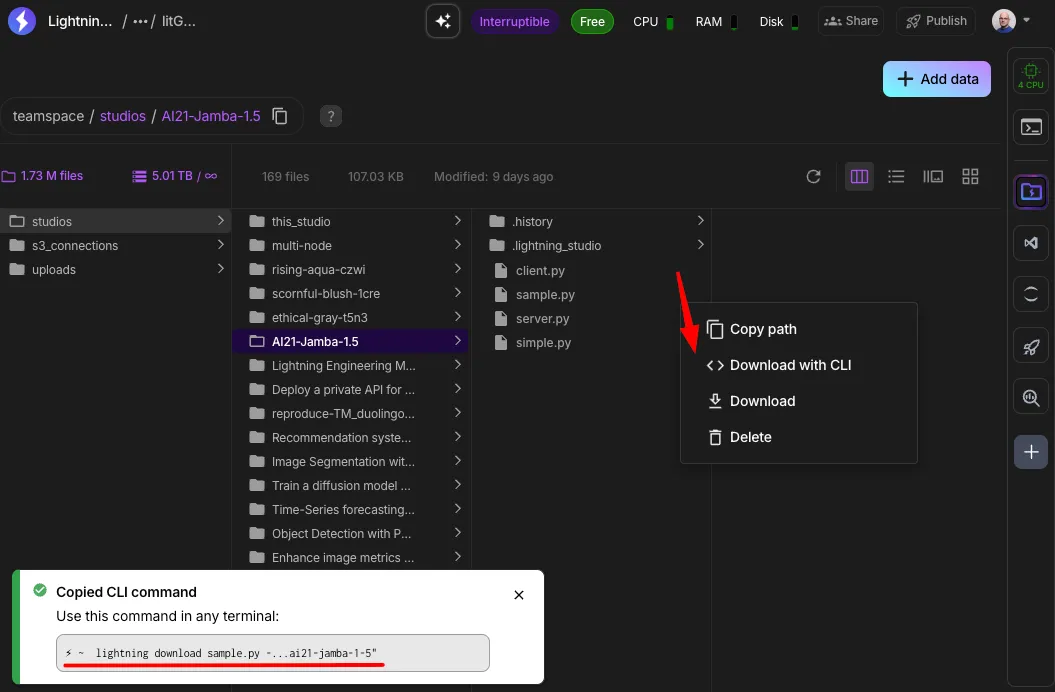
Point lightning cp the other way round to download - a lit:// URL as the source, a local path as the destination:
lightning cp lit://my-org/my-teamspace/uploads/file.txt ./file.txt
lightning cp -r lit://my-org/my-teamspace/studios/my-studio/results/ ./results
To list a folder without downloading it, or to delete or edit a file in place, see the Teamspace Drive CLI reference.
Billing
Most platforms make it hard to discover what you're getting billed for and even harder to manage it. With Lightning AI you'll have a convenient interface designed around our infrastructure admins needs and a single "all-in price" to make it easier to manage the most valuable resource in AI, your data.
The first 10 GB of storage, counting the Drive together with any container images Lightning stores for you in the Lit container registry, is free. After that, it's billed at $0.10 / GB / month. This includes the raw storage as well as the cross-region IOPS that you'd typically pay for when you go direct to other platforms.
*Note: data connections that you own are not billed. If you choose to deploy to your own VPC, Lightning AI will not bill you for data as this will all live within your cloud account(s). *
Cost
| Resource type | Description | Price |
|---|---|---|
| Data uploads | Lightning AI's managed data solution which is great for getting started and prototyping. | $0.10 / GB / month |
| EFS | AWS's high performance file system. Perfect for when you need high-speed read and write. | Storage: $0.0125 per GB/day, Read: $0.0375/GB, Write: $0.075/GB |
| Google Filestore | GCP's high performance file system. Perfect for when you need high-speed read and write. | $0.5625 / GB / month |
| Cloud agnostic storage | Lightning AI's managed data solution for agnostic storage across the neo-cloud providers (e.g. Nebius, Lambda Labs) | $0.10 / GB / month |
| High-performance storage | Lightning AI's managed high-performance volumes on Lightning Cloud. For workloads that need fast, consistent access to their data. | $0.30 / GiB / month |
| S3 and GCS connections | AWS or GCP buckets that are owned by you and want to connect to the Lightning AI platform. | Unbilled |
Org management
To manage storage within an organization navigate to Organization Settings > Storage.
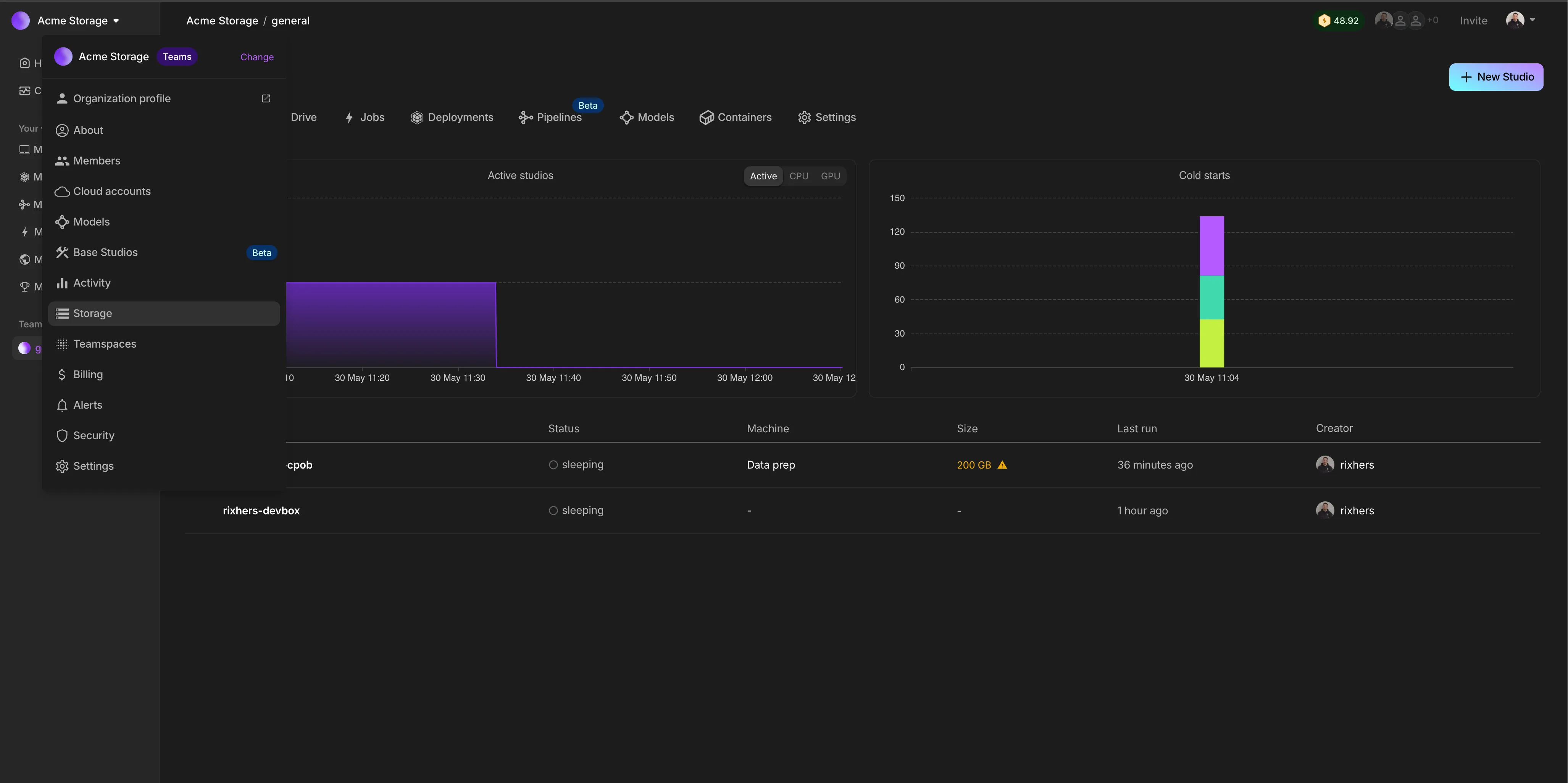
Manage your storage all from one easy to use dashboard.
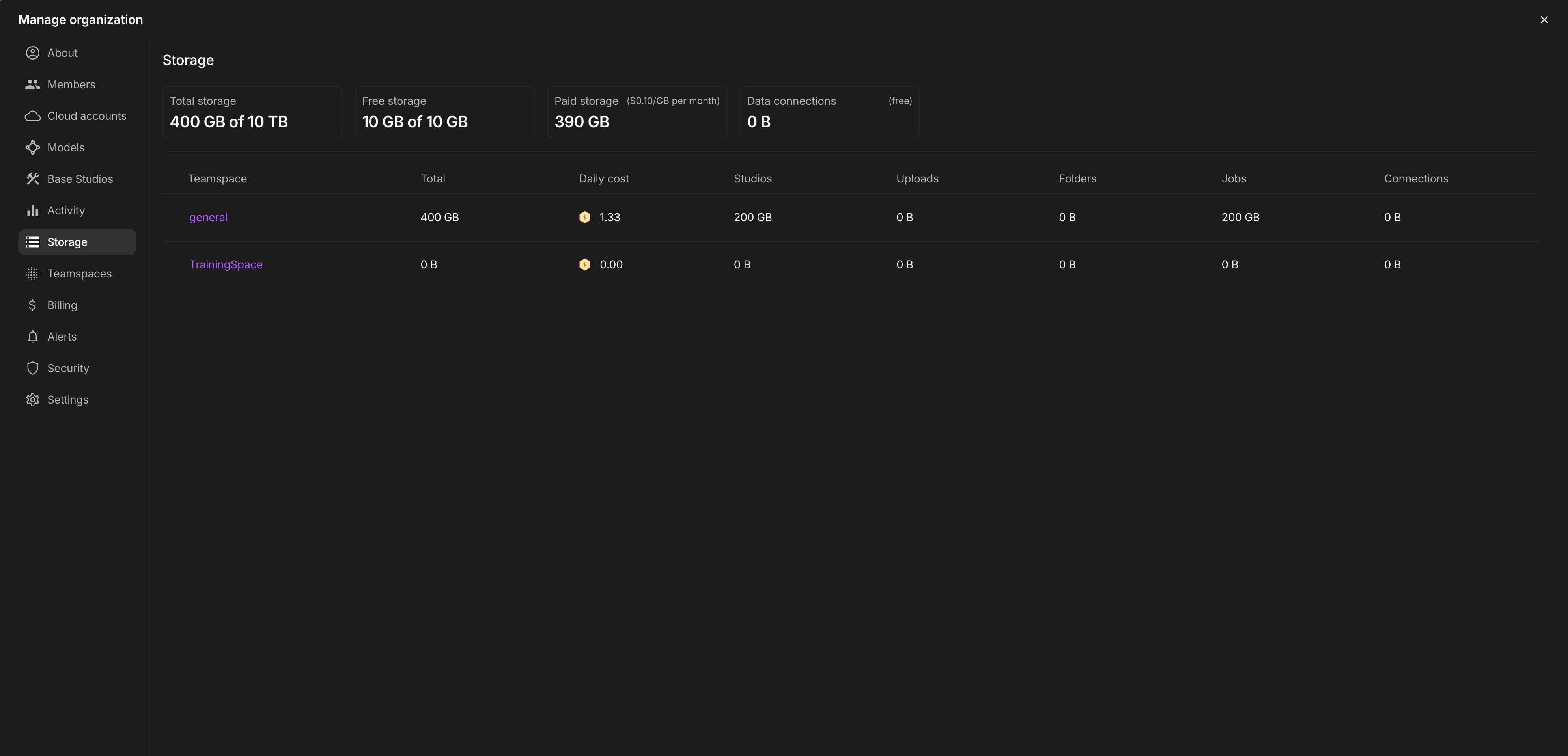
Click on a Teamspace to see a more granular view. Here you can navigate by data type.
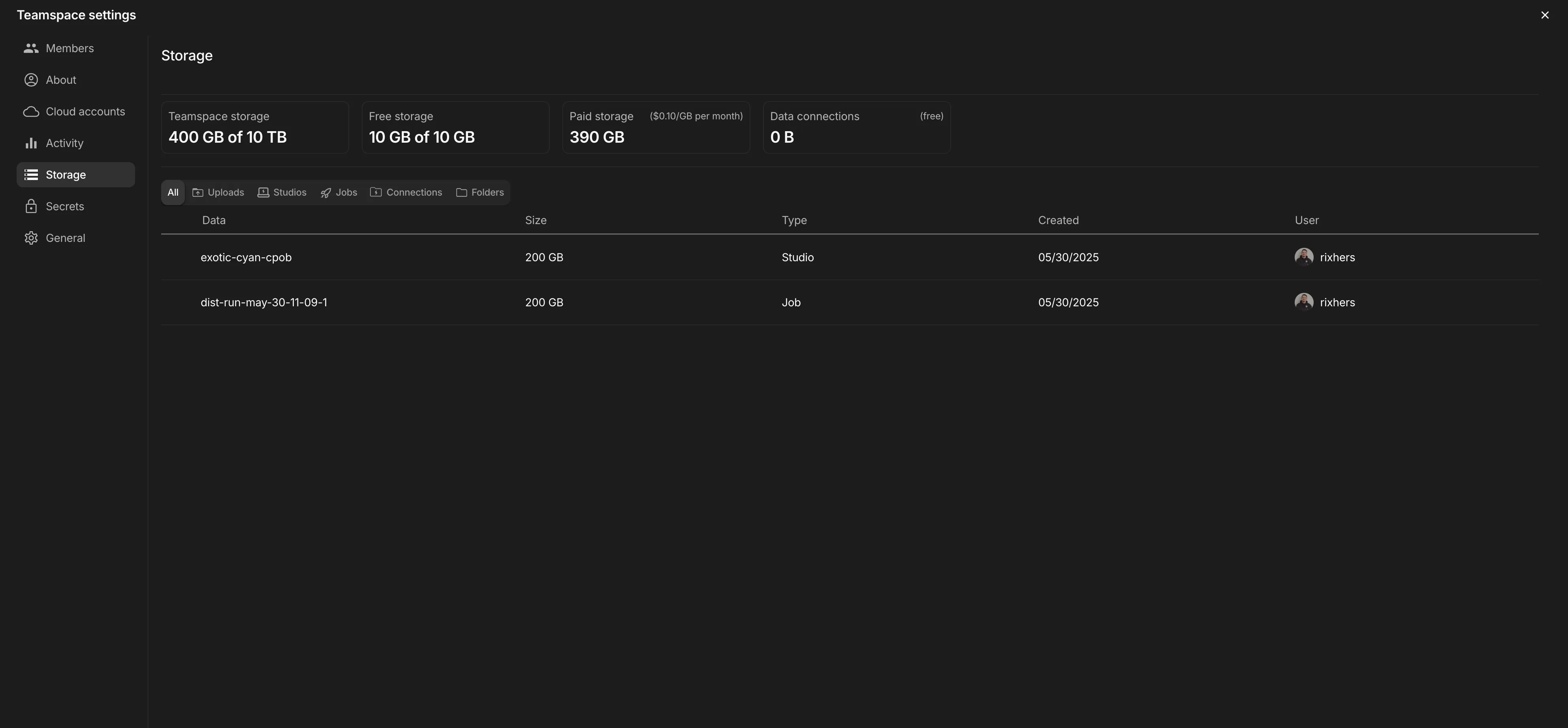
Delete one or multiple files in the list.
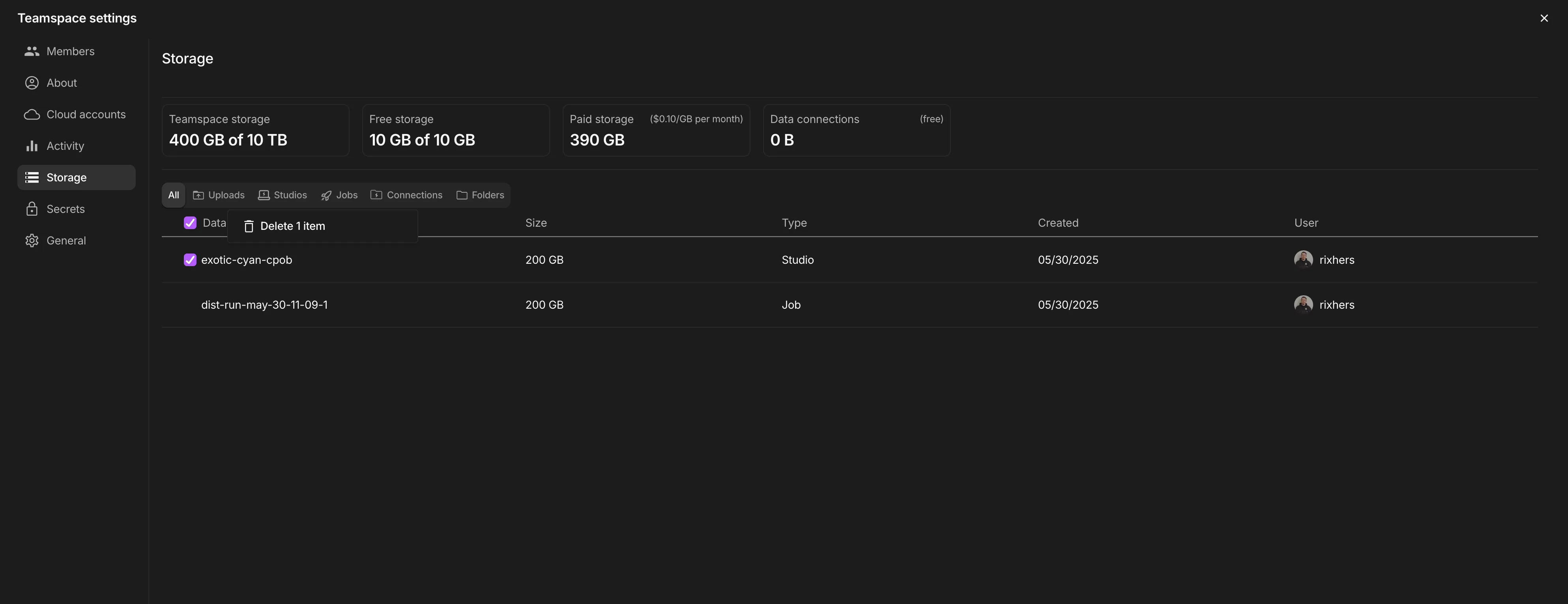
Certain file types, like Studios, may take a minute to delete.
Personal account management
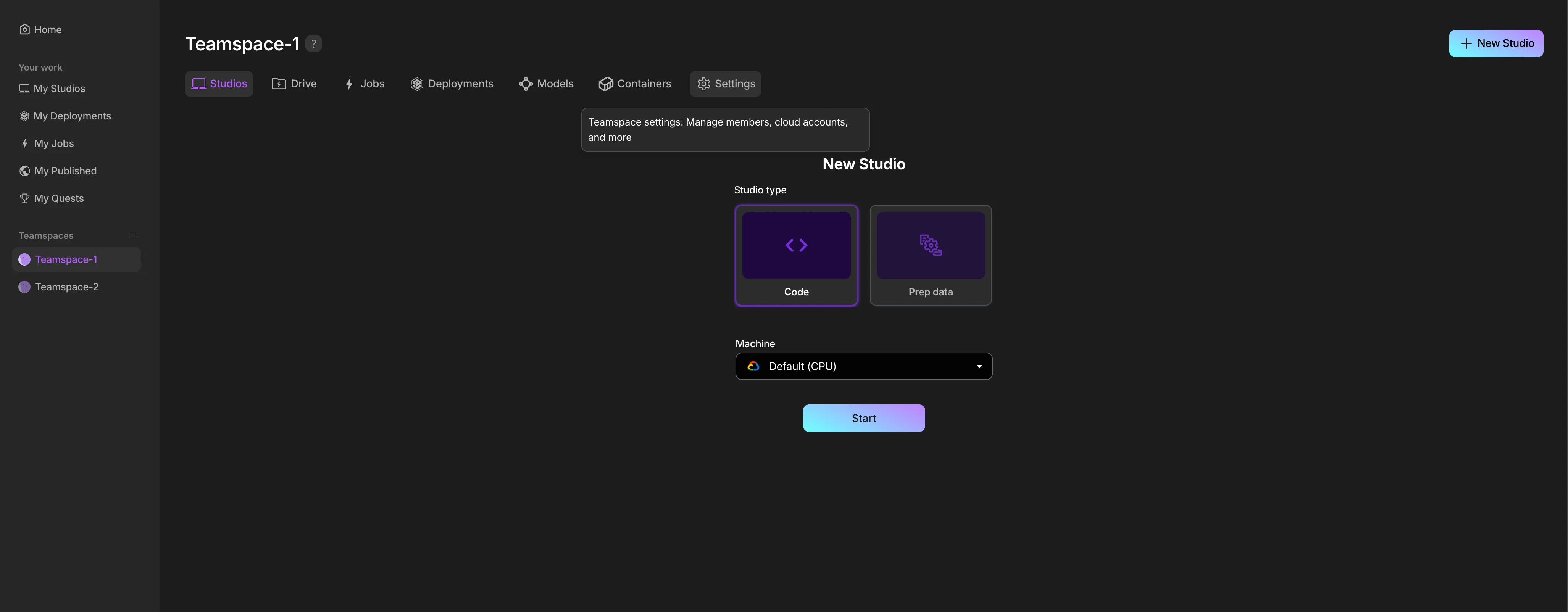
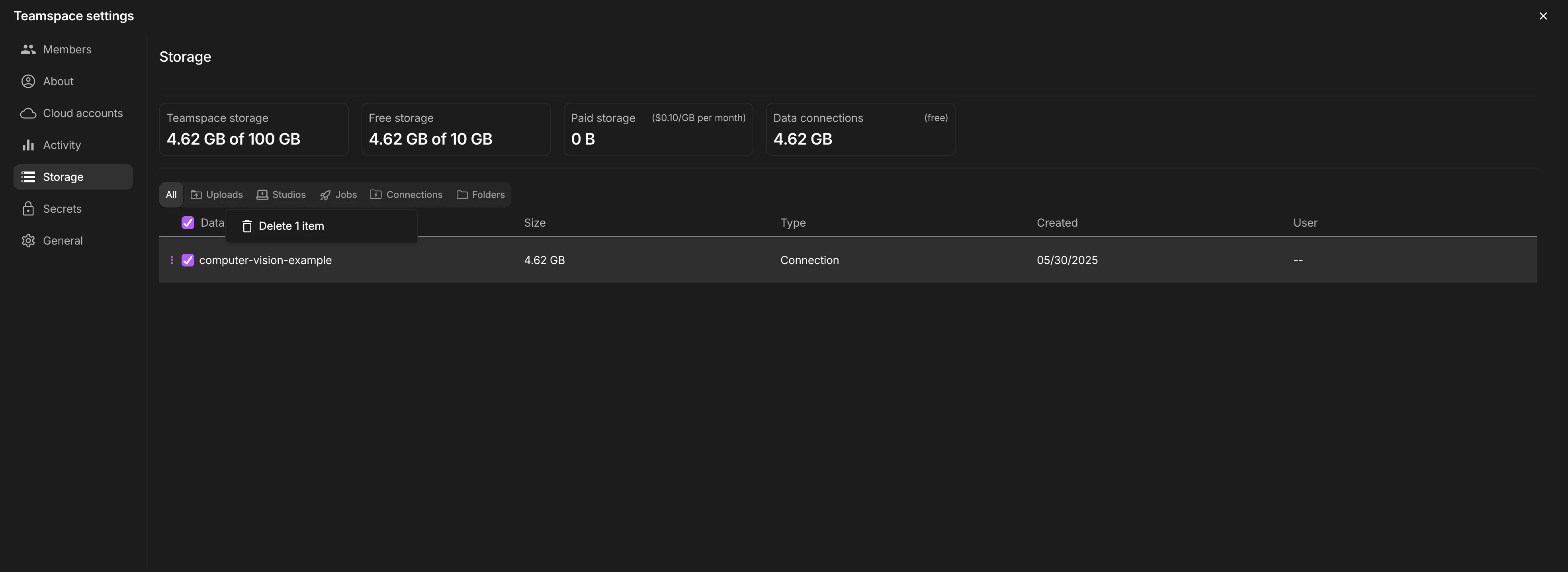
Next click on storage option to the left, under activity. From here you can manage storage assets. Some storage will be deleted immediately while others may take time clear up.
FAQs
How many S3 buckets can I connect?
- There is no limit.
What is the storage limit of the Drive?
- The Drive itself has no limit, however depending on which tier your account is on you will have tier-based limits.
Do you support Snowflake, Databricks, XYZ data service?
- Custom connectors for any data service are available to enterprise customers.
What file types do you support?
- All file types are supported (.mp4, .py, .obj, .mov, etc...). Deep learning data comes in all forms, shapes, and sizes.
How do I optimize data loading for fast training or inference?
- Use the Studio data prep app to format the data in a way that gives you at least 20× speed ups for model training and serving.
How does the Drive work underneath?
- We wrote a proprietary distributed filesystem optimized for deep learning scale. The details of how this works are part of the Lightning secret sauce :).
How can I add "Other AWS accounts" in KMS for adding an encrypted S3 bucket? (Enterprise only)
On the AWS console in KMS, select "Customer-managed keys" from the sidebar. Select your key then ensure you are on the "Key policy" tab and you should see a section labelled "Other AWS Accounts".
If you do not see the section it means you are in policy view, which will display the policy as JSON. Instead you should ensure you have the following statements in the policy, replacing the account numbers (blanked out with xxxxxxxxxxxx below) with the one referenced on Studio Drive when adding a KMS key.
[
    {
        "Sid": "Allow use of the key",
        "Effect": "Allow",
        "Principal": {
            "AWS": [
                "arn:aws:iam::xxxxxxxxxxxx:root"
            ]
        },
        "Action": [
            "kms:Encrypt",
            "kms:Decrypt",
            "kms:ReEncrypt*",
            "kms:GenerateDataKey*",
            "kms:DescribeKey"
        ],
        "Resource": "*"
    },
    {
        "Sid": "Allow attachment of persistent resources",
        "Effect": "Allow",
        "Principal": {
            "AWS": [
                "arn:aws:iam::xxxxxxxxxxxx:root",
            ]
        },
        "Action": [
            "kms:CreateGrant",
            "kms:ListGrants",
            "kms:RevokeGrant"
        ],
        "Resource": "*",
        "Condition": {
            "Bool": {
                "kms:GrantIsForAWSResource": "true"
            }
        }
    }
]
Was this page helpful?
Thanks for the feedback.