
Managed Kubernetes
Fleets with managed Kubernetes come with a cluster whose control plane is run by Lightning AI. Your fleet's GPU nodes join the cluster as workers. Use the API to connect kubectl, check cluster health, and take worker nodes in and out of service.
These endpoints return 400 Bad Request for fleets without a managed Kubernetes cluster.
Connect kubectl
The kubeconfig contains a short-lived credential with the customer role. Fetch a new one before expiresAt.
Console
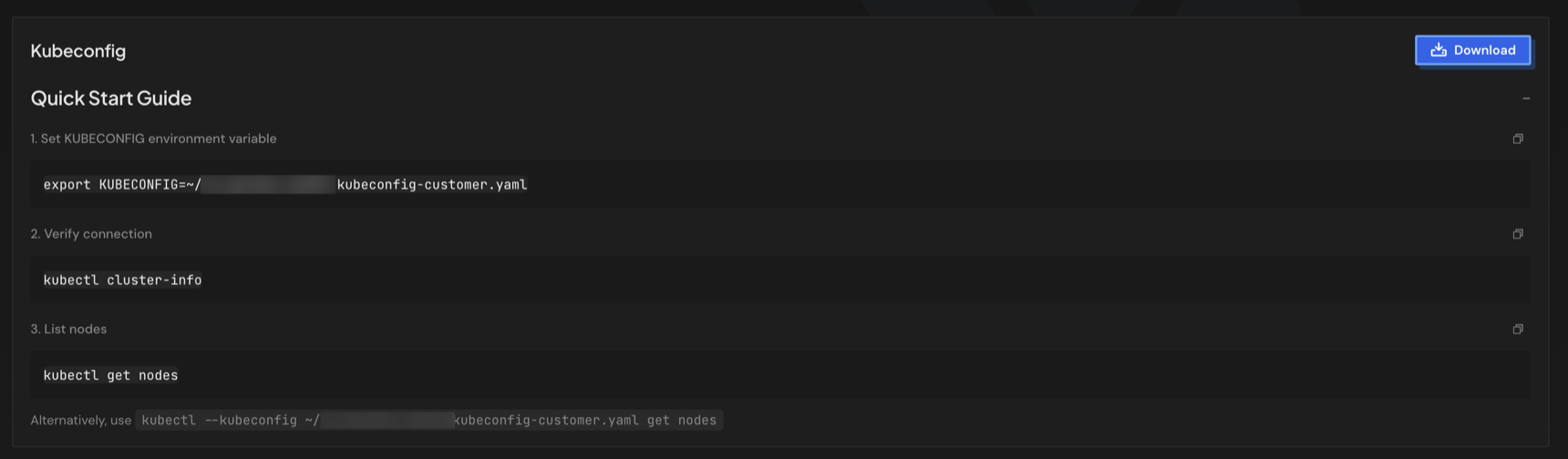
Open the fleet, select the Kubernetes tab, and scroll to the Kubeconfig card. The card appears once the cluster is Ready.
Select Download. The file is saved as
<cluster-name>-kubeconfig-customer.yaml.Follow the card's Quick Start Guide:
export KUBECONFIG=~/<cluster-name>-kubeconfig-customer.yaml
kubectl cluster-info
kubectl get nodes
Or pass the file directly:
kubectl --kubeconfig ~/<cluster-name>-kubeconfig-customer.yaml get nodes.
API
The response is a JSON envelope. Extract the YAML before using it:
curl "$API_URL/v1/fleets/$FLEET_ID/kubernetes-v2/kubeconfig" -H "Authorization: Bearer $TOKEN" \
  | jq -r '.kubeconfig' > kubeconfig.yaml
chmod 600 kubeconfig.yaml
KUBECONFIG=kubeconfig.yaml kubectl get nodes{
"kubeconfig": "apiVersion: v1\nkind: Config\n...",
"role": "...",
"expiresAt": "2026-10-15T18:00:00Z",
"ttlSeconds": 3600
}Tip
Treat the kubeconfig like a password: keep it at mode
600and never commit it. In automation, fetch a new one at the start of each job instead of storing it.
Cluster health
Returns overall health plus control-plane components, per-worker health, networking, and API-server-to-worker connectivity. Reads are live.
Console
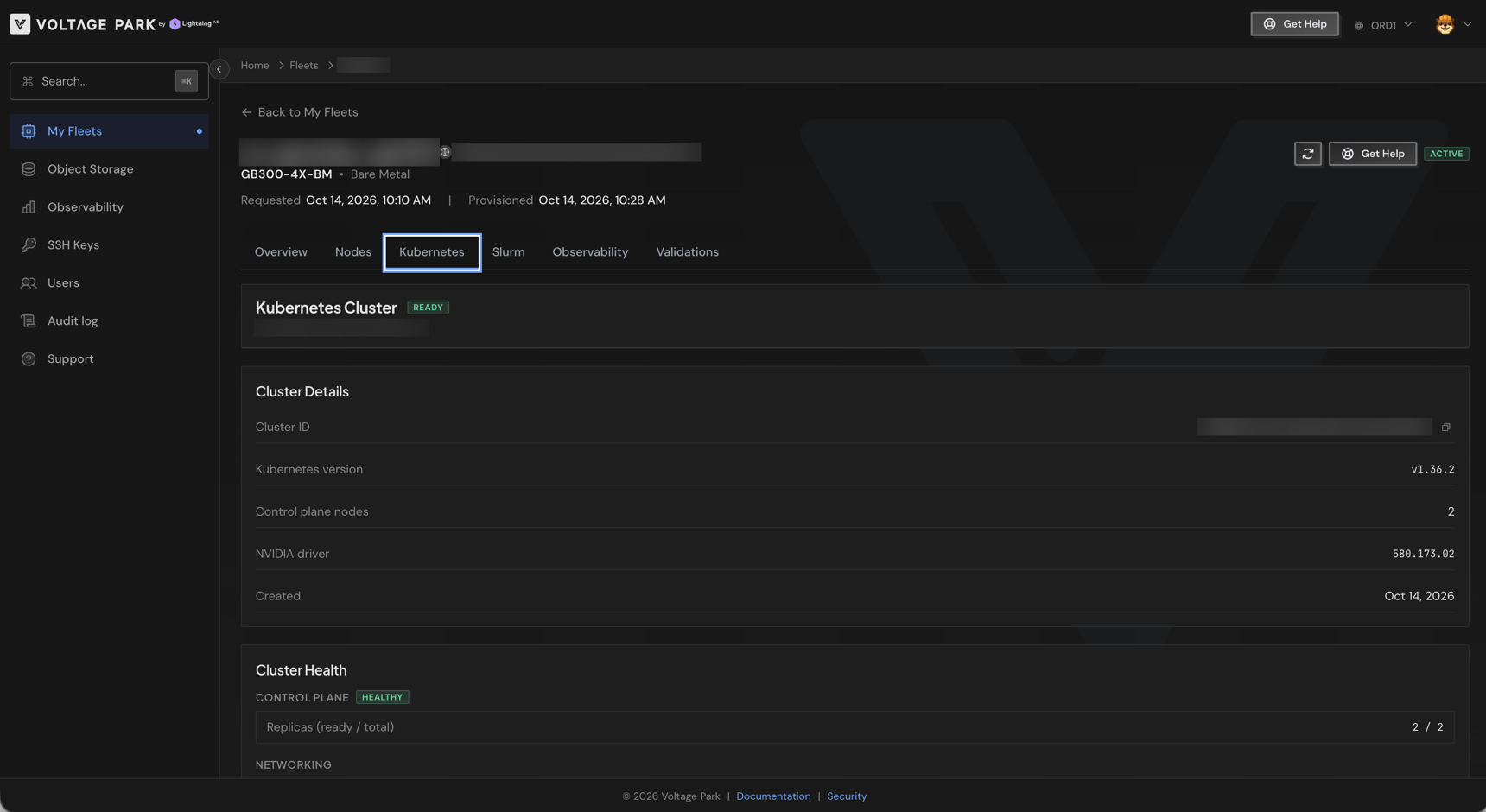
The fleet's Kubernetes tab shows the cluster's status and details (Kubernetes version, control plane nodes, NVIDIA driver), followed by cluster health for the control plane, networking, and workers.
API
curl "$API_URL/v1/fleets/$FLEET_ID/kubernetes-v2/health" -H "Authorization: Bearer $TOKEN"Returns 404 when the cluster has no health snapshot yet.
Worker node detail
Returns Kubernetes conditions, GPU information, labels and annotations, taints, and registration timestamps for one worker. It also works for nodes that are registered but have not yet joined.
Console
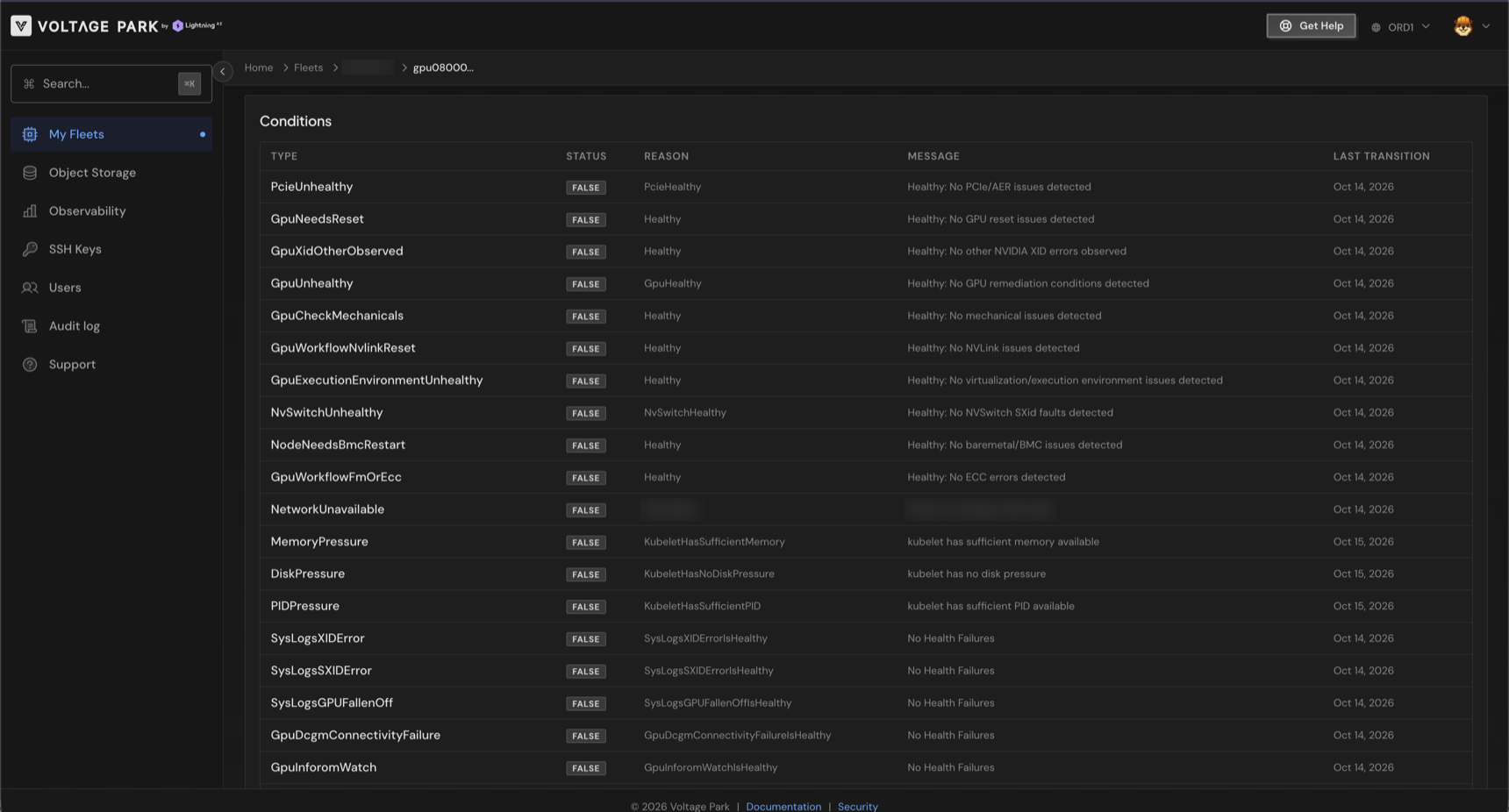
Open the node's detail page from the fleet's Nodes tab and scroll to the Kubernetes Details section. It shows registration status, Kubernetes status, and whether the node is schedulable. Below that, Conditions lists every Kubernetes and GPU health condition with its status, reason, and last transition.
API
curl "$API_URL/v1/fleets/$FLEET_ID/kubernetes-v2/nodes/$NODE_ID" -H "Authorization: Bearer $TOKEN"Cordon, drain, and uncordon worker nodes
Use these before maintenance, such as a power action, and to return a node to service afterwards. The node must have joined the cluster.
| Action | Effect | Response |
|---|---|---|
cordon |
Marks the node unschedulable. Running pods keep running. | 200 OK |
drain |
Cordons the node, then evicts its pods while respecting PodDisruptionBudgets. | 202 Accepted |
uncordon |
Makes the node schedulable again. | 200 OK |
Console
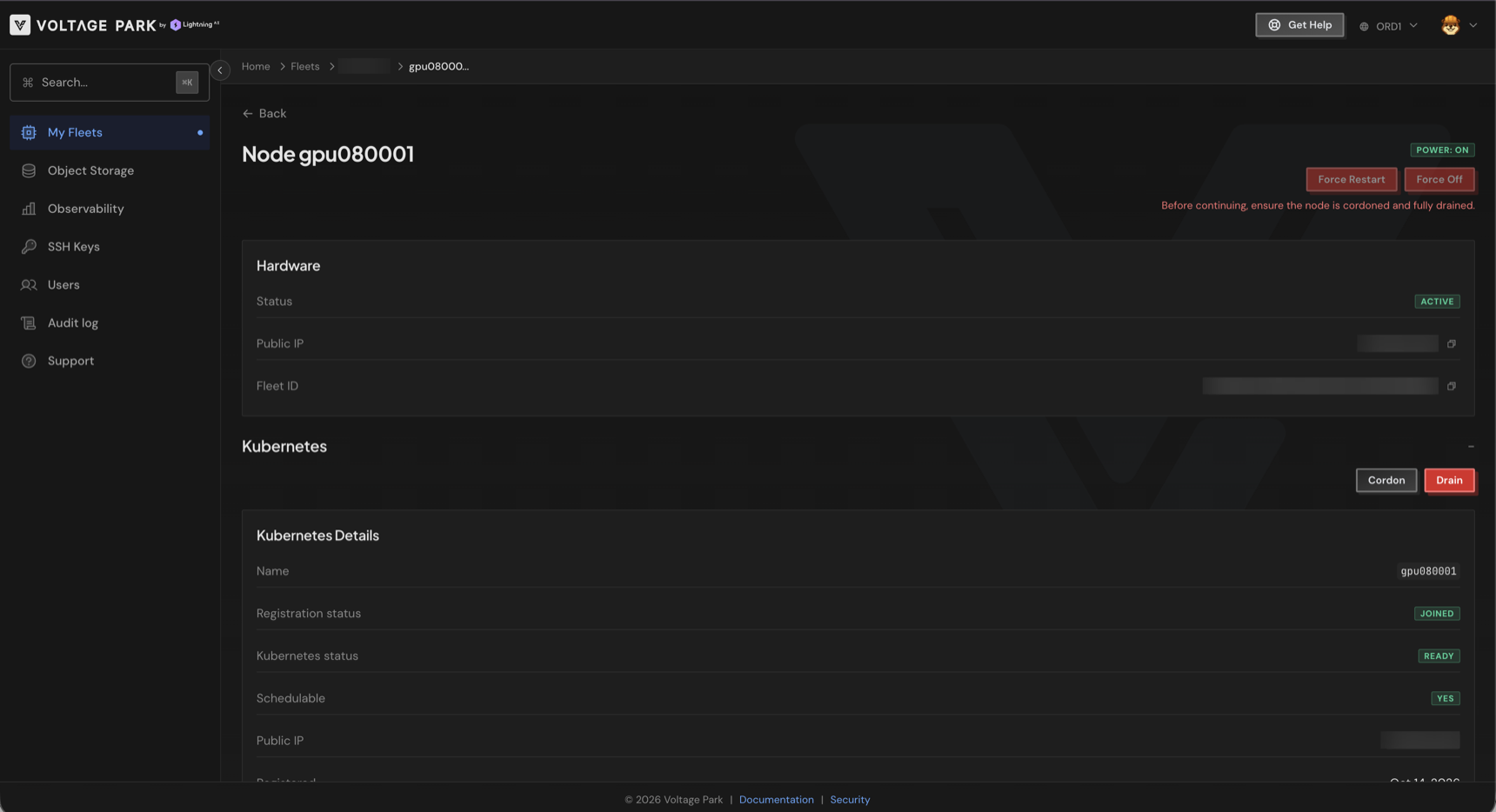
Open the node's detail page from the fleet's Nodes tab. Use Cordon or Drain in the Kubernetes section. After a node is cordoned, uncordon it from the same section.
API
# Cordon
curl -X POST "$API_URL/v1/fleets/$FLEET_ID/kubernetes-v2/nodes/$NODE_ID/cordon" \
  -H "Authorization: Bearer $TOKEN" \
  -H "Idempotency-Key: $(uuidgen)"

# Drain (the body is optional)
curl -X POST "$API_URL/v1/fleets/$FLEET_ID/kubernetes-v2/nodes/$NODE_ID/drain" \
  -H "Authorization: Bearer $TOKEN" \
  -H "Content-Type: application/json" \
  -H "Idempotency-Key: $(uuidgen)" \
  -d '{"gracePeriodSeconds": 60, "ignoreDaemonSets": true}'

# Uncordon
curl -X POST "$API_URL/v1/fleets/$FLEET_ID/kubernetes-v2/nodes/$NODE_ID/uncordon" \
  -H "Authorization: Bearer $TOKEN" \
  -H "Idempotency-Key: $(uuidgen)"
The drain response reports evicted (number of pods evicted) and failed (pods that could not be evicted).
| Drain option | Description |
|---|---|
gracePeriodSeconds |
Time given to evicted pods before they are forcibly terminated. |
ignoreDaemonSets |
Continue even though DaemonSet pods can't be evicted. They are skipped. |
deleteLocalData |
Accepted for forward compatibility but not currently honored. |
Drain returns 409 Conflict while the cluster is restoring or being deleted.
Typical maintenance flow
- Drain the worker and confirm
failedis empty. An emptyfailedlist only means every eviction request was accepted, not that the pods have stopped. - Poll the worker detail until
schedulableisfalseanddrainedistrue. Ifdrainedis missing, the drain isn't confirmed yet, so keep waiting. - Do the maintenance, for example a
ForceRestart. - Check that the node is
Readyin its worker detail. - Uncordon it.
Was this page helpful?
Thanks for the feedback.