
SSH keys
SSH keys give your users shell access to fleet nodes. An SSH key record belongs to your organization and maps one Linux username to one or more public keys.
Required role: Administrator
Registering, listing, applying, and deleting SSH keys needs the Administrator role. If you don't have permissions, ask an Administrator to register your key.
How keys reach nodes
Each fleet has a set of SSH users, chosen when the fleet is created. Registering a user in your organization doesn't add it to every fleet.
| When | What happens |
|---|---|
| A fleet's nodes are provisioned, including nodes added later | The current keys of the fleet's SSH users are installed. |
| You add a key to one of the fleet's users, or register a new user, while the fleet is running | Existing nodes don't get the key until you apply it to the fleet. |
| You delete a user | The keys come off every running fleet they were applied to. Keys installed when a fleet was created stay on its nodes until you revoke them from that fleet. |
Register a key
OpenSSH, RFC 4716, PKCS#8, and PKCS#1 public keys are accepted. They are stored in OpenSSH format. Registering another key under an existing username adds it to that user's record.
Console
Select SSH Keys in the sidebar to open SSH Access Management, then select Add User. Enter the username and paste the public key. To add another key for an existing user, such as a second laptop, open the user with View/Edit in the Actions column.
API
curl -X POST "$API_URL/v1/sshkeys" \
  -H "Authorization: Bearer $TOKEN" \
  -H "Content-Type: application/json" \
  -H "Idempotency-Key: $(uuidgen)" \
  -d '{
    "username": "jdoe",
    "publicKey": "ssh-ed25519 AAAAC3NzaC1lZDI1NTE5AAAAIOMq... jdoe@laptop",
    "description": "Work laptop"
  }'
Returns 201 Created for a new record, or 200 OK when the key was added to an existing user.
List keys
Console
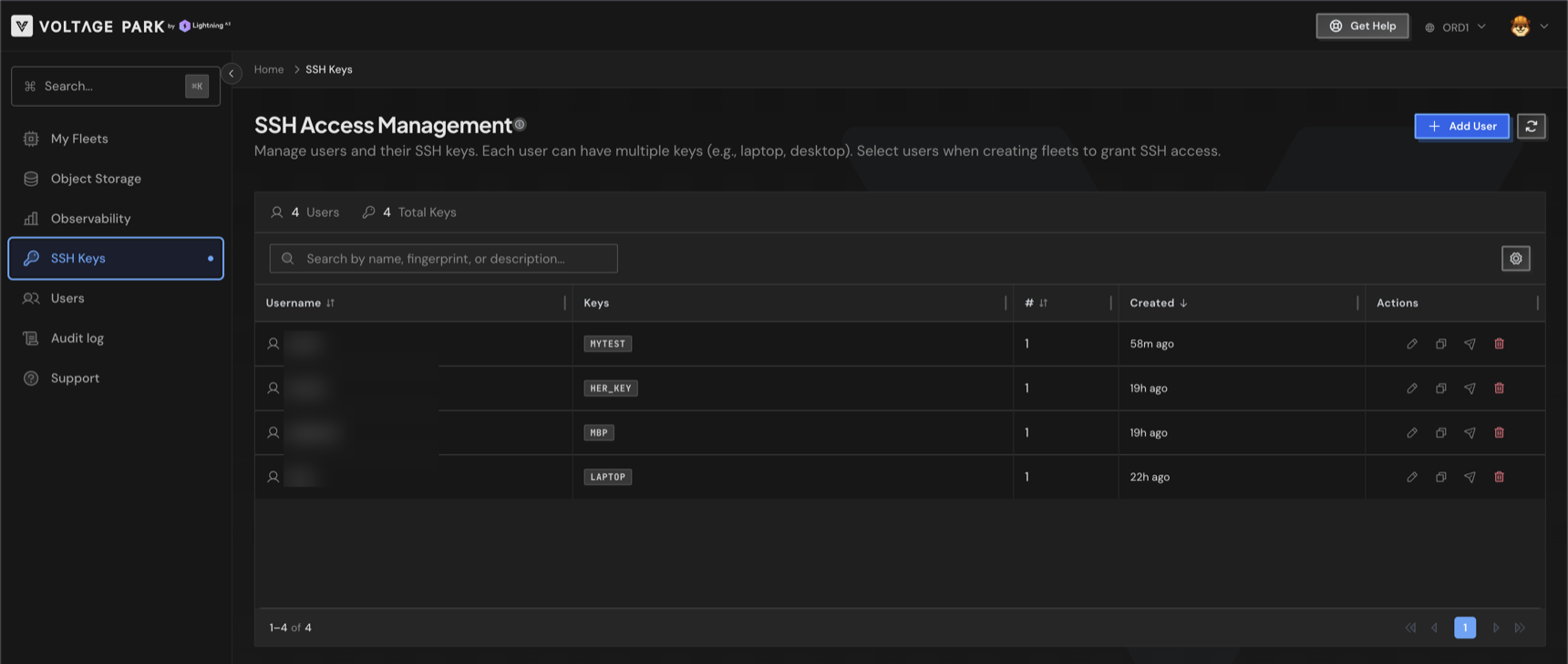
Select SSH Keys to see every registered user, their keys, how many keys each has, and when they were added. Search by name, fingerprint, or description.
API
curl "$API_URL/v1/sshkeys" -H "Authorization: Bearer $TOKEN"Each record includes sshKeyId, username, publicKeys, and createdAt.
Apply a key to a running fleet
Apply a registered key to a fleet that is already running, so its nodes accept the key without being rebuilt. Every public key in the record is applied.
curl -X POST "$API_URL/v1/fleets/$FLEET_ID/sshkeys" \
  -H "Authorization: Bearer $TOKEN" \
  -H "Content-Type: application/json" \
  -H "Idempotency-Key: $(uuidgen)" \
  -d '{"sshKeyId": "'"$SSH_KEY_ID"'"}'
Response (202 Accepted):
{
  "message": "...",
  "nodeCount": 8
}- Keys are written to nodes asynchronously. There is no status endpoint yet, so confirm by logging in to a node.
nodeCountis the number of already-provisioned nodes that will receive the key.0means the fleet has no running nodes yet. The key arrives when nodes are provisioned.- This operation only adds keys. To take them off a fleet, revoke the key from the fleet.
- Resubmitting is safe. If an earlier attempt only reached some nodes, resubmit the same key to repair the fleet.
- Returns
409 Conflictif the fleet is not in a state that accepts keys.
Delete a key
Console
Select SSH Keys, then select the delete icon in the user's Actions column.
API
curl -X DELETE "$API_URL/v1/sshkeys/$SSH_KEY_ID" \
  -H "Authorization: Bearer $TOKEN" \
  -H "Idempotency-Key: $(uuidgen)"
Returns 204 No Content. Deleting a key that is already deleted returns 404 Not Found, so a retry that gets 404 has nothing left to do.
Deleting a record removes every public key under that username, and takes them off the nodes of every running fleet they were applied to. The Linux user on each node is not deleted, only its authorized keys. If a fleet can't be reached, the user is kept and the call returns 502 with the affected fleet IDs in details.fleetIds. Fleets that were reached are already updated, so retry to finish.
Keys installed when a fleet was created
Deleting a user doesn't remove keys that were installed when a fleet was created. To remove someone's access, revoke their key from each fleet they were set up on, then delete the user. You need both steps: revoking takes the key off the fleet's running nodes, and deleting the user stops nodes the fleet adds later from getting it.
Slurm logins are managed separately, and deleting an SSH key doesn't change them.
Revoke a key from a fleet
Take a user's keys off one fleet's running nodes, so those nodes stop accepting them. This works for every key the user has on the fleet, including keys installed when the fleet was created.
curl -X DELETE "$API_URL/v1/fleets/$FLEET_ID/sshkeys/$SSH_KEY_ID" \
  -H "Authorization: Bearer $TOKEN" \
  -H "Idempotency-Key: $(uuidgen)"
Returns 202 Accepted.
- Only the fleet you name is changed. Other fleets keep the key.
- The passwordless
sudorule given to the user on this fleet is removed with the keys. - The key stays registered in your organization, so you can apply it again later.
- Nodes are updated asynchronously. There is no status endpoint yet, so confirm by trying to log in.
- Nodes added to the fleet later still get the key while it's registered under one of the fleet's SSH users. To stop that, delete the user, or rotate the key out of the record.
Rotating a key
Deleting a record removes every key under that username, so rotate in this order:
- Register the new public key under the same username. The record now holds both keys.
- Apply the record to each running fleet, and confirm you can log in with the new key.
- Delete the record, register it again with only the new key, and apply it to each fleet again. Deleting takes both keys off the fleets they were applied to, and applying puts the new one back.
- On fleets where the old key was installed at creation, remove it from
~/.ssh/authorized_keyson each node.
Was this page helpful?
Thanks for the feedback.