
Teamspaces
What is a teamspace
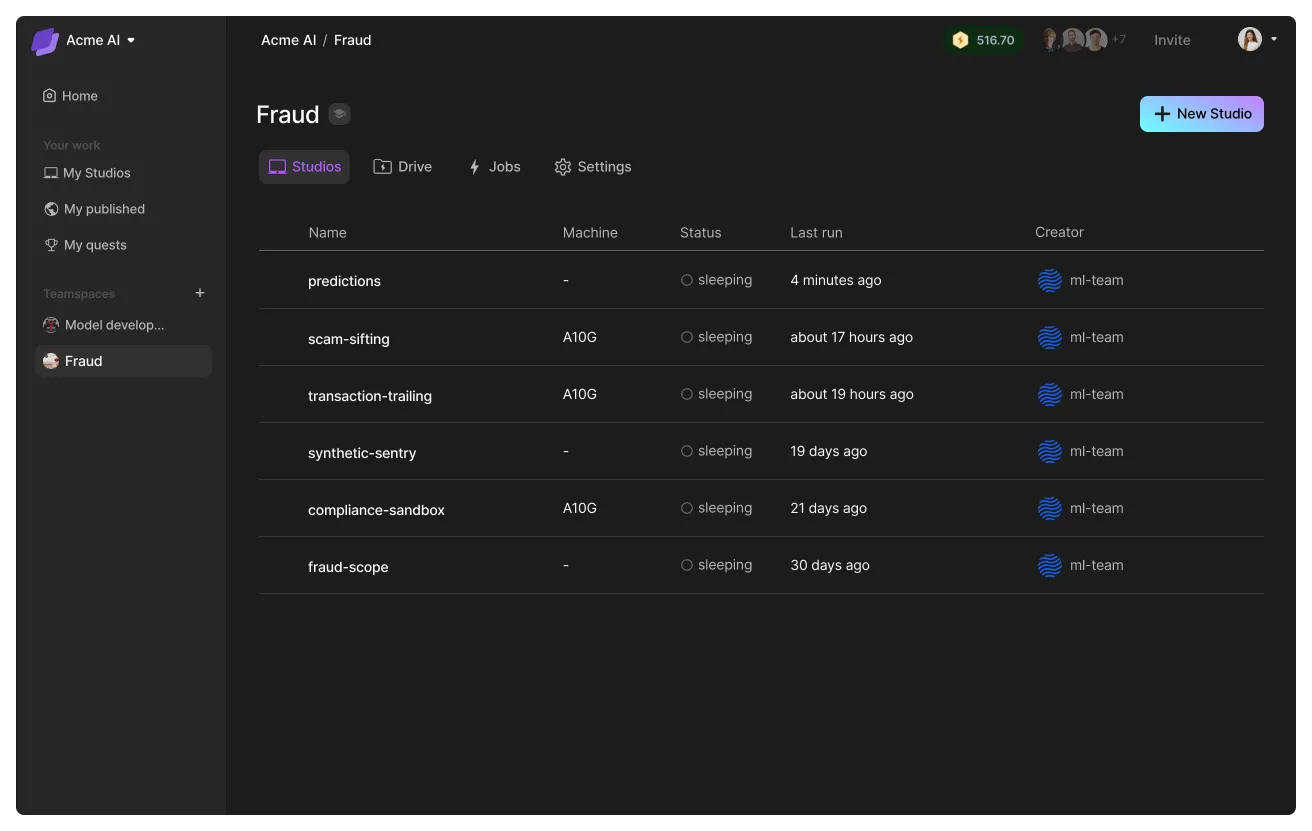
A teamspace groups a set of Studios, data, and people working on a single goal.
When to use teamspaces
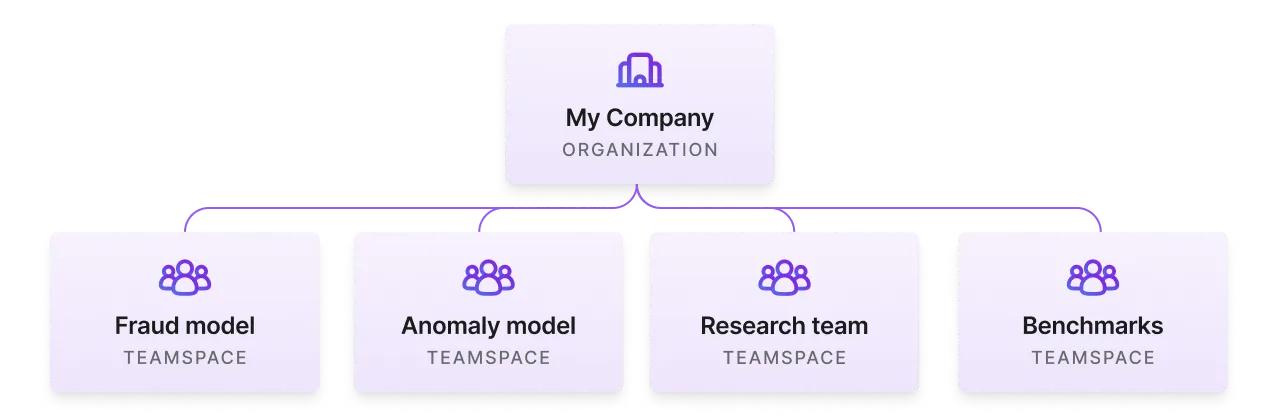
Use a teamspace to group use cases, teams, or arbitrary collections of Studios scoped to particular datasets. Examples:
- Fraud model (use case)
- Anomaly model (use case)
- Research team A
- Research team B
- Benchmarks
One Studio per task
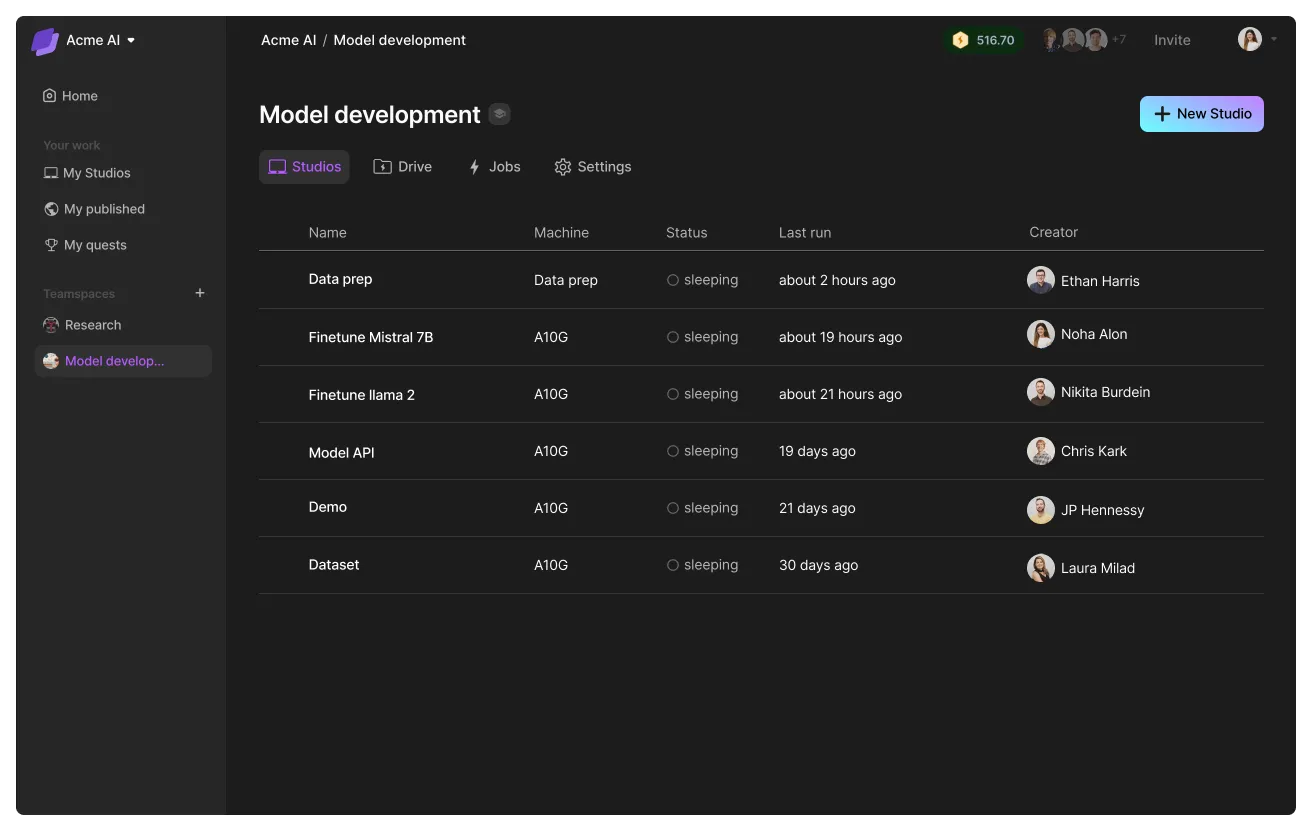
Within a teamspace, we recommend you break down parts of the work into focused Studios. For example, a Studio to finetune, another Studio to host a demo, another Studio to process data, and so on. This allows each Studio to have its own isolated environment that enables reproducibility at scale.
Shared filesystem
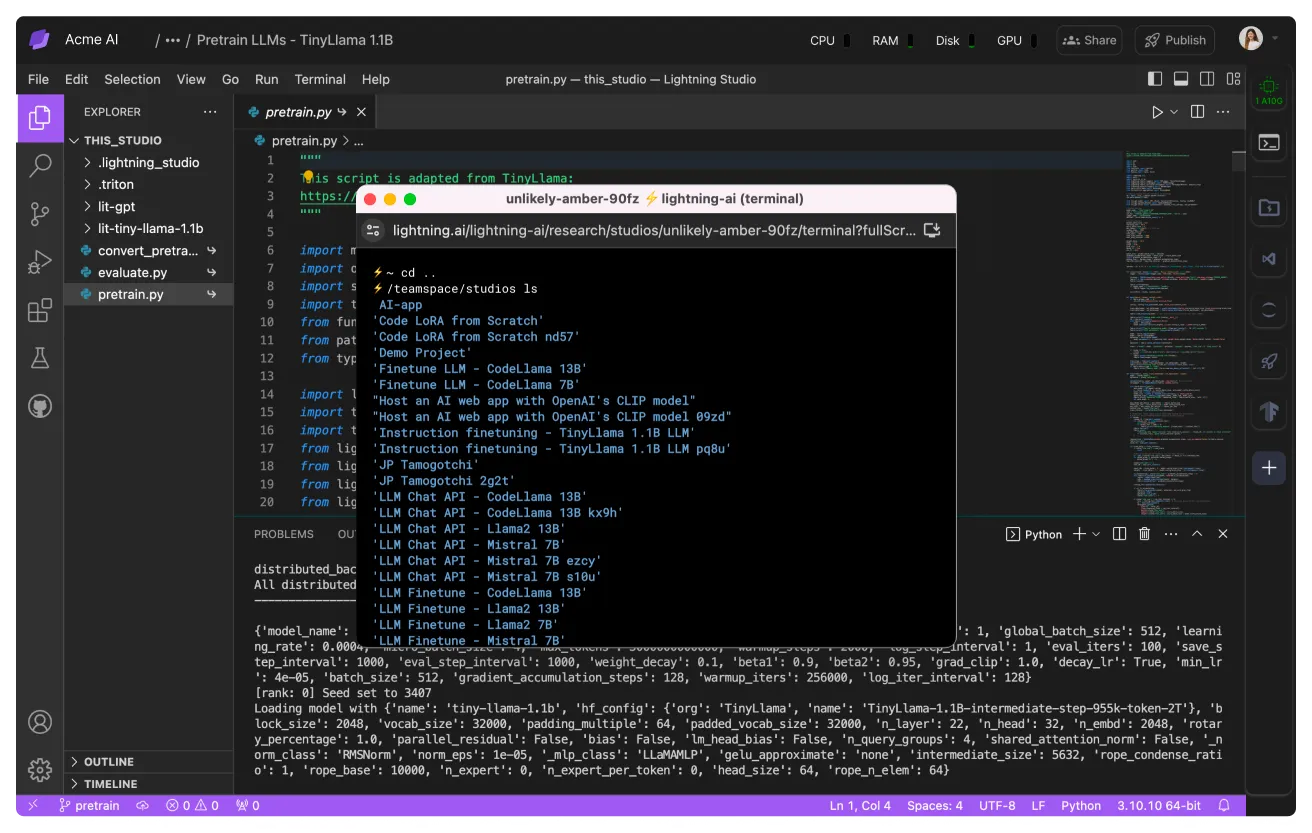
All Studios in a teamspace share the same filesytem. Train on Studio A and use the checkpoints in Studio B.
Teamspace principles
Teamspaces are designed to isolate data access to a set of people, group Studios and set a budget.
Isolate data access
The first goal of a teamspace is to isolate access to data. Only members inside a teamspace have access to the data in that teamspace.
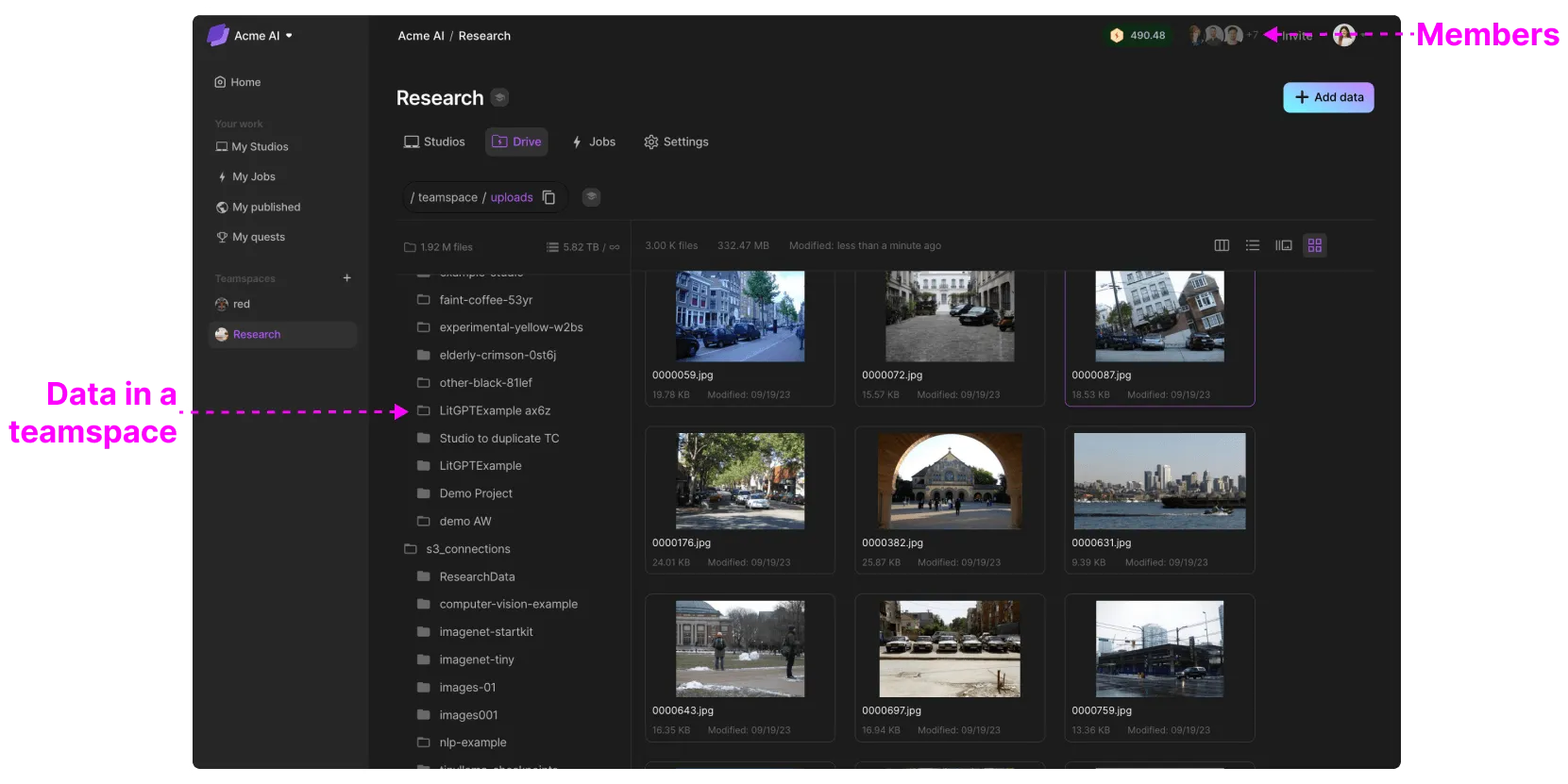
For example, if you have a dataset that only 2 people can access, create a teamspace for those 2 people with that dataset.
Set a budget
Certain initiatives can incur huge expenses. A teamspace isolates its own costs, so it's trivial to see how much an initiative has cost to the second.
Grant a fixed number of credits to a teamspace to ensure that the initiative will not go over budget.
Set a budget for your teamspace and monitor credit consumption in teamspace settings.
Set credits auto-reload
Automatically replenish a teamspace's credit balance from the organization wallet when it falls below a specified "Threshold".
To enable a teamspace credits auto-reload, go to the teamspace settings, open the "General" section, and switch "Auto-reload credits" ON. You can then edit the "Reload amount" and "Threshold", or use the default values. All new teamspaces have the "Auto-reload credits" setting enabled by default.
Teamspace settings for credits auto-reload.
Only organization admins can enable and edit this setting.
Grant compute access
Most organizations today have different compute resources available to them. Some are on the cloud (AWS, GCP, etc.), while others are on-prem. Grant access to the correct resource via a teamspace.
Granting access to a cloud account.
Was this page helpful?
Thanks for the feedback.