
Switch clouds
Most platforms lock you in to a single cloud provider limiting GPU options and leaving you with no other options when prices increase. On Lightning AI, you can choose from a number of cloud providers based on the one that gives you the right machine at the right price.
This guide will outline the steps to switch existing work from AWS to GCP and migrate all your data cleanly, simply do the opposite to switch from GCP to AWS.
Why does that matter? Because when you open your first Studio on GCP, you will not see all of the data that you had access to in AWS Studios. This isn't because the data is lost, the data just needs to be migrated.
There are two steps to follow in order to switch from AWS to GCP:
- Transfer data
- Transfer Studio environment
Transfer data
Lightning AI has a persistent file system that allows you to share data across your Teamspace. There are several products for storing data. Find the product you're trying to transfer data from and follow the steps below for that below.
Studio data
If your data is currently stored in a Studio that is on AWS, then it won’t be visible when you launch Studios on GCP. To migrate data, download the Studios data and upload it to a new Studio on GCP. There are two ways to do this:
Automatically via the UI
The most popular way to move a Studio from one cloud provider to another is to transfer it. Find the Studio you'd like to transfer, hover on the 3 dots to the left of the name and select "Transfer". If you have any further questions, follow this detailed guide. Transfers can take several minutes depending on the amount of data in your Studio.
*Note: there is a one-time cost that varies based on the amount of data being transferred. This cost is automatically deducted from your credits for this action. *
Manually via Lightning SDK
The preferred manual method is using the Lightning SDK. It only requires you to run a few commands in a Studio.
- Start a new Studio on GCP cloud by running the following command in a Studio
lightning studio create --name my-gcp-studio --cloud GCP --teamspace my-org/my-teamspace
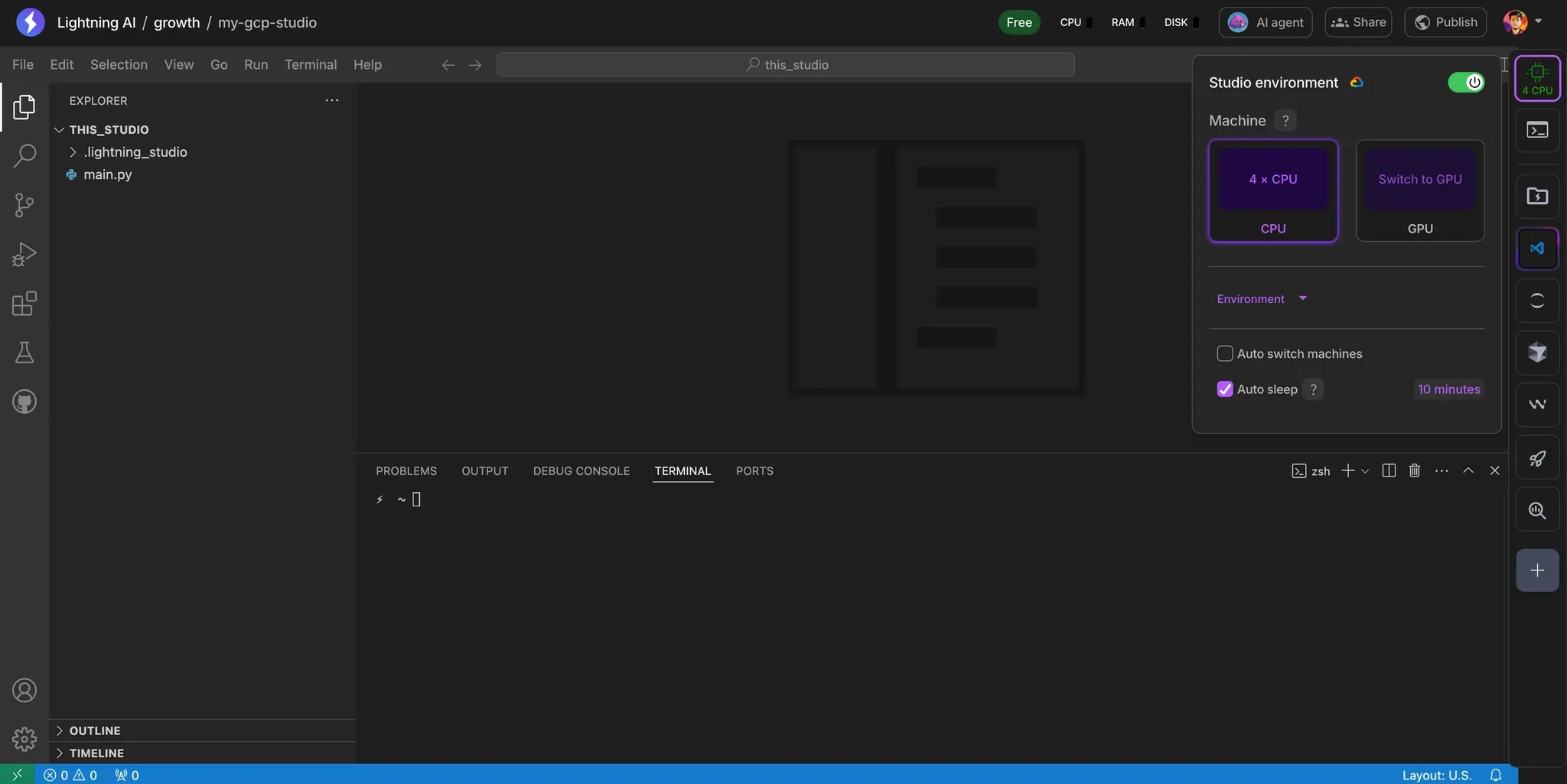
Open your new Studio in the browser and wait until it's fully ready (green bar flashes)
Copy the data from Studio on AWS by running the following command in the GCP Studio
lightning cp -r lit://<org>/<teamspace>/studios/aws-studio/~/ ./local-dir
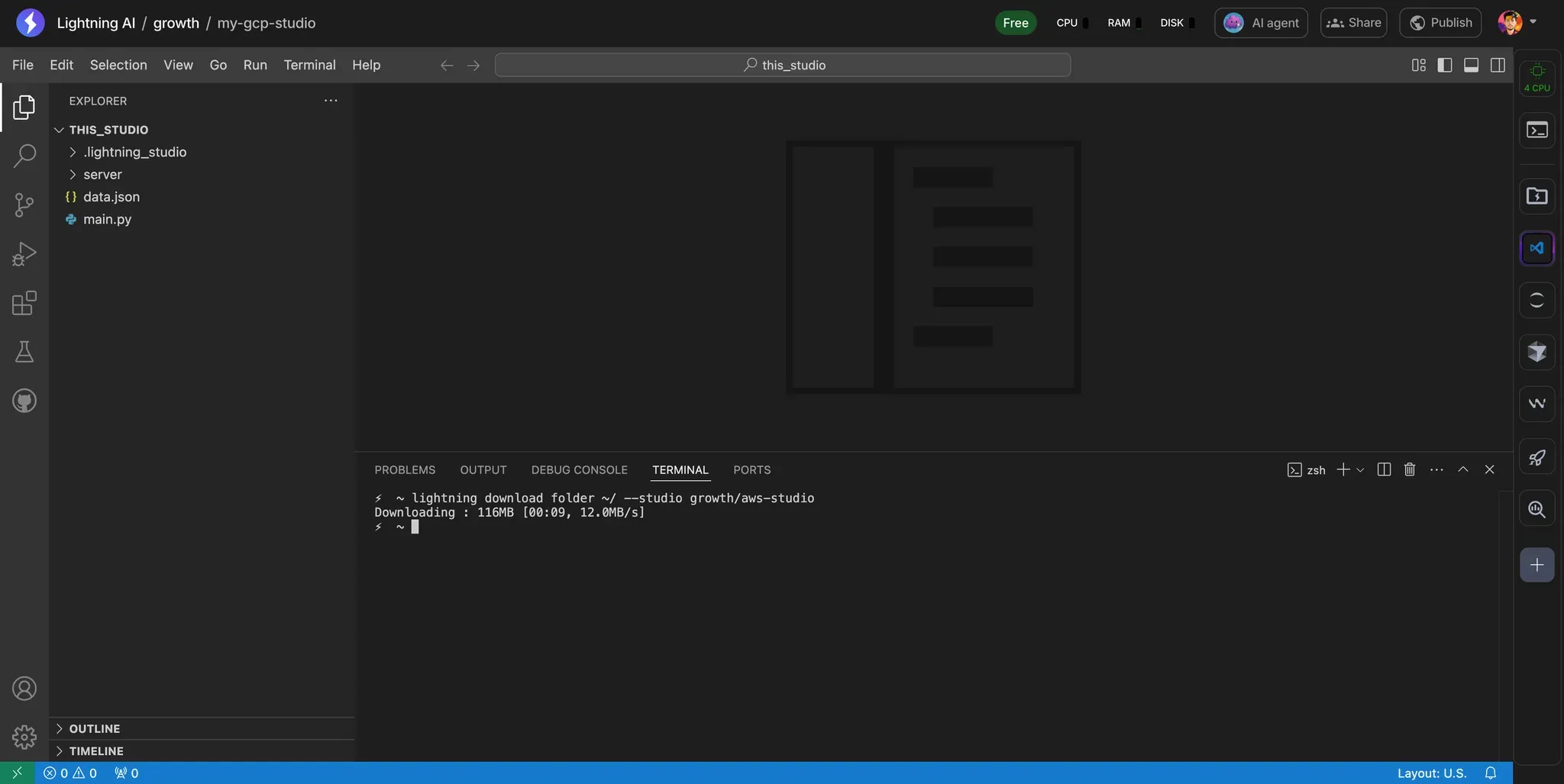
Manually via the UI
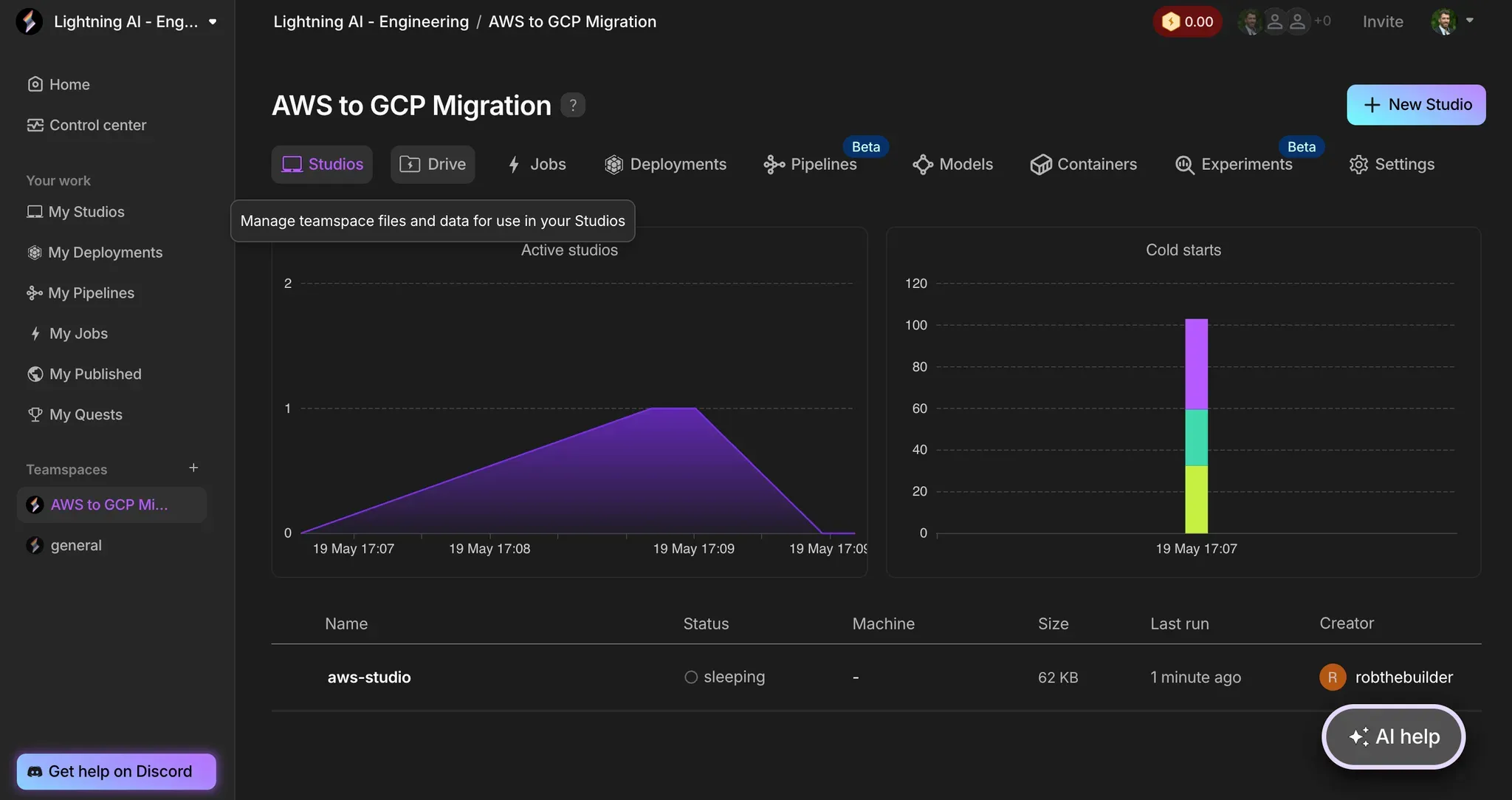
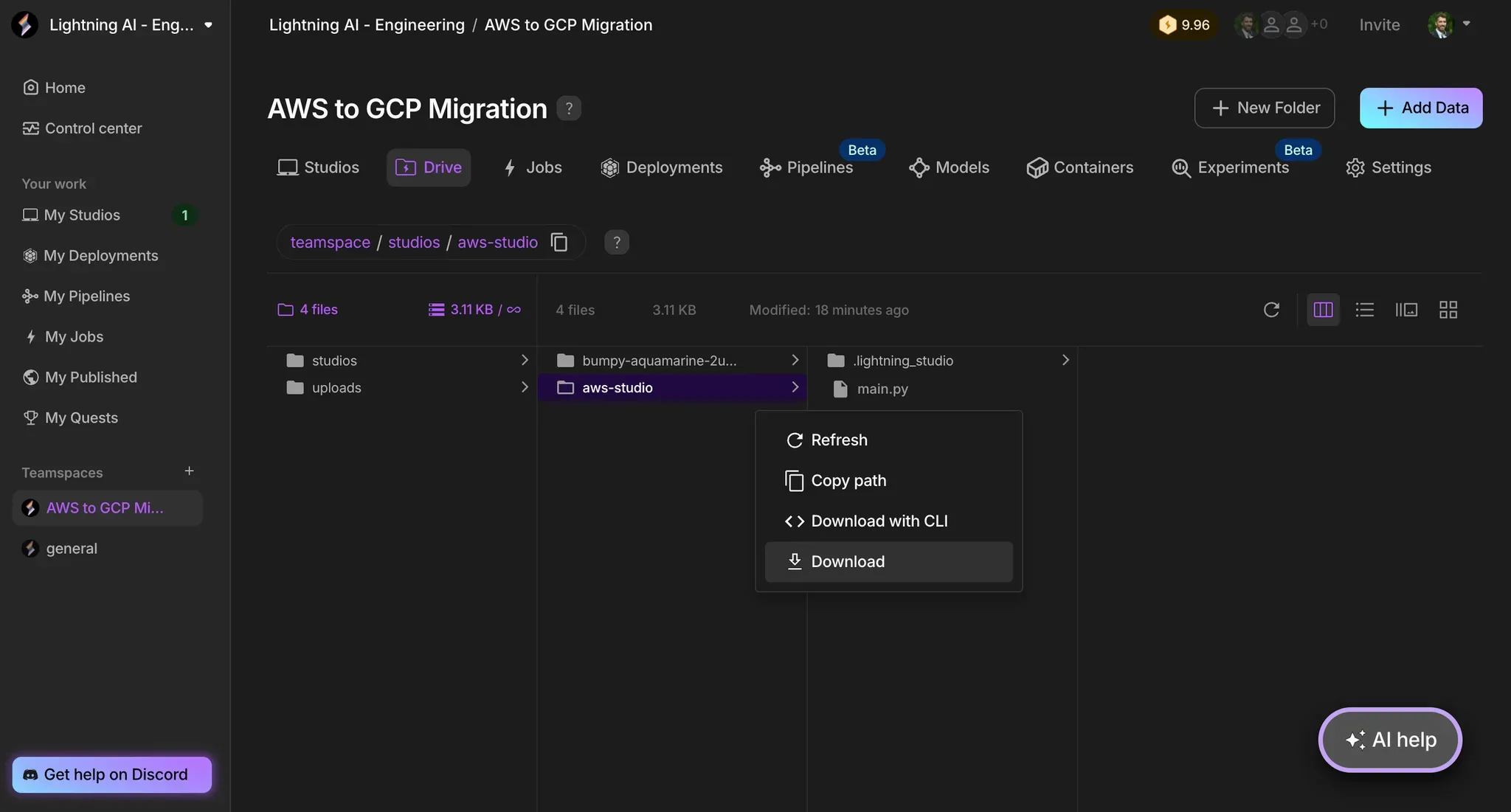
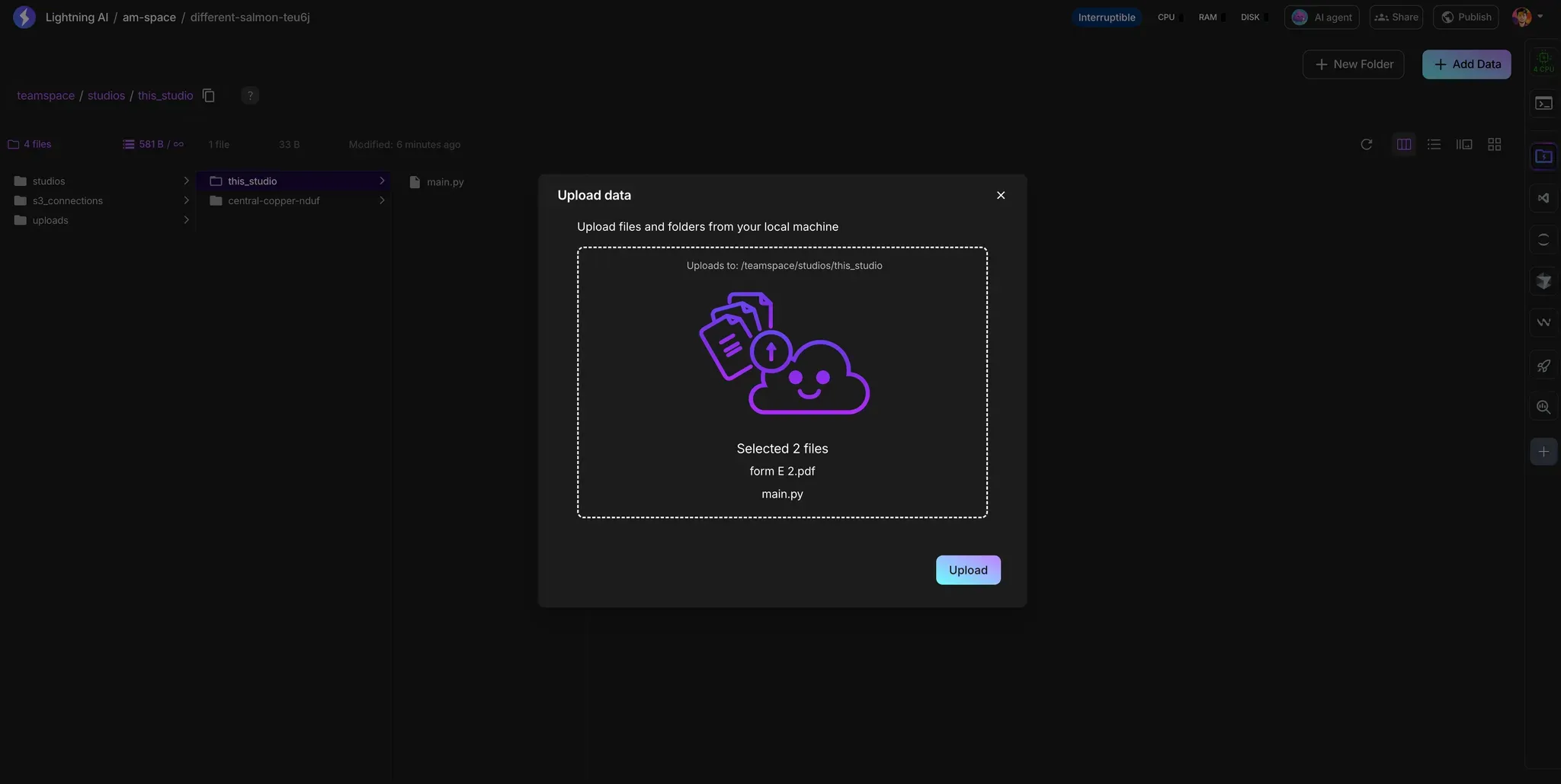
An alternate method to transfer data is from the UI. This can be more manual but is still effective.
- Navigate to your Teamspace drive
Downloadthe desired Studio(s)
- Open a Studio on GCP and upload your Studio data into the correct directory
S3 connections
If your data lives in an S3 bucket you have connected to your Teamspace drive, you will need to migrate that data to GCP outside of the platform and then connect the GCS connection to your Teamspace.
Begin by following Google’s guide for migrating your data from S3 to GCP
After your data is in GCP, navigate to your Teamspace drive
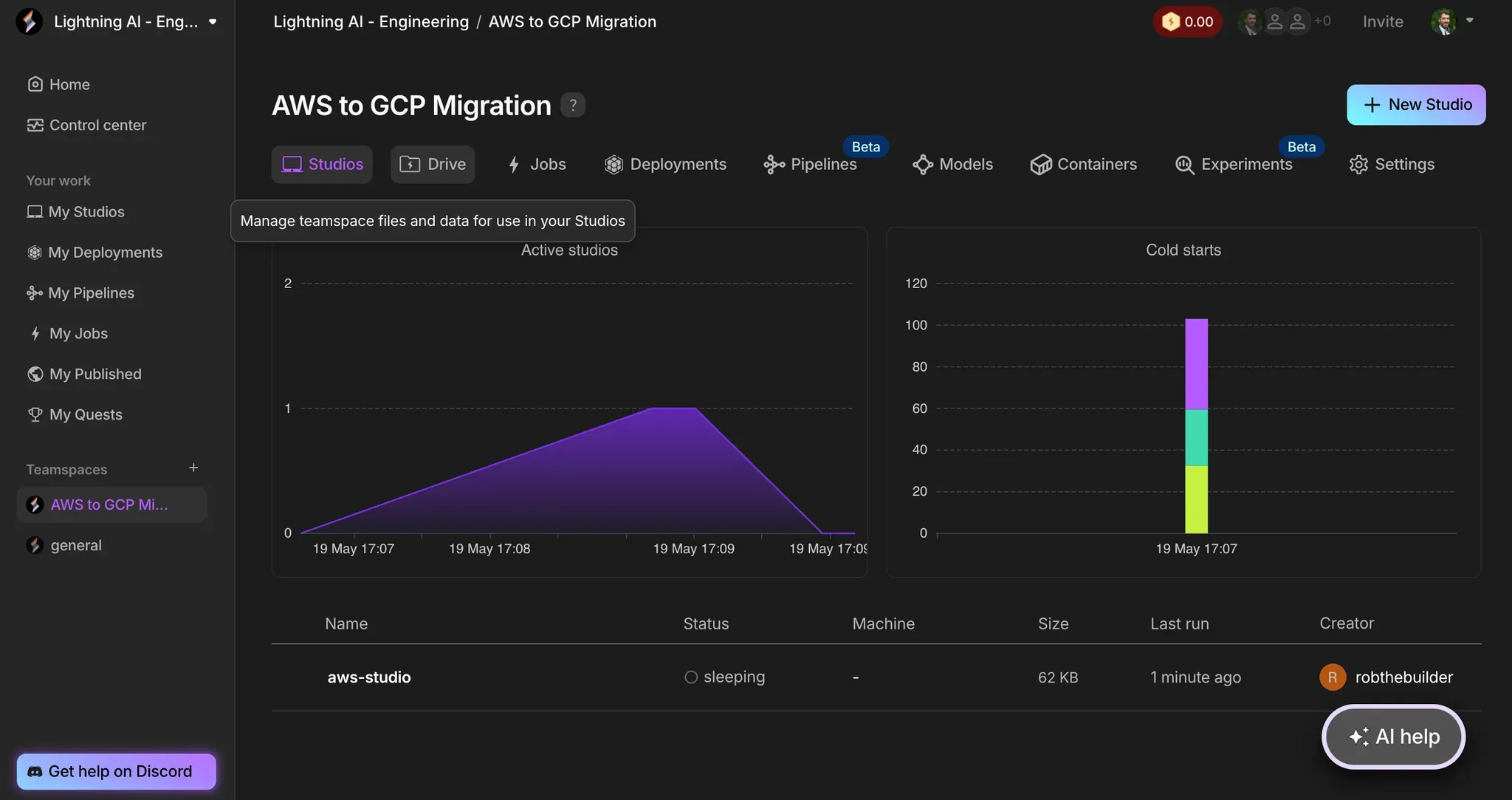
- Follow the instructions presented to connect your data to Studios
EFS connection
If accessing data via EFS, and would like to move to GCP, your data must first be migrated to Google Filestore. Use AWS DataSync to facilitate this transfer.
Uploads folder in the Drive
If you are using data from the /uploads directory in AWS Studios, you don’t need to do anything. The data will already be available to your GCP Studio.
Transfer Studio environment
Every Studio persists your python environment and dependencies across sessions. To migrate a Studio to GCP, you have 2 options to migrate your python environment.
Manually set up
The most reliable way to migrate your environment is to rebuild it. We typically rebuild the Studio from scratch. It can take a few hours but ensures accuracy and latest version compatibility.
Snapshot your environment
You can also take a snapshot of your environment and programmatically update the new Studio environment.
- Open your AWS Studio
- Create a file with your dependencies by running
pip freeze > requirements.txtin your Studio - Open your new GCP Studio
- Load your dependencies by running
pip install -r requirements.txtin your GCP Studio - Paste the environment and version numbers into this
- Build your Studio from this requirements file by running
- Now it will persist in your new GCP Studio
Was this page helpful?
Thanks for the feedback.