
Streamlit apps
Lightning AI allows deploying and hosting Streamlit apps via Studios or Jobs. Use the Streamlit plugin to manage Streamlit app deployments.

It takes <1 minute to deploy a Streamlit app with a public link:
Use the Streamlit plugin to deploy and host apps.
What is Streamlit?
Streamlit is a web framework that mixes the front-end code with the model code. It has a similar event-loop to React but it is built in pure Python. Under the hood, it still generates valid React code, but it does not require the user to know web development. This is useful to build interfaces that require computational code like in AI/ML without needing a stand-alone web app.
Start from a template
We recommend you find a template to something similar to what you want to build by visiting our Studio templates.
Start by duplicating a template from the Lightning Studio templates gallery.
Development workflow
For an enterprise-ready pipeline, set up the Studio as the development environment. Deploy the app on the Studio "localhost" (like you do locally on your laptop), to test and develop against. Once you're happy with what you have, submit a Studio Job to promote to staging or production.
Bring your own code
To run your own Streamlit app simply download the code into the Studio, install the Streamlit plugin, select the file to run and hit run.
Git clone your code into the Studio, then launch the Streamlit app.
To bring your code, we recommend you use git and keep your code version controlled (GitHub, Gitlab, etc...).
Run manually
If, for whatever reason, you don't want to use the Streamlit plugin or want to run things manually, simply run Streamlit from the terminal and expose the right port.
Run your app from the terminal and expose the right port.
Note: This should be avoided and only used to unblock an issue with the Streamlit plugin.
Share a public link
The main way to share a Streamlit app is to click the public link icon on the Streamlit plugin.
Click the public link icon within the Streamlit plugin.
To share manually, simply use the ports plugin and expose the right port.
Use the ports plugin to expose the right port.
Production workflow
Below are our recommendations for structuring your deployment workflow depending in the type of deployment you want. We support everything from prototypes to full enterprise pipelines.
Staging environment
Once your app has been developed on the Studio and you have confirmed it works as expected, simply submit a Studio Job to promote it to staging. The Studio Job forks the Studio environment and makes it non-interactive. This also easily allows you to trace the origin of these Jobs for reporting requirements.
Example of using Studio jobs to host staging environment.
Production environment
To run the Streamlit app for a production environment, we recommend you duplicate the staging Job. In the new Job run, make environment variable changes or whatever is required to promote that Job for production.
Example of using Studio jobs to host production environment.
Reduce costs
Here we describe a few options to lower the cost of hosting web apps.
Enable auto start
Auto start enables apps to run 24/7, but you only pay when the app is being used actively. Under the hood, Lightning AI monitors user traffic to your app and turns it off when no one is using it. For example, if you get one user for 5 minutes on one day of the week, you only pay for those 5 minutes (or it could be free if you still have free credits or a free CPU Studio).
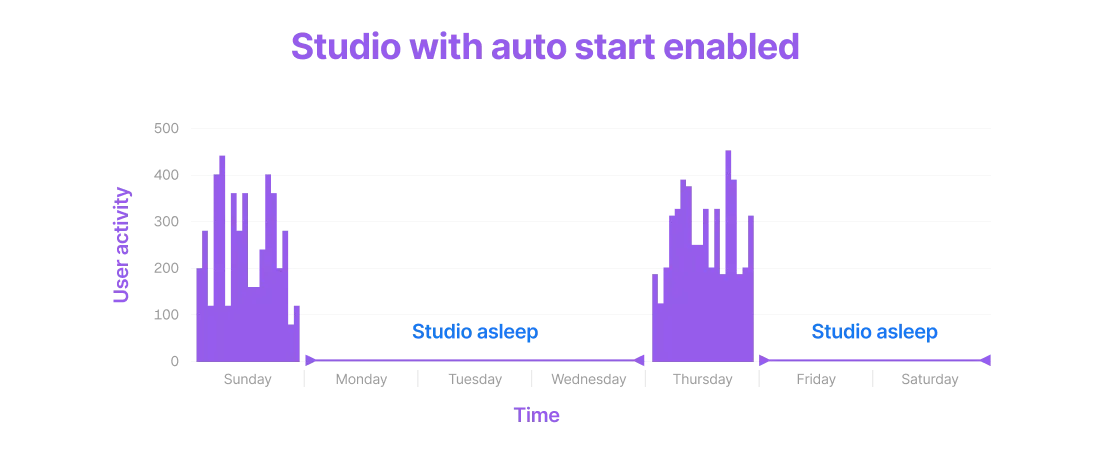
The downside to auto start is that the time between requesting a URL and seeing the app may be a few minutes (this is called the "cold-start" time). If you find that 1-2 minute delay is too slow, then consider running the app 24/7 without auto start.
Note: Lightning AI is always working toward reducing cold-start time. Every few months it gets faster and faster.
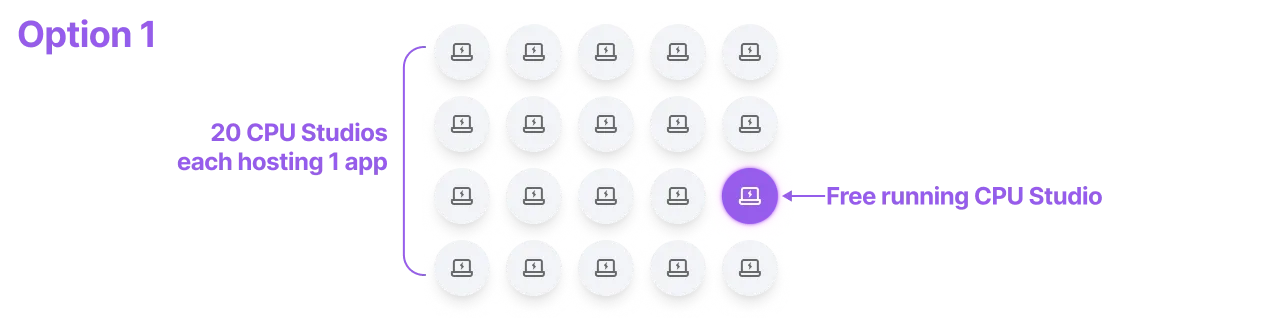
One app per Studio
Option 1 is to set up one app per CPU Studio, enable auto start and turn them all of. You are not charged for sleeping Studios. If you believe that multiple apps will not be used at once, then it's likely that only one Studio is running at any one time. In this case, that Studio will be free. This means you can have 20 different Studios, each running an app; as long as only one runs at a time, you'll always stay under your free Studio quota.
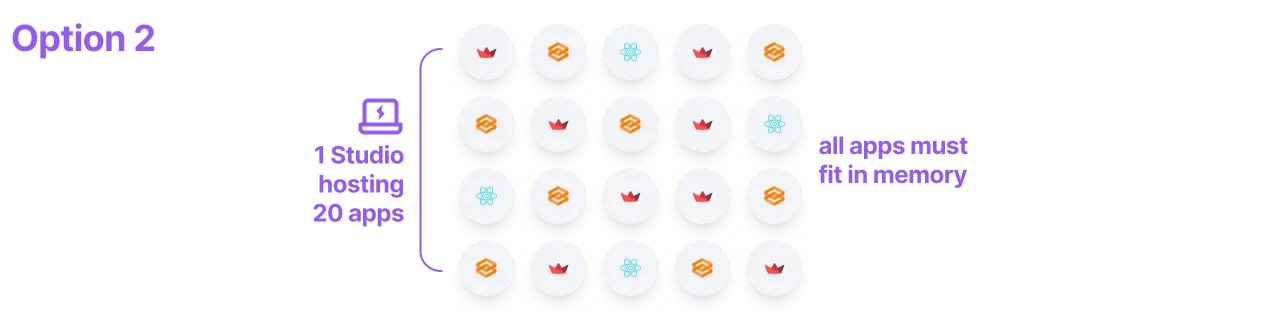
Host 2+ apps in one Studio
A second option is to run all 20 apps on a single Studio. As long as all demos fit in memory and the performance is what you want, then this guarantees that only 1 Studio is running at any one time which will keep everything free.
Studio vs Jobs
Apps can either be hosted via Studios or via Jobs. Studios allow interactive development and are great for debugging, testing or a simple app where you don't want to worry about a "production" deployment. We recommend hosting apps on Studios for students, scientists, and developers looking for quick prototypes.
For use cases where you may need a production workflow, we recommend you submit a Job that runs the app.
Was this page helpful?
Thanks for the feedback.