
Add GPUS
A Studio can switch hardware to different GPU types. To switch, simply select the type of machine you want, click "Switch" and wait until it is ready.
How to change CPUs and GPUs
Background
Why is this helpful?
AI development can get expensive quickly because models need GPU machines. Unlike traditional software engineering, this code requires a lot of tweaking and iterating to get it to work. On Studios, you can iterate and debug on a CPU Studio and get everything set up just the way you want it. Once everything is ready, change to a GPU and run your code with confidence.
This means you can spend 90% of your development time on CPUs and only use the GPU when you really need to run on expensive machines.
What is a GPU?
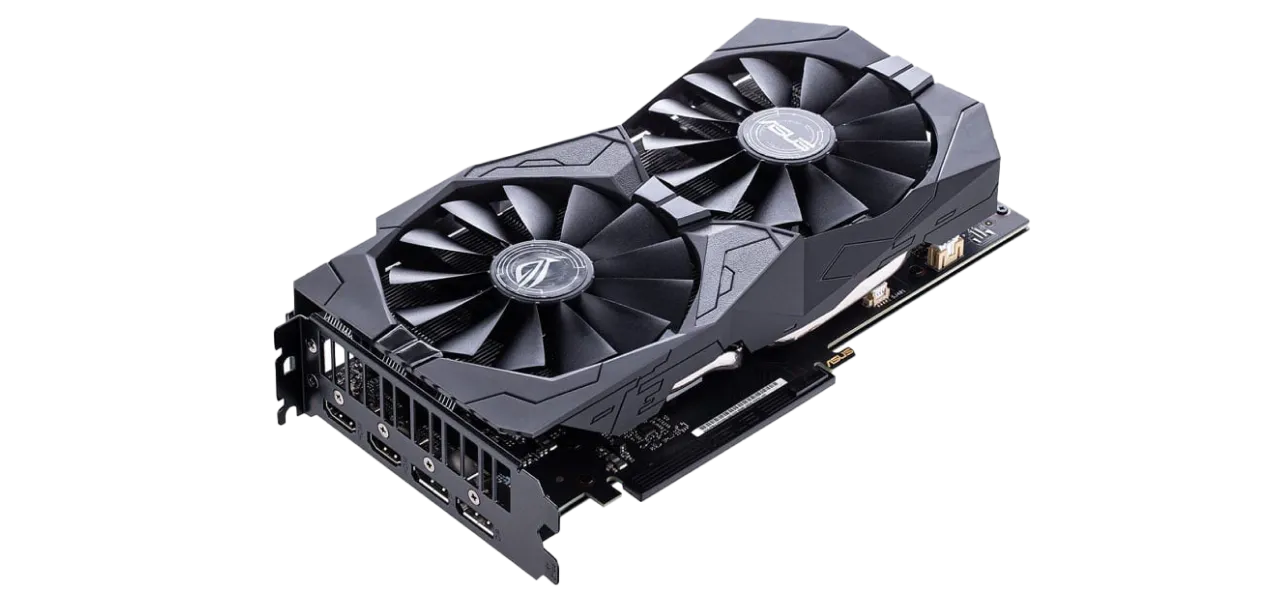
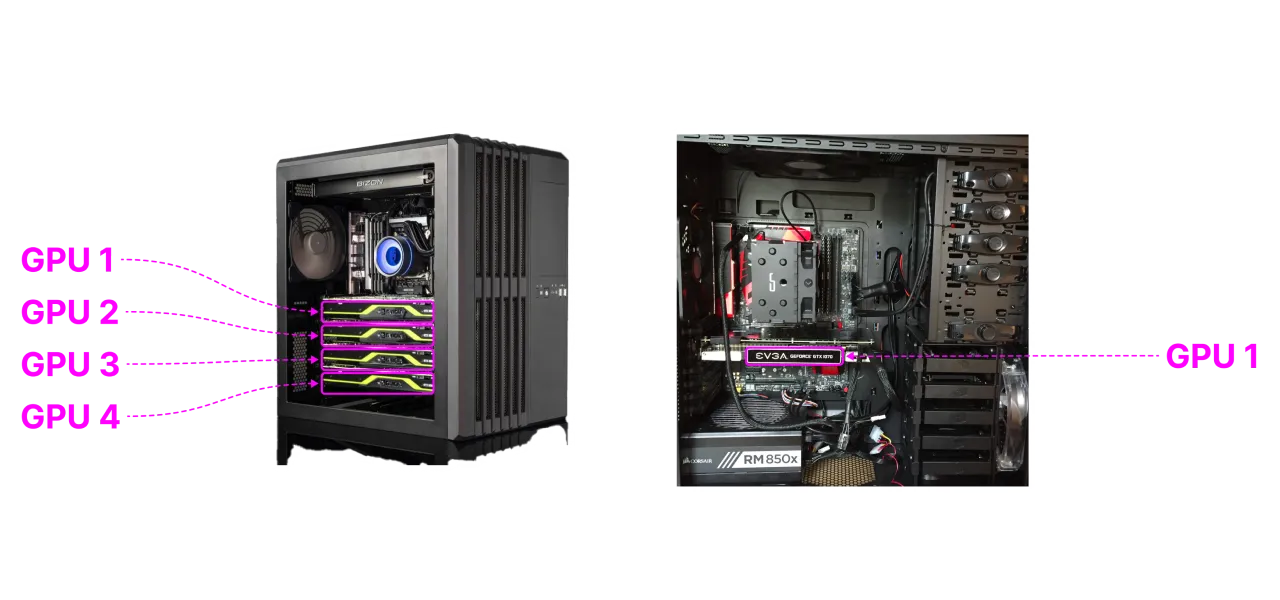
A GPU (Graphics processing unit) is a chip designed for highly parallel computation. This is what a single GPU looks like:
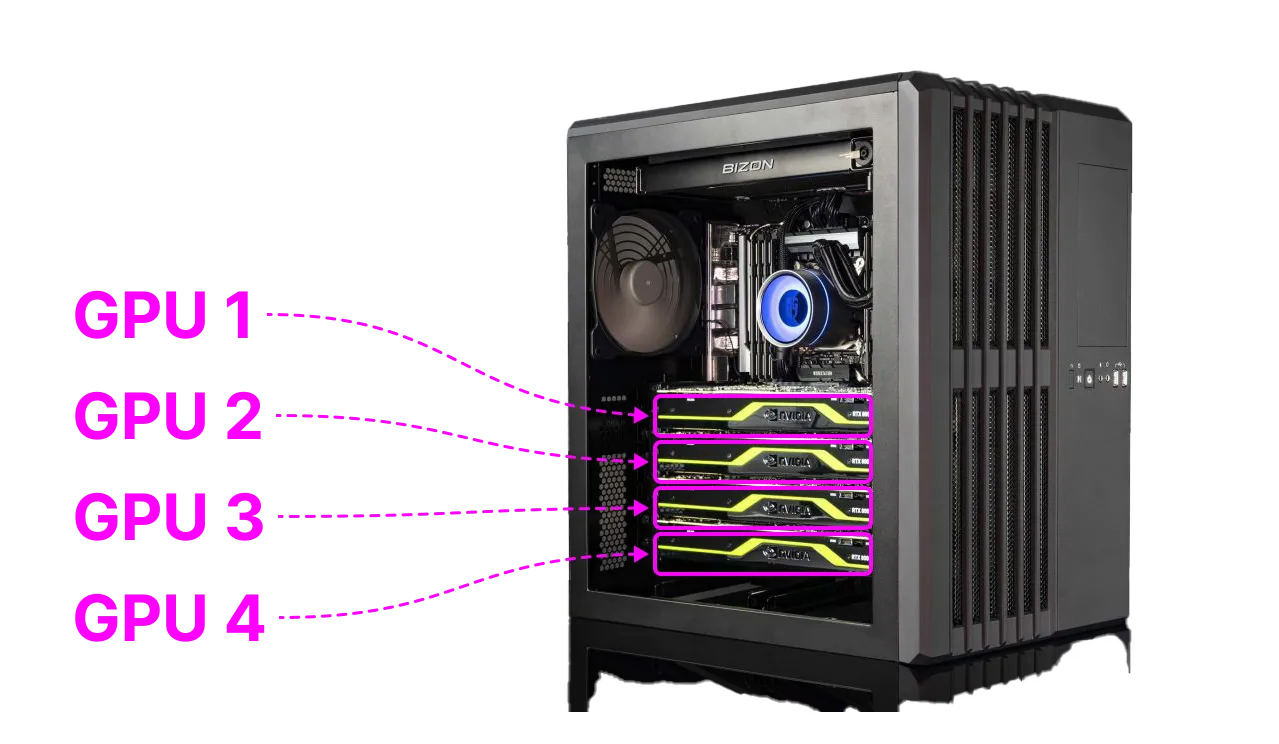
A machine can have multiple GPUs. For example, this one has 4 GPUs.
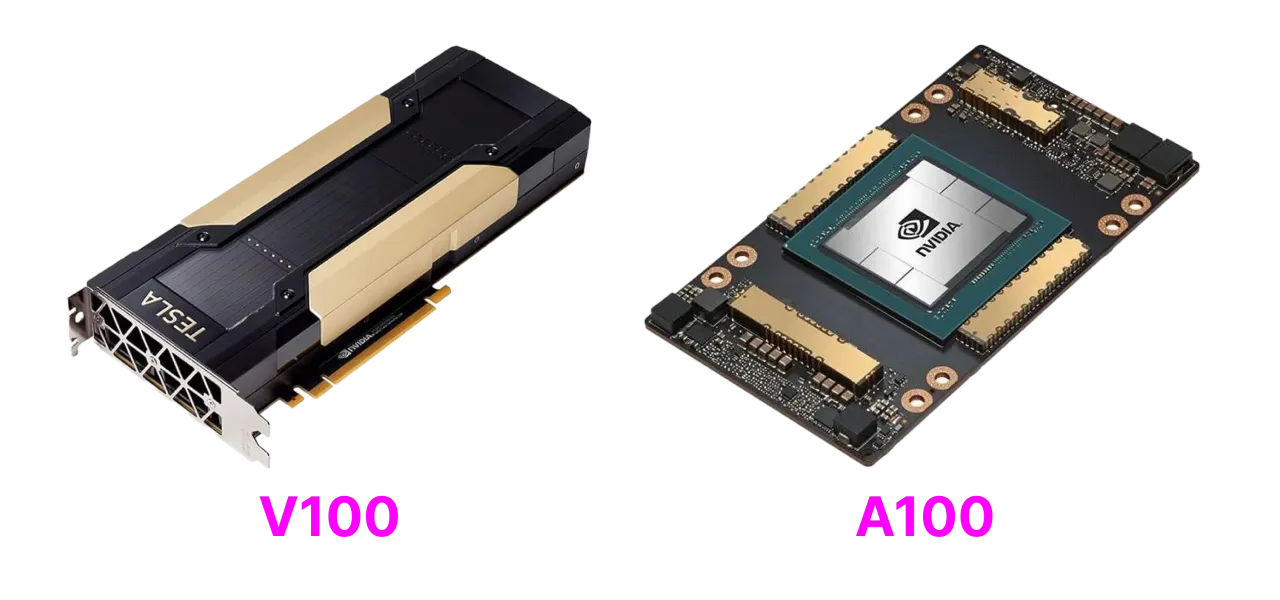
Like cars, GPUs have different models: A10G, V100, A100, etc.
CPU vs GPU
The CPU machine is great for coding. You should do most development, debugging, and iterating on a CPU Studio. Once you've gotten your model to run correctly without crashing, change to a cheap GPU to further validate. If you need more power, pick a more expensive GPU.
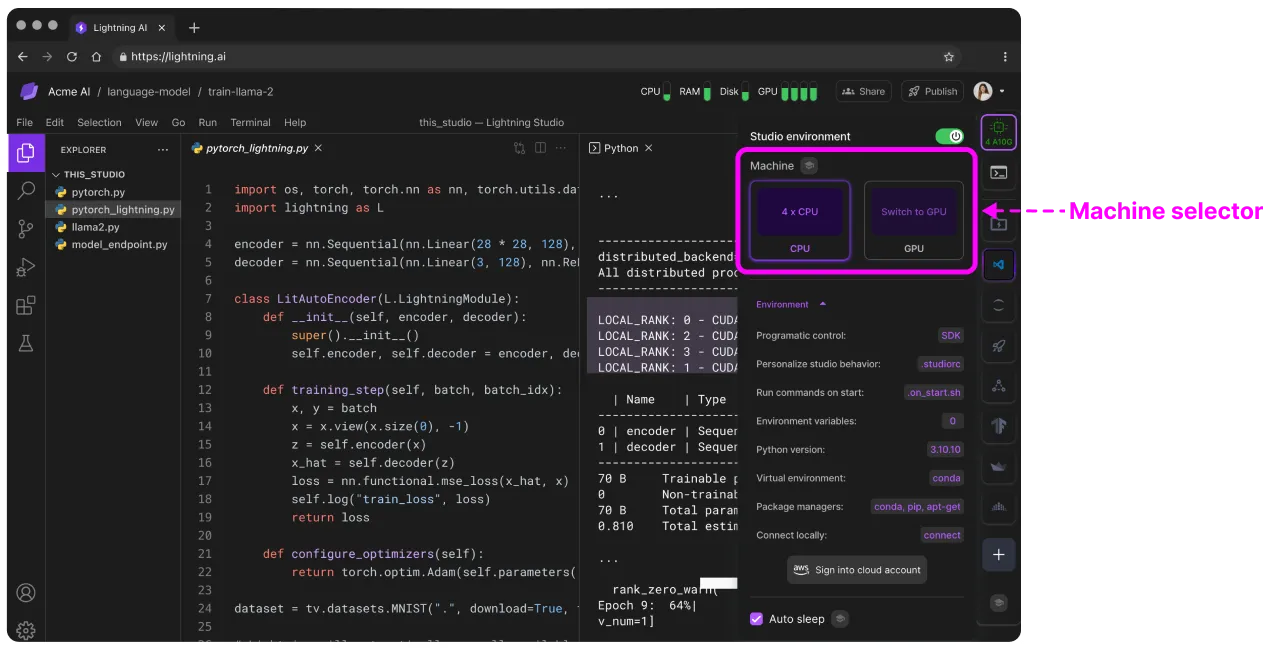
Your goal is to minimize development time on a GPU and strictly maximize running time.
Multi-GPU
Single vs multiple GPUs
Studios can have a single GPU. This is the most common use case today for AI workflows. A simple way to get dramatic model speedups is to use multiple GPUs at once. However, the engineering to do that is fairly complex and thus most people do not attempt it. If you use PyTorch Lightning with Studios, you can trivially scale to multiple GPUs without code changes. If you can run it on a CPU, you can run it on multiple GPUs on Lightning AI.
Multi-node
Lightning AI has native support for multi-node. Multi-node uses multiple machines at once. It allows processing more data quickly, which can dramatically decrease processing time. For example, if a model needs 64 hours to train on a single GPU, you can expect it to take 16 hours on 4 GPUs. If you have 2 machines that each have 4 GPUs, you can now expect it to take 8 hours. If you really need it in 1 hour, you would 8× the compute, putting you at 64 GPUs.
On Lightning AI, if you've gotten your code to run on 2 machines, you can get it to run on 1000 machines. For machine learning, use PyTorch Lightning to automatically scale multi-node without doing any code changes whatsoever.
Multi-node training example
Do I have to reinstall everything?
Studios save all your work automatically including installed packages, files, data, etc. This means you can change the Studio machine at any time without losing your work. There is no need to reinstall anything again.
Environments persist, as well as all of their dependencies (packages, files, data, etc.)
Add custom GPU types
Out of the box, the available machine and GPU types may not always fit your team's needs, making it hard to standardize infrastructure or take advantage of reserved instance pricing. This often leads to fragmented environments, higher cloud costs, and inconsistent performance across teams.
With Lightning AI’s Enterprise tier and BYOC, you can customize the instance and GPU types available to you. Choose any machine from your preferred cloud provider and manage them in Organization Settings > Cloud Accounts > Custom Machines. This allows your team to standardize infrastructure, optimize costs with reservations, and streamline collaboration - all without leaving the platform. If you need help setting this up or want to request additional instance types not visible in the web app, just reach out.
Was this page helpful?
Thanks for the feedback.