
Manage costs
This guide explores tools and processes for monitoring and controlling your organization's expenses. By focusing on credit usage tracking, detailed cost inspection, and the strategic management of credits, you'll discover how to optimize budget allocation and ensure financial efficiency within your projects.
Manage spend
This section describes tools to manage and understand credit usage in the organization.
Set a budget
Transfer credits to a teamspace to set a budget. Teamspace members will only be able to spend the amount of credits in the teamspace. The teamspace credits are shown at the top right of the teamspace page.
Navigate to a teamspace to set a budget
Track credit usage
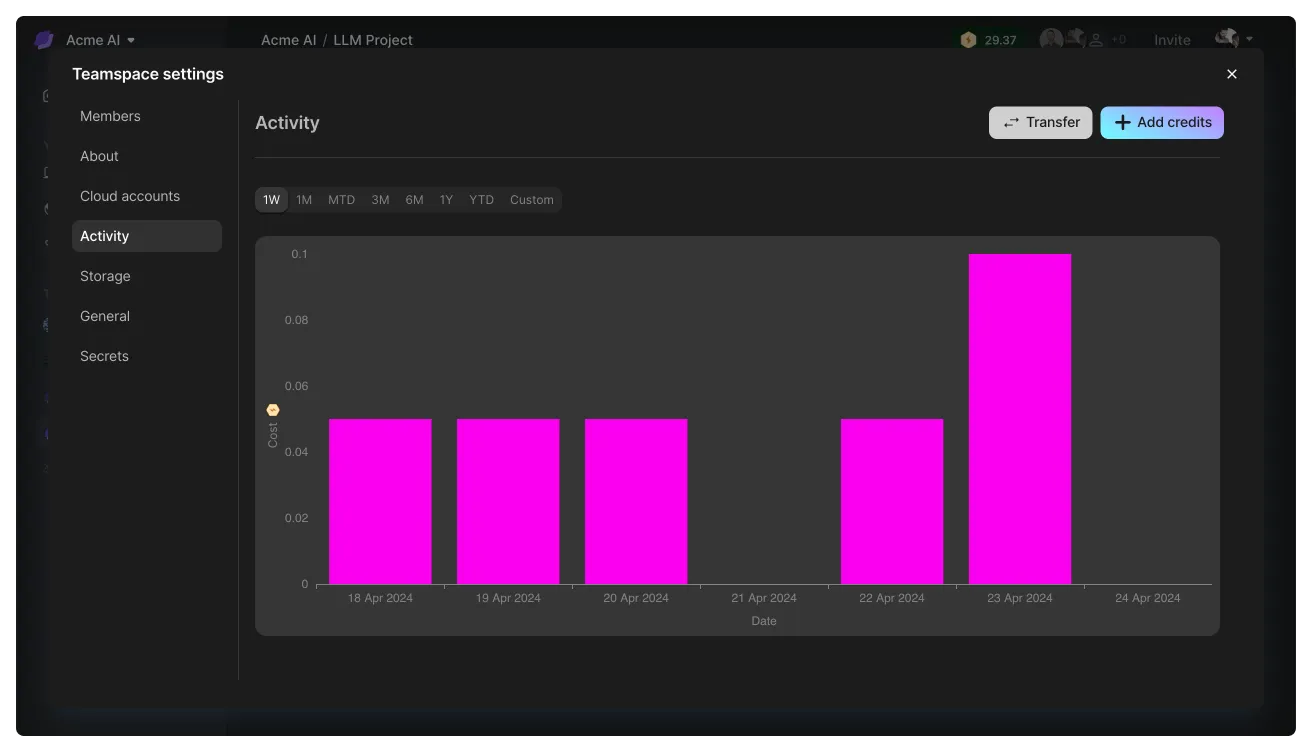
Visit Org settings > Activity to monitor organization costs. This section shows a summary of usage activities and financial transactions, including spending and obtaining credits. The initial chart provides an overview, followed by detailed transaction lists.
Monitor organization costs via the Activity tab under Org settings.
Inspect transactions
For more information on any transaction, click it in the list. This action reveals specifics such as machine types, usage duration, and more, enhancing your visibility into how resources are consumed.
Click into a specific transaction to get more information including machines used.
Manage credits
This section describes how to add and move credits in the organization.
Set credits auto-reload
Production workloads that absolutely cannot experience down-time typically require careful monitoring of the credits remaining and periodic transfers. This is manual and error-prone. On Lightning AI, you can set it and forget it by enabling auto-reload. When your credits dip below a threshold of your choosing, we'll automatically purchase more or fund the teamspace you specify to ensure that your workloads never go down.
Automatically replenish an Org credit balance from the credit card on file when it falls below a specified "Threshold".
To enable an Org credits auto-reload, navigate to Organization > Billing, and switch "Auto-reload credits" ON. You can then edit the "Reload amount" and "Threshold", or use the default values. "Auto-reload credits" setting is disabled for Organizations by default.
Organization settings for credits auto-reload.
Only organization admins can enable and edit this setting.
Add credits
Navigate to Organization > Activity and click Add credits. Follow the top up steps which will add credits to the organization. From there, transfer to the appropriate teamspaces.
Add credits to your organization.
Transfer credits
To transfer credits between organization and any teamspace select the organization as the source and the teamspace as the destination.
Transfer credits to teamspaces to manage budgets.
Was this page helpful?
Thanks for the feedback.