
Cluster validation
Cluster validation runs end-to-end tests across your fleet's nodes: GPU diagnostics, interconnect and InfiniBand performance, compute benchmarks, and, on Kubernetes fleets, real distributed training workloads. Run it before your first large job, after hardware changes, and whenever you suspect a node is underperforming. Runs are always multi-node.
Acceptance testing
You don't have to run validation before using a new fleet. Lightning AI validates every node before it's handed to you: during provisioning, each node runs the default cluster validation tests, and only nodes that pass reach the ACTIVE state.
Nodes in fleets with managed Kubernetes also run periodic GPU validation. These per-node checks confirm the GPU software stack is ready and the GPUs, NVLink, and InfiniBand work correctly. They run in order and stop at the first failure, and checks that don't apply to a node are skipped:
| Check | What it verifies | Applies to |
|---|---|---|
| GPU Operator readiness | The NVIDIA GPU Operator reports the node ready, within 15 minutes | All GPU nodes |
| NVLink fabric registration | The node's GPUs register with the multi-node NVLink fabric | Multi-node NVLink systems, such as GB300 NVL72 |
| IMEX readiness | IMEX is ready on the node | Multi-node NVLink nodes where the platform manages IMEX |
| GPU memory test | 1 GB can be allocated and written on every GPU without errors | All GPU nodes |
| NCCL all-reduce (NVLink/PCIe) | An all-reduce across the node's GPUs, from 8 B to 256 MB, succeeds | All GPU nodes |
| NCCL all-reduce over InfiniBand | The same all-reduce succeeds through the node's InfiniBand adapters | InfiniBand nodes |
| InfiniBand transport check | That all-reduce actually used InfiniBand instead of falling back to TCP | InfiniBand nodes |
The node's detail page shows its latest GPU validation result. A cluster validation run can't start on a node until its GPU validation has finished. If it hasn't, the run is rejected with 412 Precondition Failed.
What gets tested
Tests are grouped into four categories:
| Category | What it covers |
|---|---|
| Diagnostic | GPU and system health |
| NCCL | GPU-to-GPU collective communication bandwidth and latency, within and across nodes |
| Benchmark | Compute performance and real training workloads |
| InfiniBand | RDMA bandwidth and latency between nodes (Kubernetes fleets) |
Which tests are available depends on whether the fleet has managed Kubernetes. The tables below show which tests run on each kind of fleet.
Default tests
Standard fleet validation in the console, or a run that doesn't list tests in the API, runs the default set:
| Test | Category | Without Kubernetes | With Kubernetes | What it does |
|---|---|---|---|---|
cluster-health-checks |
Diagnostic | ✓ | ✓ | Lightweight system health checks on every node. |
dcgmi |
Diagnostic | ✓ | ✓ | NVIDIA DCGM diagnostics to detect GPU hardware faults. |
gpu-burn |
Diagnostic | ✓ | ✓ | Sustained compute load on every GPU to surface thermal or stability problems. |
all_reduce_perf |
NCCL | ✓ | ✓ | All-reduce bandwidth and latency across nodes. |
alltoall_perf |
NCCL | ✓ | ✓ | All-to-all bandwidth and latency across nodes. |
hpl |
Benchmark | ✓ | ✓ | High Performance Linpack, to measure GPU compute throughput. |
ib_write_bw |
InfiniBand | — | ✓ | InfiniBand RDMA write bandwidth between nodes. |
megatron |
Benchmark | — | ✓ | A Megatron-LM GPT training workload, to validate distributed training behavior and throughput. |
torchtitan |
Benchmark | — | ✓ | A TorchTitan training workload, to validate distributed training behavior and throughput. |
Optional tests
Choose these with Customize tests in the console, or list them in tests in the API:
| Test | Category | Without Kubernetes | With Kubernetes | What it does |
|---|---|---|---|---|
all_gather_perf |
NCCL | ✓ | ✓ | All-gather bandwidth and latency. |
gather_perf |
NCCL | ✓ | ✓ | Gather bandwidth and latency. |
broadcast_perf |
NCCL | ✓ | ✓ | Broadcast bandwidth and latency. |
reduce_perf |
NCCL | ✓ | ✓ | Reduce bandwidth and latency. |
reduce_scatter_perf |
NCCL | ✓ | ✓ | Reduce-scatter bandwidth and latency. |
sendrecv_perf |
NCCL | ✓ | ✓ | Point-to-point send and receive bandwidth and latency. |
scatter_perf |
NCCL | ✓ | ✓ | Scatter bandwidth and latency. |
hypercube_perf |
NCCL | ✓ | ✓ | All-reduce performance across a hypercube communication pattern. |
ib_write_lat |
InfiniBand | — | ✓ | InfiniBand RDMA write latency. |
ib_read_bw |
InfiniBand | — | ✓ | InfiniBand RDMA read bandwidth. |
ib_read_lat |
InfiniBand | — | ✓ | InfiniBand RDMA read latency. |
ib_send_bw |
InfiniBand | — | ✓ | InfiniBand send bandwidth. |
ib_send_lat |
InfiniBand | — | ✓ | InfiniBand send latency. |
ib_atomic_bw |
InfiniBand | — | ✓ | InfiniBand atomic operation bandwidth. |
ib_atomic_lat |
InfiniBand | — | ✓ | InfiniBand atomic operation latency. |
The live list is authoritative
The available tests can change. The console's Customize tests list and the test catalog endpoint always show the current tests for your fleet.
How long a run takes
Run time depends on the tests and the number of nodes. NCCL tests finish in minutes, while DCGM diagnostics, Linpack, and the InfiniBand tests can each take up to an hour. On Kubernetes fleets, the training workloads can add up to two hours. Plan for a full default run to take anywhere from a few minutes to a few hours.
1. See which tests are available
The catalog returns the tests available for your fleet, grouped by category. See What gets tested.
curl "$API_URL/v1/fleets/$FLEET_ID/cluster-validation/tests" -H "Authorization: Bearer $TOKEN"2. Start a run
Run validation on idle nodes
The tests need each node's GPUs, CPU, and memory to be free. Tests on nodes that are running workloads can fail.
With no options, a run tests every node with the default set of tests.
| Option | Description |
|---|---|
nodeNames |
Test only these nodes. |
tests |
Run only these tests, using names from the catalog above. |
kubernetes |
Include Kubernetes-aware tests. Requires a managed Kubernetes fleet. |
Console
Open the fleet and select the Validations tab.
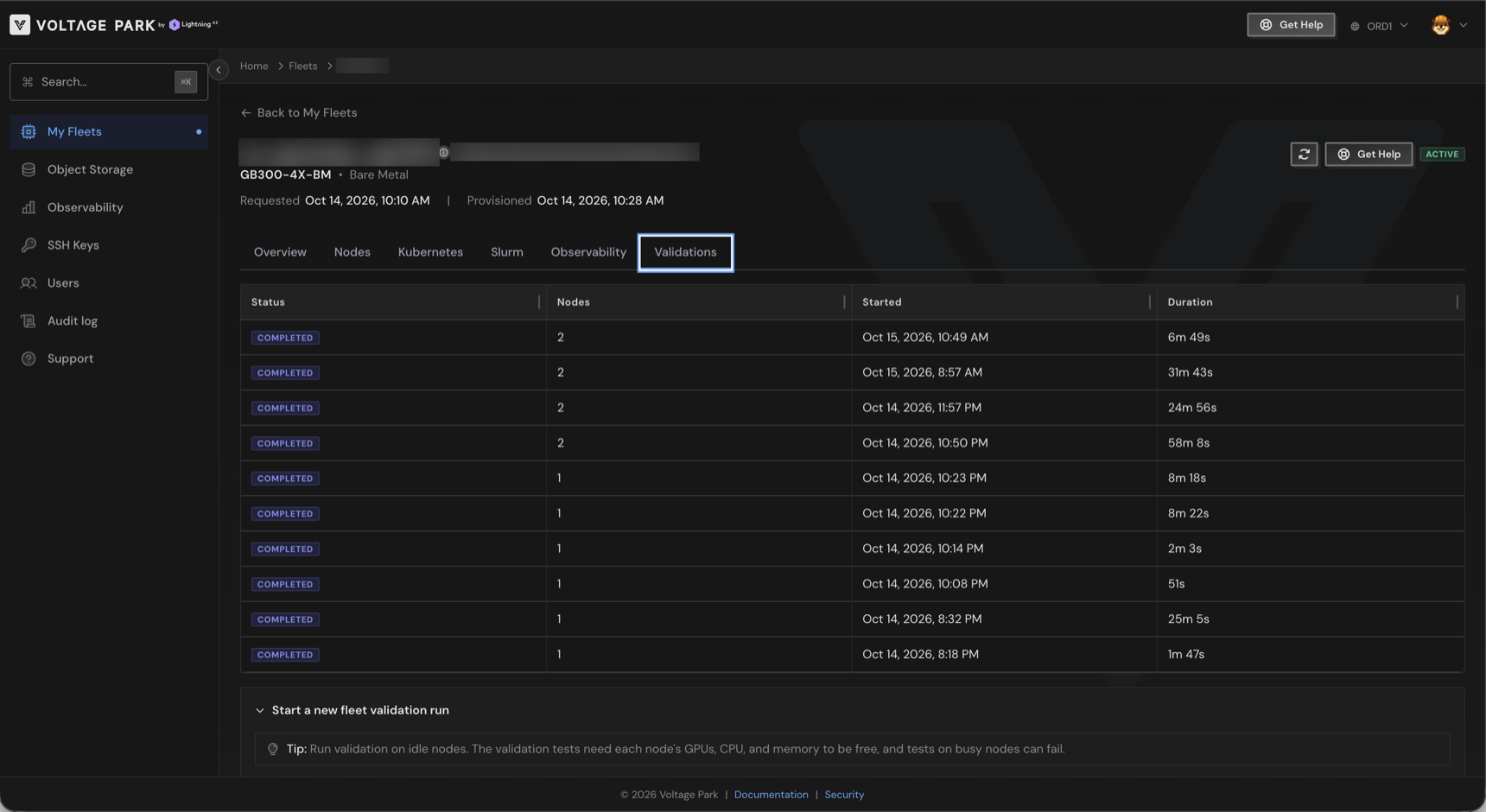
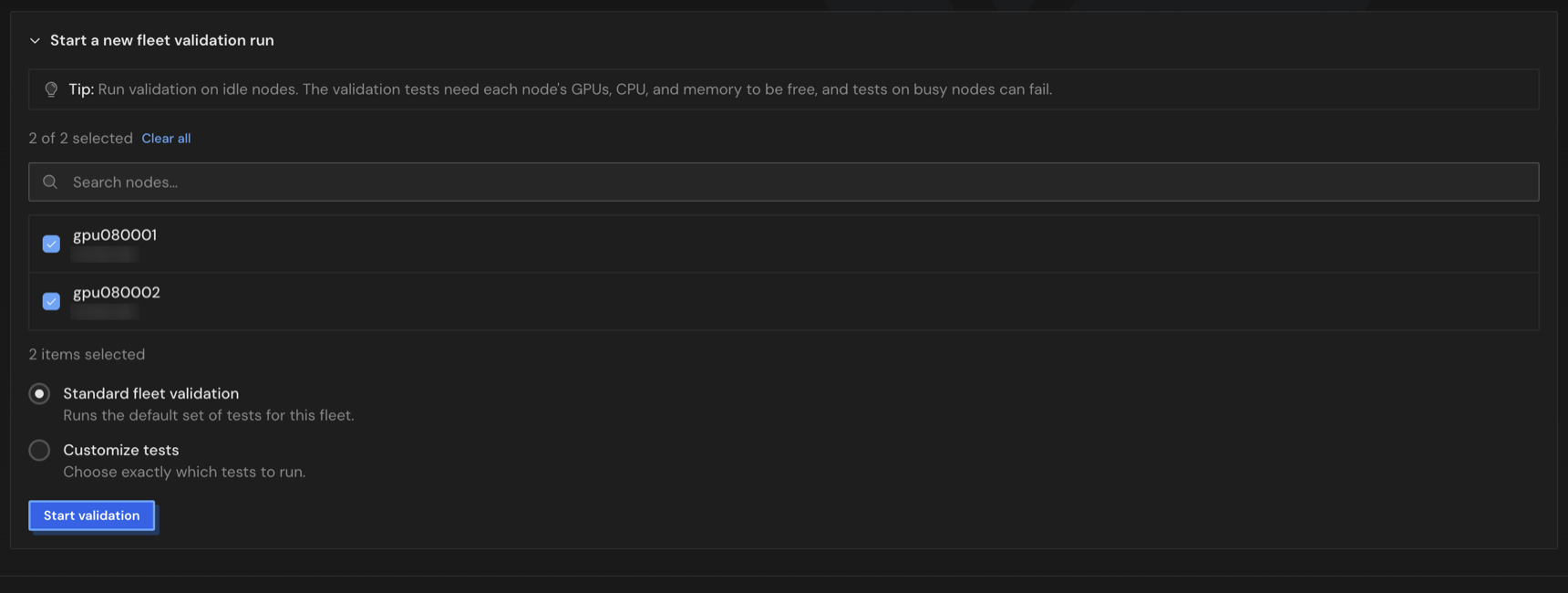
Below the list of runs, expand Start a new fleet validation run, then:
- Select the nodes to test. All nodes are selected by default. Use the search box to find nodes, or Clear all to start from none.
- Choose the tests:
- Standard fleet validation runs the default set of tests for the fleet.
- Customize tests lets you choose exactly which tests to run.
- Select Start validation.
API
curl -X POST "$API_URL/v1/fleets/$FLEET_ID/cluster-validation" \
  -H "Authorization: Bearer $TOKEN" \
  -H "Content-Type: application/json" \
  -H "Idempotency-Key: $(uuidgen)" \
  -d '{"nodeNames": ["g1234", "g1235"], "kubernetes": true}'
Returns 202 Accepted with an integer validationId.
| Error | Meaning |
|---|---|
409 |
A validation run is already in progress on this fleet. |
412 |
GPU validation has not finished on one or more target nodes. The message names them. Wait for it to finish, or contact support. |
400 |
The fleet doesn't support cluster validation, or the request is invalid. |
3. Follow the run and read results
Console
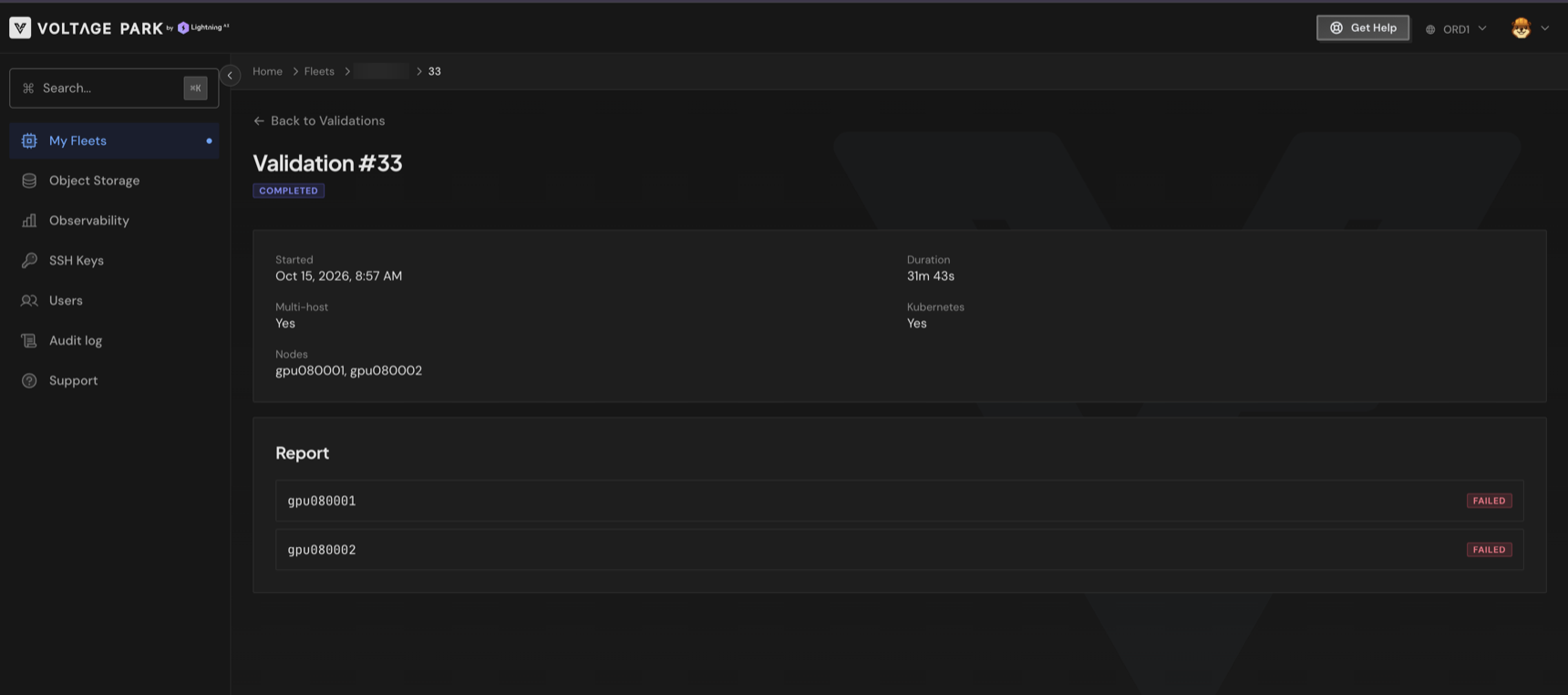
Select a run on the fleet's Validations tab. The run page shows when it started, how long it took, whether it was multi-host and Kubernetes-aware, and which nodes it covered. The Report lists the result for each node.
API
# The 10 most recent runs, newest first
curl "$API_URL/v1/fleets/$FLEET_ID/cluster-validation" -H "Authorization: Bearer $TOKEN"

# Run state, nodes included, and timestamps
curl "$API_URL/v1/fleets/$FLEET_ID/cluster-validation/$VALIDATION_ID/details" -H "Authorization: Bearer $TOKEN"

# Pass/fail per node, with a summary for each result
curl "$API_URL/v1/fleets/$FLEET_ID/cluster-validation/$VALIDATION_ID/report" -H "Authorization: Bearer $TOKEN"
Poll the details until the run reaches a final state, then read the report. The run's state and the node results are separate: a run can be COMPLETED while some or all of its nodes failed their tests. Always check the per-node results. If a test couldn't run, its result has a generic message instead of a summary.
Was this page helpful?
Thanks for the feedback.