---
title: Storage views
description: >-
A storage view is a high-performance shared file system mount attached to a
fleet and available on its nodes. Each view has a mount point (for example
/data), a provisioned size, and quotas.
canonical: 'https://lightning.ai/docs/platform/cluster/storage-views'
---
# Storage views {#storage-views}
A storage view is a high-performance shared file system mount attached to a fleet and available on its nodes. Each view has a **mount point** (for example `/data`), a provisioned **size**, and quotas.
## Sizes and quotas {#sizes-and-quotas}
All sizes are **bytes** and must be a positive multiple of **1 MiB** (1,048,576 bytes).
| Field | Meaning |
|-------|---------|
| `size` | Provisioned size. This is the same as the hard quota. |
| `hardLimit` | Hard quota. Writes fail beyond this. It's an alias for `size`: if you send both, they must be equal. |
| `softLimit` | Soft quota. Must be less than or equal to the hard quota. If you only send `size` or `hardLimit`, the soft quota is set to 90% of it. |
Common sizes:
| Size | Bytes |
|------|-------|
| 500 GiB | `536870912000` |
| 1 TiB | `1099511627776` |
| 10 TiB | `10995116277760` |
## View states {#view-states}
| `state` | Meaning |
|---------|---------|
| `provisioning` | The view is being created. |
| `modifying` | A size or quota change is being applied. |
| `active` | Ready to use. |
| `terminating` | The view is being deleted. |
| `unhealthy` | Something went wrong. Stop polling and contact [support](/docs/platform/cluster/support.md). |
Adding and updating views are asynchronous: poll the view until `state` is `active`, or stop if it becomes `unhealthy`.
## List storage views {#list-storage-views}
**Console**
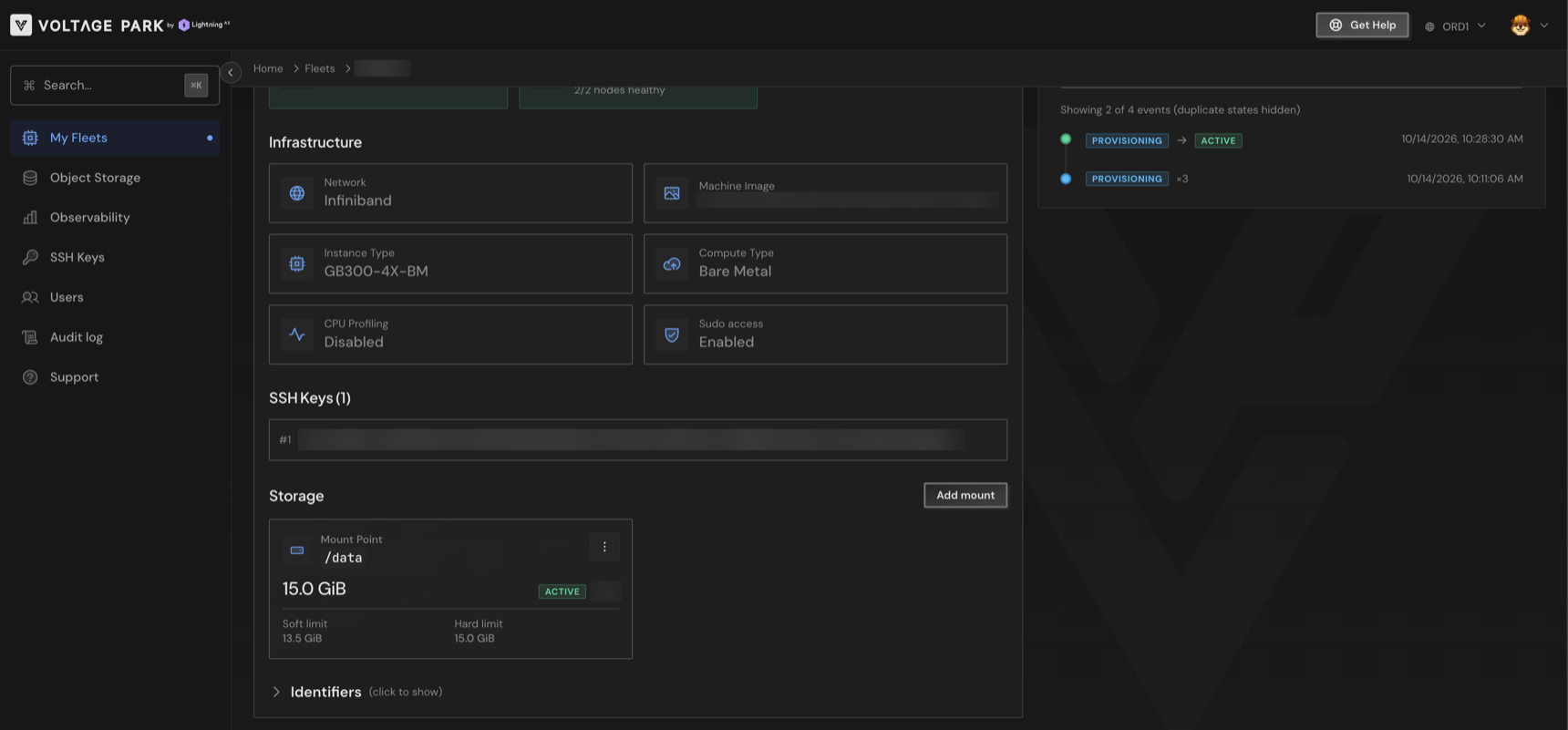
Open the fleet in **My Fleets** and scroll to the **Storage** section of the **Overview** tab. Each mount shows its mount point, provisioned size, state, and soft and hard limits.
 **API**
```bash
curl "$API_URL/v1/fleets/$FLEET_ID/storage/views" -H "Authorization: Bearer $TOKEN"
```
```json
{
"items": [
{
"mountPoint": "/data",
"size": 1099511627776,
"hardLimit": 1099511627776,
"softLimit": 989560464998,
"state": "active"
}
],
"storagePending": false
}
```
If the fleet's storage hasn't been created yet, `items` is empty and `storagePending` is `true`.
## Add a storage view {#add-a-storage-view}
The mount point is a single path segment under `/` made of letters, digits, `_`, and `-`, up to 128 characters. It can't be changed after creation.
**Console**
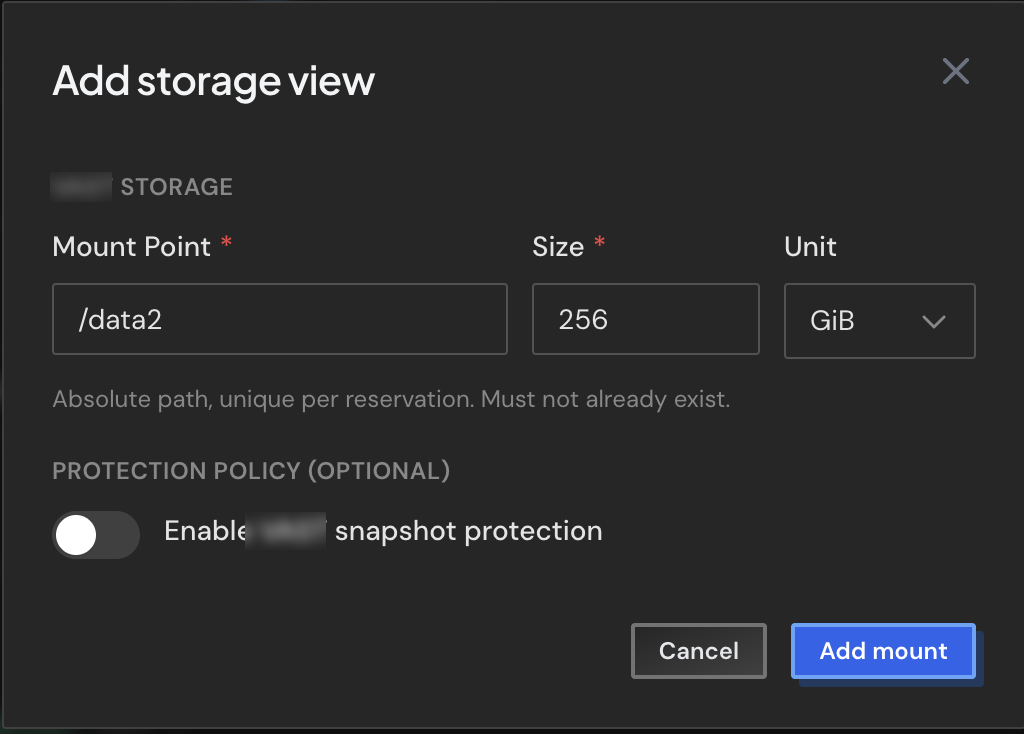
In the fleet's **Storage** section, select **Add mount**. In the **Add storage view** dialog:
1. Enter the **Mount Point**, for example `/data2`. It must not already exist on the fleet.
2. Enter the **Size** and choose a **Unit**, for example 256 GiB.
3. Optionally, turn on snapshot protection.
4. Select **Add mount**.
 **API**
```bash
curl -X POST "$API_URL/v1/fleets/$FLEET_ID/storage/views" \
-H "Authorization: Bearer $TOKEN" \
-H "Content-Type: application/json" \
-H "Idempotency-Key: $(uuidgen)" \
-d '{
"mountPoint": "/data",
"size": 536870912000,
"softLimit": 429496729600
}'
```
Returns `202 Accepted` with the new view in state `provisioning`.
## Get a storage view {#get-a-storage-view}
In the URL path, use the mount point **without** the leading slash: `/data` becomes `data`.
```bash
curl "$API_URL/v1/fleets/$FLEET_ID/storage/views/data" -H "Authorization: Bearer $TOKEN"
```
## Resize a view or change quotas {#resize-a-view-or-change-quotas}
**Console**
In the fleet's **Storage** section, open the mount's **⋮** menu and choose to expand it, then enter the new size.
**API**
```bash
curl -X PATCH "$API_URL/v1/fleets/$FLEET_ID/storage/views/data" \
-H "Authorization: Bearer $TOKEN" \
-H "Content-Type: application/json" \
-d '{"size": 1099511627776, "softLimit": 858993459200}'
```
Returns `202 Accepted`, and the view enters state `modifying`. Sending only `size` resets the soft quota to 90%.
## Resize all views at once {#resize-all-views-at-once}
`POST /storage/modify` sets the size of **every** view on the fleet in one request. List **every** existing mount point: requests with missing or extra mount points are rejected. The fleet stays available during the resize.
```bash
curl -X POST "$API_URL/v1/fleets/$FLEET_ID/storage/modify" \
-H "Authorization: Bearer $TOKEN" \
-H "Content-Type: application/json" \
-H "Idempotency-Key: $(uuidgen)" \
-d '{
"storageViews": [
{ "mountPoint": "/data", "size": 10995116277760 },
{ "mountPoint": "/scratch", "size": 1099511627776 }
]
}'
```
```json
{
"fleetId": "f81d4fae-7dec-11d0-a765-00a0c91e6bf6",
"status": "success",
"message": "Storage modification request submitted successfully"
}
```
To change one view, use [`PATCH`](#resize-a-view-or-change-quotas) instead.
## Delete a storage view {#delete-a-storage-view}
> **This destroys data**
>
> Deleting a view deprovisions the underlying storage. **All data on the mount point is permanently deleted**, and the mount disappears from fleet nodes. This can't be undone.
```bash
curl -X DELETE "$API_URL/v1/fleets/$FLEET_ID/storage/views/data" -H "Authorization: Bearer $TOKEN"
```
Returns `204 No Content`. In the console, delete a mount from its **⋮** menu in the fleet's **Storage** section.
---
**Navigation**
- Parent: [Cluster](/docs/platform/cluster.md)