---
title: Quickstart
description: >-
In about five minutes you will log in, find your fleet, register an SSH key,
and connect to a GPU node.
canonical: 'https://lightning.ai/docs/platform/cluster/get-started/quickstart'
---
# Quickstart {#quickstart}
In about five minutes you will log in, find your fleet, register an SSH key, and connect to a GPU node.
## Before you begin {#before-you-begin}
You need:
- **A provisioned fleet.**
- **An Administrator User Principal.** Lightning AI delivers it to your organization through an encrypted channel. If you haven't received it, contact [Lightning AI support](/docs/platform/cluster/support.md). With the Administrator principal you can create User Principals for the rest of your team in the console, up to 50 per organization, and choose each person's role. This is available in ORD1 first, and other regions will follow. See [Managing users](/docs/platform/cluster/access/roles-permissions.md#managing-users).
- SSH key pair on your workstation (for example `~/.ssh/id_ed25519.pub`).
## 1. Get an API token {#1-get-an-api-token}
You need a token to call the API, including to apply your SSH key to a running fleet in step 3. To get one, install the Lightning Cloud CLI and sign in to get a token. The CLI is in pre-release; if you can't use it, [contact support](/docs/platform/cluster/support.md) for API access. The CLI opens a browser window to complete the sign-in. Install commands for every platform are on the [CLI](/docs/platform/cluster/access/cli.md) page.
```bash
# macOS (Apple Silicon)
curl -fsSL https://github.com/voltagepark/harbor-cli/releases/latest/download/harbor-darwin-arm64 -o harbor \
&& sudo install -m 755 harbor /usr/local/bin/harbor && rm harbor
harbor auth login # logs into sea1 by default; add --region iad1 for another region
harbor auth status # shows who you are, your organization, and token expiry
```
Set two variables that the rest of the documentation uses:
```bash
export API_URL=https://api.sea1.voltagepark.com # the region you logged into
export TOKEN=$(harbor auth token --region sea1) # the same region as API_URL
```
## 2. Find your fleet {#2-find-your-fleet}
**Console**
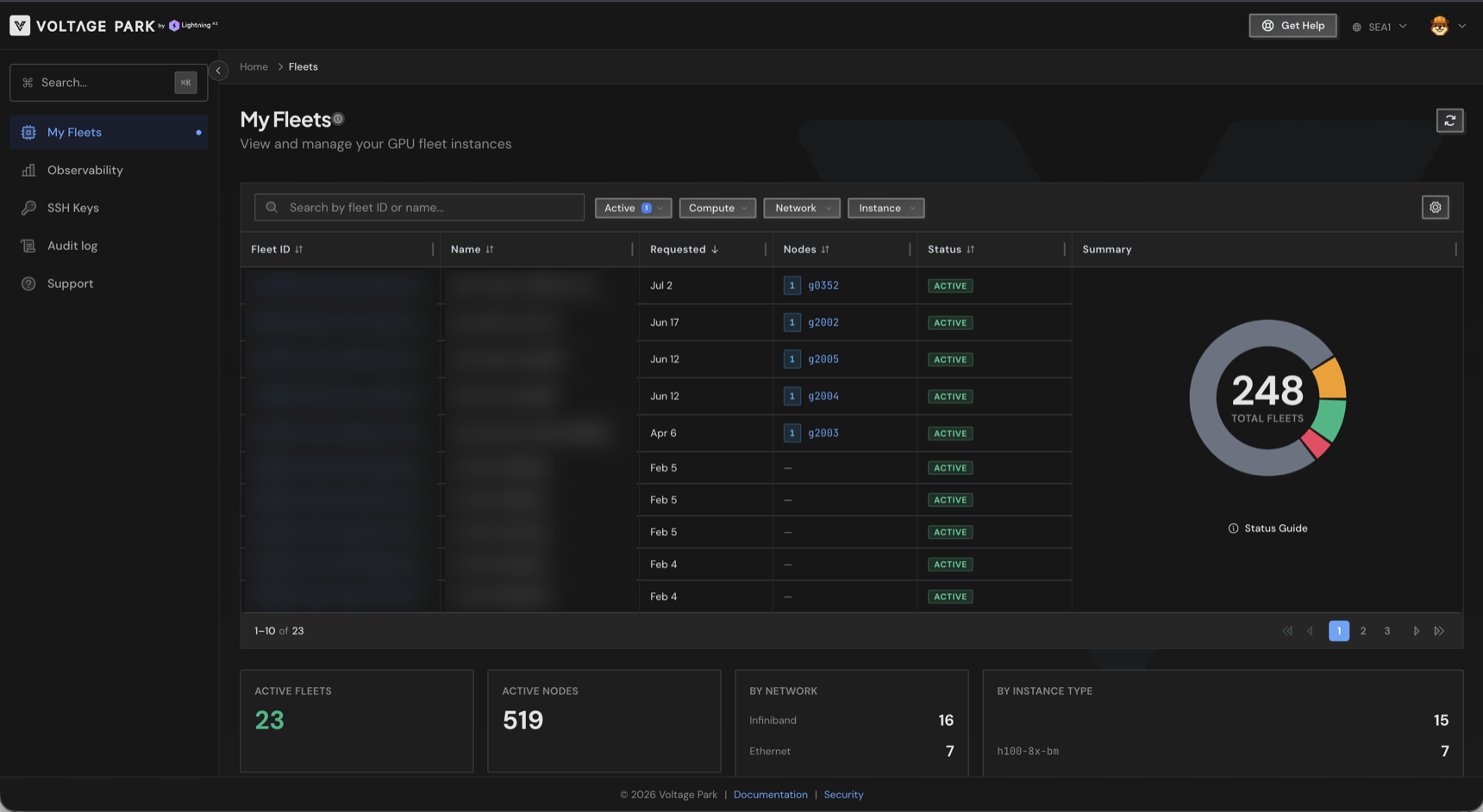
Open [cloud.voltagepark.com](https://cloud.voltagepark.com/) and select **My Fleets**. Select a fleet to see its overview, nodes, and monitoring.
 **API**
```bash
curl "$API_URL/v1/fleets" -H "Authorization: Bearer $TOKEN"
```
```json
{
"fleets": [
{
"fleetId": "f81d4fae-7dec-11d0-a765-00a0c91e6bf6",
"name": "text-to-video-demo",
"status": "ACTIVE",
"computeType": "BARE_METAL",
"requestedAt": 1755817319000,
"provisionedAt": 1755831319000,
"createdAt": 1755817319000,
"updatedAt": 1755831319000
}
],
"limit": null,
"nextToken": null
}
```
Save the fleet ID:
```bash
export FLEET_ID=f81d4fae-7dec-11d0-a765-00a0c91e6bf6
```
## 3. Register your SSH key and apply it to the fleet {#3-register-your-ssh-key-and-apply-it-to-the-fleet}
> **Note**
>
> Managing SSH keys requires the [Administrator role](/docs/platform/cluster/access/roles-permissions.md). If you don't have permissions, ask an Administrator to register and apply your key, then skip to step 4.
Register the key against the Linux username you want on the nodes, then apply it to your fleet so its running nodes accept it.
**Console**
Select **SSH Keys** in the console, then select **Add User**. Enter the username and paste your public key.
**API**
```bash
curl -X POST "$API_URL/v1/sshkeys" \
-H "Authorization: Bearer $TOKEN" \
-H "Content-Type: application/json" \
-H "Idempotency-Key: $(uuidgen)" \
-d "{\"username\": \"jdoe\", \"publicKey\": \"$(cat ~/.ssh/id_ed25519.pub)\", \"description\": \"Work laptop\"}"
```
Then apply the key to your running fleet. This step uses the API, so you need the token from [step 1](#1-get-an-api-token) and `FLEET_ID` from step 2. Use the `sshKeyId` from the registration response. If you registered in the console, [list your keys](/docs/platform/cluster/access/ssh-keys.md#list-keys) to find it:
```bash
curl -X POST "$API_URL/v1/fleets/$FLEET_ID/sshkeys" \
-H "Authorization: Bearer $TOKEN" \
-H "Content-Type: application/json" \
-H "Idempotency-Key: $(uuidgen)" \
-d '{"sshKeyId": ""}'
```
Keys are written to nodes asynchronously. See [SSH keys](/docs/platform/cluster/access/ssh-keys.md) for details.
## 4. Connect to a node {#4-connect-to-a-node}
List the nodes in the fleet and pick one in the `ACTIVE` state:
**Console**
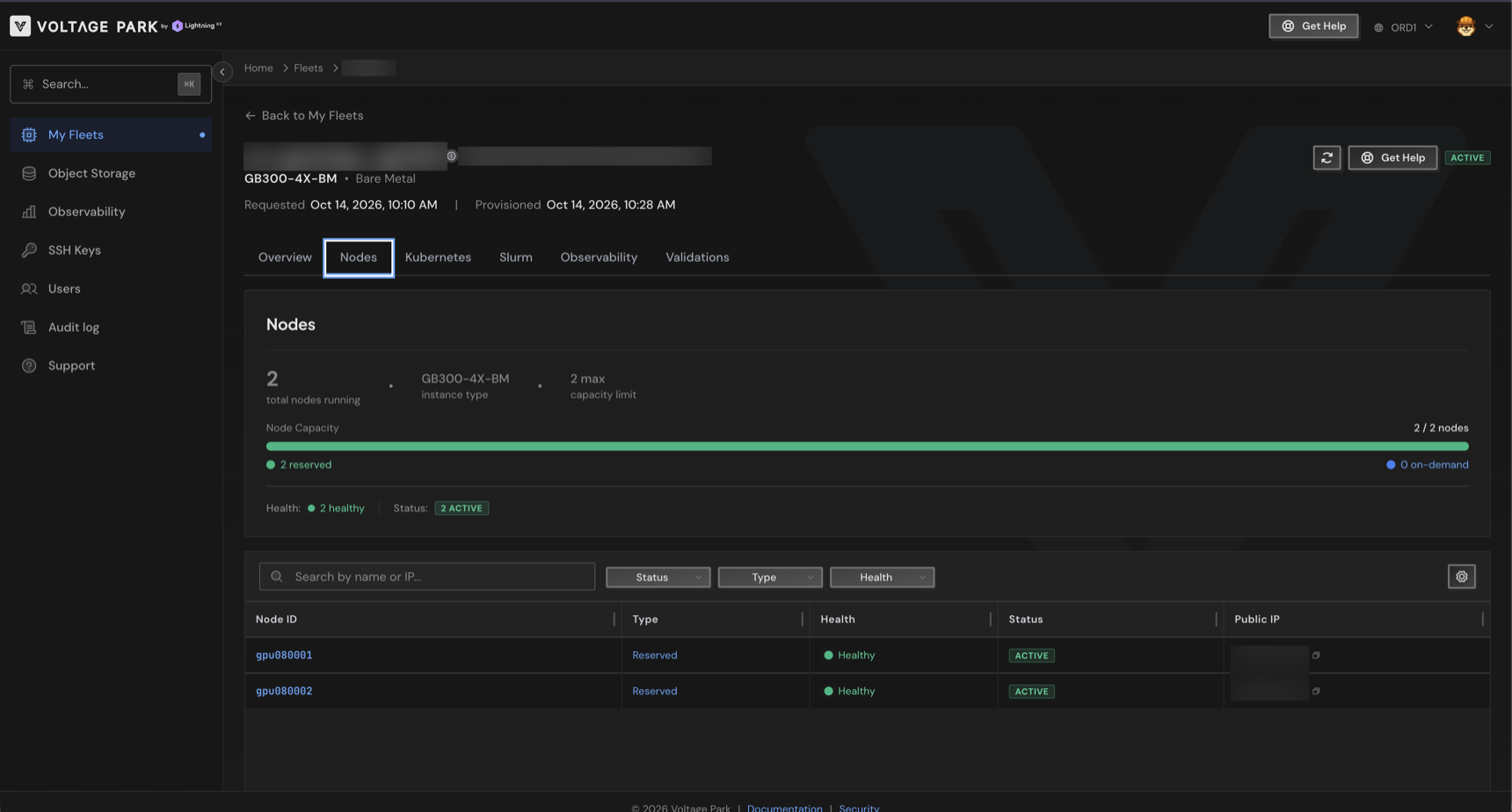
Open your fleet and select the **Nodes** tab. Each node shows its state and public IP.
 **API**
```bash
curl "$API_URL/v1/fleets/$FLEET_ID/nodes" -H "Authorization: Bearer $TOKEN" \
| jq '.nodes[] | {nodeName, state, publicIp}'
```
Then connect with the username you registered:
```bash
ssh jdoe@
nvidia-smi
```
## 5. Fleet's Health {#5-fleet-s-health}
To check the fleet's health, run the following command:
```bash
curl "$API_URL/v1/fleets/$FLEET_ID/health" -H "Authorization: Bearer $TOKEN" | jq '.status'
```
In the console, the fleet overview shows the same status. `unhealthy` means at least one node reported a problem. `healthy` means no node did, but check `node_health` for each node's status before assuming every node is ready. See [Fleet health](/docs/platform/cluster/monitoring/fleet-health.md).
## Next steps {#next-steps}
- [Core concepts](/docs/platform/cluster/get-started/core-concepts.md): how organizations, fleets, and nodes fit together.
- [Managed Kubernetes](/docs/platform/cluster/managed-kubernetes.md): connect `kubectl` to a Kubernetes-backed fleet.
- [Cluster validation](/docs/platform/cluster/monitoring/cluster-validation.md): run end-to-end GPU and network tests before your first job.
- [Storage views](/docs/platform/cluster/storage-views.md): add or resize shared storage.
- [API conventions](/docs/platform/cluster/reference/api-conventions.md): pagination, idempotency, and timestamps.
---
**Navigation**
- Parent: [Get started](/docs/platform/cluster/get-started.md)